2011年7月28日星期四

How to Put DVD/Video on iPod, PSP, Computer, Zune, Xbox (Mac/Windows)

Many Mac users have iPod, PSP and other portable devices, but they can only enjoy songs and videos from iTunes or buy them from internet, because there is seldom nice Mac DVD and Video covnerter for iPod, PSP and other devices. Today I will introduce you an excellent DVD/Video converter for Mac: Aiseesoft DVD Converter for Mac It allows you to put your own DVDs and you own videos on your iPod, PSP, Mac Computer and other players on Mac.

This article aims to show you how to put your DVDs and videos on your iPod, PSP, Computer, Zune, Xbox and other players for Mac users.

Part 1. Convert DVD for Mac with Aiseesoft DVD Ripper for Mac

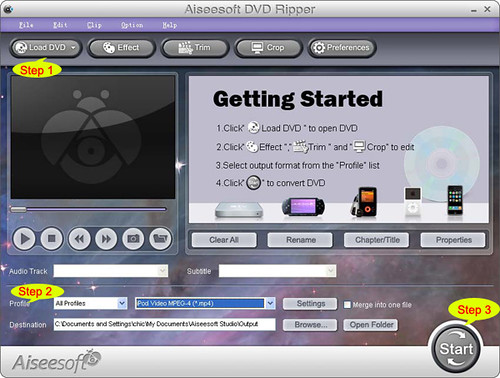
Step 1. Load DVD
Insert DVD into your DVD-ROM, run DVD Ripper for Mac, click “Load DVD”, find the DVD folder of the movie you want to add from your DVD-ROM, and Click “Open”.
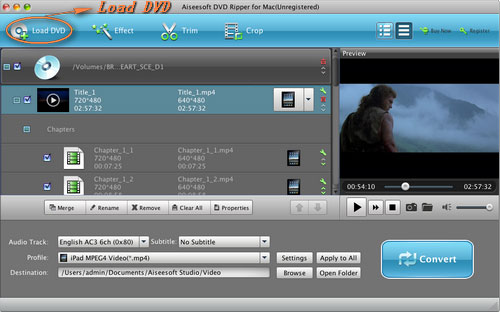

Step 2. Set output format.
This best DVD ripper for Mac provides you output formats as many as you want. Just choose one from the drop down list “profile” according to your portable player.

If you are very professional with your player, you can also set your output parameter values such as Resolution, Frame Rate, Bitrate and Sample Rate and so on.


Tips:
1. Trim:

If you want to rip only a part of the DVD movie, please click “Trim” button and drag the “Start trim slider” to set the start time and “End trim slider” to set the end time. (a). You can also do that by clicking the “Start trim button” and “End trim button”(b). The third way you do that is set the exact Start/End time at the right of the pop-up window and click “OK”.


2. Crop:
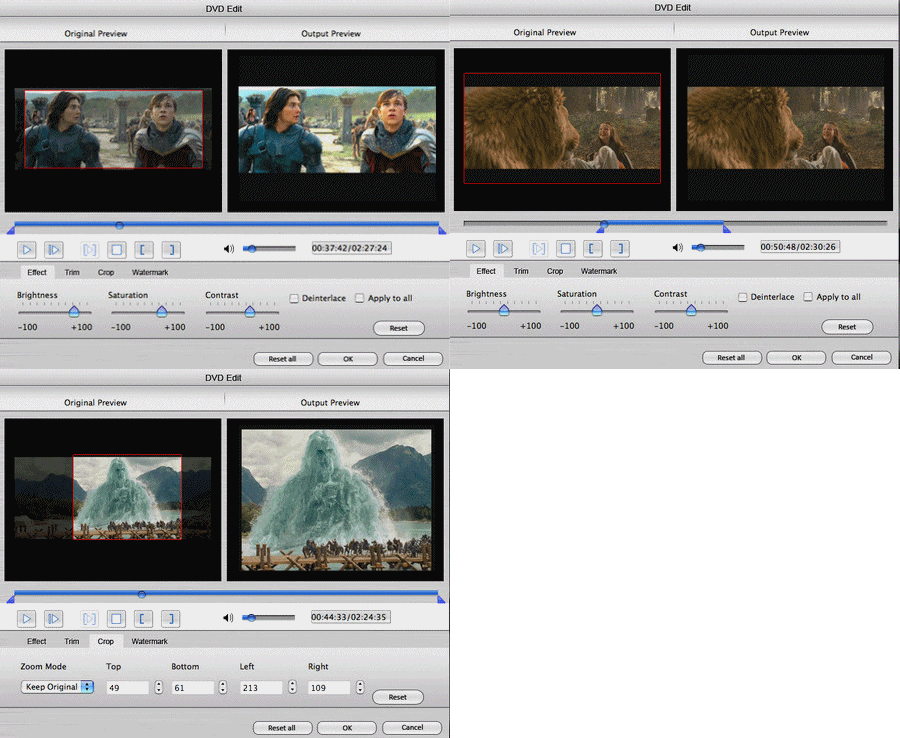
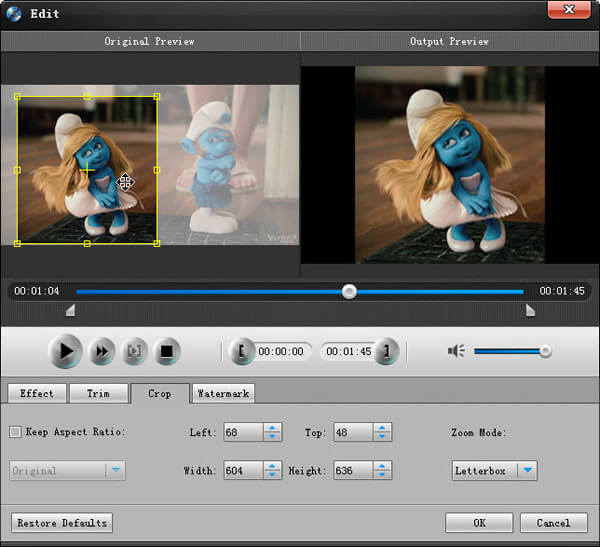
If you want to remove the black edges or you want to rip a certain area of your video, please click the “Crop” button. You can do this either by drag the frame around the movie (a) or set the crop value: “Top, Left, Bottom, Right”.(b). Another way to do that is choose mode from “Crop Mode”(c).DVD Ripper for Mac also allows you to choose the output aspect ratio above the crop panel, “Keep Original, full screen, 16:9 and 4:3” are available.

3. Effect:
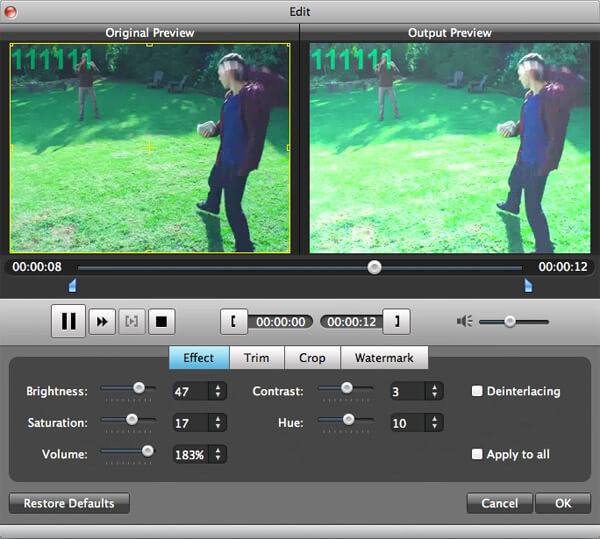
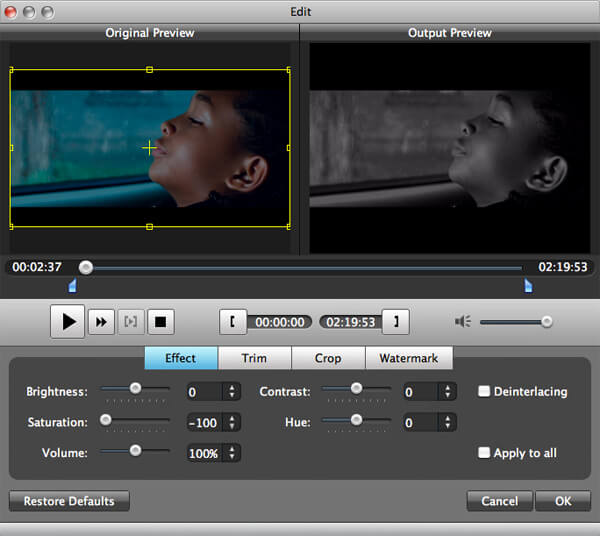
If you want to adjust the effect of your movie, please click the “Effect” button and a pop-up effect window will appear. It allows you to edit your movie’s effect including “Brightness, Contrast, Hue, Saturation and Volume”.

Click “Start” to begin your conversion.

Part 2. Convert videos for Mac with AiseesoftVideo Converter for Mac

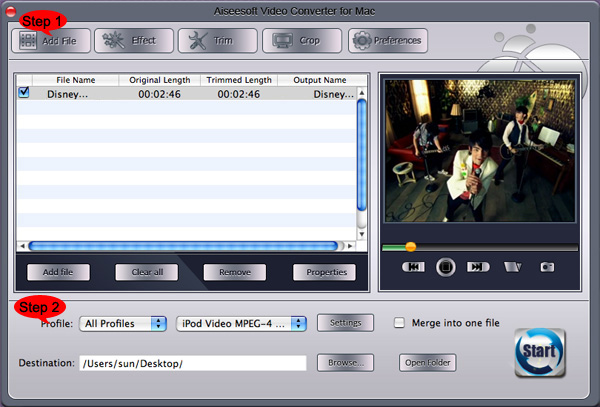
Step 1. Choose “Video Converter for Mac” on the main interface.

Step 2. Add video
Click “Add File” to load your video that you want to put.
Step 3. Choose output profile and settings.
You can choose your output format from the drop down list and you can set the exact values of your output videos, such as Resolution, Frame Rate and so on.

You can do the video editing as the same way of convert DVDs.
After getting your satisfying video, then click “Start” button to start your conversion.

If you are a window user, Aiseesoft DVD Converter is your best choice.
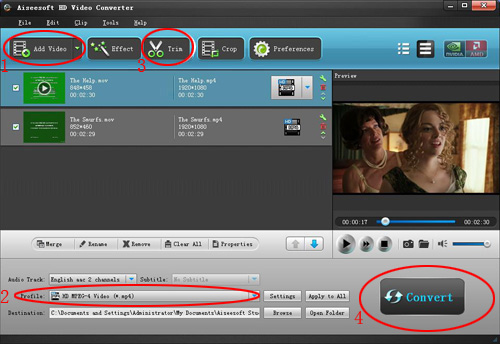
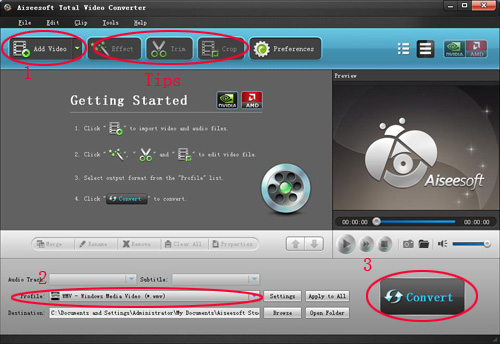
It is the perfect combination of Aiseesoft DVD Ripper, Aiseesoft Total Video Converter and Aiseesoft iPod to Computer Transfer. With this powerful DVD Converter Suite, you can easily convert DVD and video to all the popular formats: MP4, H.264, AVI, MP3, WMV, WMA, FLV, MKV, MPEG-1, MPEG-2, 3GP, 3GPP, VOB, DivX, Mov, RM, RMVB, M4A, AAC, WAV, etc
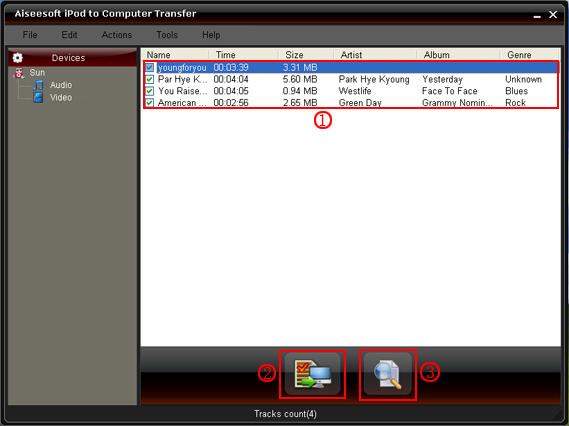
And transfer your iPod songs and videos to your computer easily.

2011年7月27日星期三

How to convert Blu-ray to iPad for Mac users?

Do you want to enjoy Blu-ray movies on your iPad? For iPad users, some people many encounter the problem of how to convert Blu-ray disc to iPad. To help you solve this problem, Aiseesoft brings you the professional Blu-ray to iPad Converter for Mac. This software can help you conveniently convert any Blu-ray to MPEG-4, H.264, AVI, MOV, etc. that can be played by iPad.

Now I will show you how to convert Blu-ray to iPad for Mac users.

Step 1: Download and install Blu-ray to iPad Converter for Mac

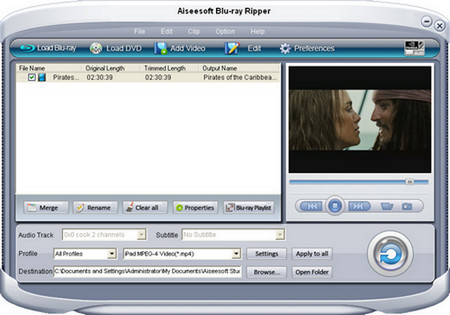
First, you need to download Aiseesoft Mac Blu-ray to iPad Converter and install it. After launching the program, you can see the interface as below.

Blu-ray to iPad converter for Mac

Step 2: Load Blu-ray disc

Now, you need to load your Blu-ray disc. After inserting your Blu-ray disc to BD drive, you can click the "Load Blu-ray" button to input the Blu-ray movie. And all the playlists of the Blu-ray will display on the interface. And you can preview the Blu-ray movie with this Blu-ray to iPad Converter for Mac.

Step 3: Edit the Output Video Effects with the iPad Blu-ray Ripper

This Blu-ray to iPad Converter for Mac provides users with powerful Blu-ray movie editing features. Users can crop video frame, watermark video, merge Blu-ray playlists, trim video length, and even adjust Blu-ray movie brightness, saturation, contrast and so on.

edit Blu-ray effect on Mac

Step 4: Choose output profiles, audio track and profile

If the Blu-ray source owns more than one audio tracks and subtitles, you can choose your preferred one for the output iPad video. Also this Blu-ray to iPad Converter for Mac provides users with many output profiles. You can choose any one according to your need.

Step 5: Start to convert Blu-ray to iPad

After accomplish all the settings, you can click the "Convert" button to start to convert Blu-ray to iPad on Mac. And you can track the conversion process from the progress bar at the bottom of the interface.

After the conversion process is complete, you can transfer the output iPad files to your iPad with iTunes or our iPad Manager for Mac. Then you can enjoy the Blu-ray movies on your iPad.

How to Enjoy Your Favorite Videos on Portable Devices at Will For Mac Users

Are you a Mac user?
Do you still feel frustrated that you can’t enjoy your favorite videos on portable devices at will?
Now, a professional software—Aiseesoft
Video Converter for Mac
can help you to solve all the problems. With it, you can convert between all popular video and audio formats with super fast conversion speed and high output quality, such as AVI, MP4, MOV, MKV, WMV, DivX, XviD, MPEG-1/2, 3GP, 3G2, VOB Video, MP3, AAC, and AC3 Audio etc. In addition, the best video converter for Mac can also extract audio from video file and convert video to MP3, AC3, and AAC…as you want.

OK, let’s move to how to use the amazing software.

Step 0: Download and install Aiseesoft Video Converter for Mac.
After a while, you can use the following interface:


Step 2. Load Video
You can load your video by clicking “Add File” button or clicking “File” button, you can choose “add file” on a drop-down list.

Step 3. Output format and Settings
From the “Profile” drop-down list you can find one format that meets your requirement.

After doing the 3 steps above, you can click “start” button to start conversion.
Wait a minute, the conversion will be soon finished.

Tips:
1. Trim
"Trim" function is for you to select the clips you want to convert.
There are 3 ways that you can trim your video.
a. You can drag the buttons(1) to set the start and end time
b. You can preview the video first and when you want to start trim click the left one of the pair buttons(2) when you want to end click the right one.
c. You can set the exact start and end time on the right side of the pop-up window.
It is for you to select the clips you want to convert.

2. Crop
Cut off the black edges of the original movie video and watch in full screen using the "Crop" function.
There are 3 ways that you can crop your video.
a. We provide 7 modes on our “Crop Mode”(1)
b. You can set your own mode on the right side of the pop-up window(2)
c. You can drag frame to set your own crop mode(3)
You can cut off the black edges of the original movie video and watch in full screen using the "Crop" function.

3. Snapshot and merge into one file
If you like the current image of the video you can use the “Snapshot” option. Just click the “Snapshot” button the image will be saved and you can click the “Open” button next to “Snapshot” button to open your picture.
If you want to make several files output as one you can choose “Merge into one file”.

If you are windows users, you can go to Aiseesoft Total Video Converter to get more information.

2011年7月26日星期二

A wonderful app to help you enjoy your DVD on Mac at will

At the moment, after the hot wonderful movies having been played, we feel we have not given full expression to the views. So we collect various wonderful movies recorded in DVD format, which has better effect.
In fact, DVD brings us great success in the wonderful movies, but also it causes the inconvenience when you backup user’s data, storage and transmission online, etc.

Let’s just imagine, a random DVD movie will be several G, it will be very hard to be stored, backed up, not to mention the transmission on line.
And also as the portable devices appear, like iPad, iPod Touch 4, iPhone 4, Zune, Zune 2, Blackberry, Nokia, Creative Zen, Sony Walkman, Archos, PS3, Apple TV, Xbox, Pocket PC, Mobile Phone, etc. It will not be so convenient to watch those wonderful DVD movies anywhere with you.

Luckily, Aiseesoft DVD Ripper for Mac, certainly you can have a try the Windows Version DVD Ripper.


Thus we can reduce its volume at the price of loss picture and audio/video quality, usually down to hundreds MB, or even lower. That depends on the converted format.
The more significance is that it can convert DVD to some special formats or save it on special place, for example AVI, 3GP,MP4, FLV, etc on the iPhone, PSP or upload to Youtube.
This best and easy to use DVD Ripper for Mac provides you with fastest speed to rip DVD to AVI, MP4, MOV, FLV, WMV, DivX, XviD, HD MP4, TS… video formats, and MP3, AAC, AC3… audio formats on Mac. So we can enjoy them on iPod touch, iPod nano, iPod classic, iPhone, Apple TV, PSP, Zune, Creative Zen Vision, Archos, iRiver, HP iPAQ, General Pocket PC, Black Berry, Xbox360, PS3, YouTube, Mobile Phone everywhere with yourself.

This software also provides you the Powerful editing functions like: Trim DVD, Crop the video, and Merge files into one and Multiple features like: Preview and snapshot, Adjust output effect, Output multiple formats for one video at the same time.


Now, don’t hesitate, just have a free try first by yourself.
Hope this app can be helpful for you.

2011年7月25日星期一

How to Rip DVD and Convert Video for Your iPad On Windows/Mac

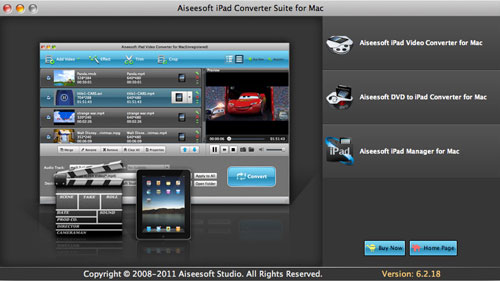
Aiseesoft iPad Converter Suite is newly released software for iPad fans. It can rip any DVD files (DVD-Video, DVD folder and DVD IFO file) to iPad, convert all popular videos/audios to iPad formats and transfer files from PC to iPad, from iPad to PC and from iPad to iPad. It works similar to iTunes. So why do you always buy movies and songs from iTunes with extra money? It can help you make use of your resources.
The product is very easy in use. You just need download, install and run the trial version.


The product is multifunctional. It can trim, crop, edit video effect, merge, add text and image watermark, select audio track and subtitle, adjust video settings and snapshot.

If you are Mac user, you can choose Aiseesoft iPad Converter Suite for Mac .

2011年7月24日星期日

Apple Releases OS X Lion

Yesterday, Apple launched OS X Lion, which is now available exclusively via the Mac App Store. Priced at $29.99, OS X Lion is Apple’s next-generation operating system for the Mac platform.

OS X Lion brings a number of new features to the Mac, including an iOS-like application launch screen known as Launchpad, full-screen apps, a new combined interface for Dashboard, Expose, and Spaces known as Mission Control, enhanced Multi-Touch gestures, and improvements to a number of core applications such as Mail.

Apple previewed OS X Lion for developers several times over the last nine months. And our software engineer have studied this operating system and updated our software timely. Now all the Mac versions of our software are fully compatible with the latest OS X Lion.

Users can fully enjoy our Video Converter, Blu-ray Ripper and DVD Ripper to convert all popular video files, Blu-ray disc, DVD to MP4, AVI, MOV, MPEG, FLV, etc. on Mac OS X Lion.

2011年7月22日星期五

How to convert video for your Android phone?

Android phones, such as HTC, Motorola, Samsung, LG, Sony Ericsson, etc. are rapidly gaining in popularity these days. If you have got the Android phone and want to enjoy videos on your Android phone, you need the assistant of a professional video to Android phone converter. Aiseesoft total video converter is the ideal solution for converting all popular HD and general video files, such as H.264/ AVC, AVCHD, MTS, M2TS, TS, HD MKV, HD WMV, AVI, WMV, ASF, MKV, MOV, MPG, 3GP, 3GP2 and more, to your Android devices formats on your computer.

Note: For Mac users, please try Android Video Converter for Mac.

The following guide shows you how to convert video for popular Android phones, including HTC Legend, Motorola Droid, Samsung Galaxy, LG Ally and etc.

Step 1: Add video source

Load your videos by clicking the "Add Video" button. Also you can just drag and drop your video source to the Android Video Converter.

add video to android video converter

Aiseesoft Android Video Converter supports converting most popular video files, like MKV, WMV, AVI, FLV, 3GP, DivX, VOB and even HD video, to Android phone.

Step 2: Select the output format

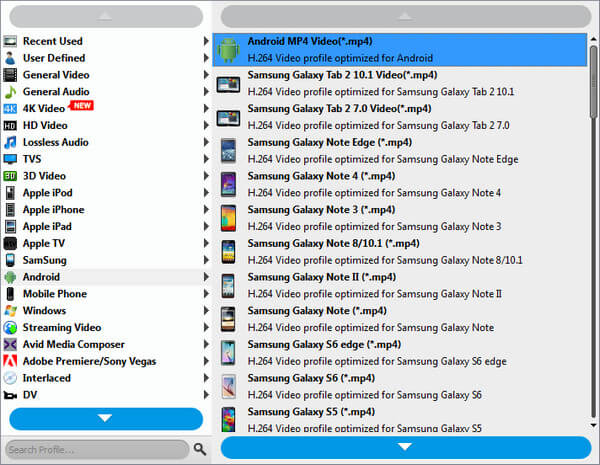
Click the drop-down arrow on the right of the "Profile". There are several built-in profiles for popular devices. You can choose the output format according to your Android phone. Here we take MP4 as an example. You just need to choose the "Android > Android MP4 Video (*.mp4)" option.

choose MP4 for output android video

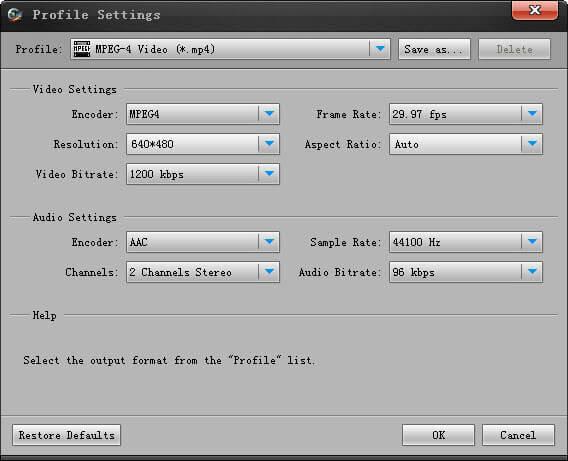
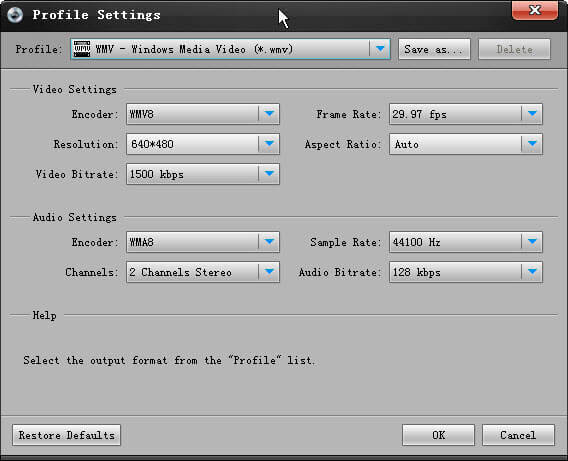
After selecting the target profile, you can also set some properties for special needs. Click the "Settings" button to do some further video and audio settings.

set output parameters

Step 3: Convert video to Android format

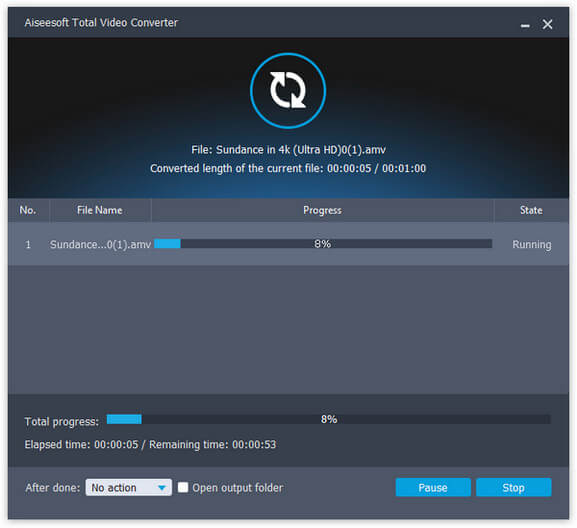
If you have done all these settings, just click "Convert" button to start converting your video to the Android format you select. And the converting progress will be finished within minutes.

convert video to android phone

Step 4: Import the output video to Android phone

Now, connect your Android mobile phone to computer and transfer the output videos to Android phone. Then you can enjoy the HD movies, popular TV shows and other interesting videos on your fancy Android phone.

Tips: This wonderful Android Phone Video Converter also possesses powerful video editing features. You can trim video segment, crop frame, join videos together, add watermark, and so on.

2011年7月21日星期四

Full Guide: How to Convert DVD to MP4, AVI, 3GP, iPod ......

DVD is the first choice for many people when they want to watch movies at home. It has high quality picture, different subtitles and audio tracks and most important, some of the DVD movies are more enjoyable than than the cinema one.
However, when we travel, when the disc is broken, when we want to backup the DVD movies, when we want to share the movies with friends, when we want to make usage of the movie, what should we do?
Convert DVD to video video formats you need.

This guide aims to show you how to convert DVD to different video format both for windows/mac users.

Part 1: How to Convert DVD on Windows with DVD Ripper

Step 1: Load DVD
Put your DVD to your DVD Drive and click “Load DVD” button to add your DVD
Step 2: Choose Profile
Choose your output video profile from a drop-down list.
Step 3: Start Conversion

Part 2: How to Convert DVD on Mac with DVD Ripper for Mac


Step 1: Load DVD
Click the “Load DVD” button, find the DVD folder of the movie you want to add from your DVD-ROM, and Click “Open”.
Step 2: Choose output profile and settings
Selecting output format is really easy, you can chose your output format according to your devices players and the default setting works great.
For a veteran of digital player, you could customize your own settings by clicking “Settings” button to chose your own video resolution, frame rate, bit rate, encoder, etc.
Step 3: Start Conversion

If you want to convert both DVD and videos, here is a really powerful DVD Converter Suite . It can help you to convert DVD and videos easily. It can also help you to backup the iPod music and videos to your computer.

2011年7月20日星期三

DVD Proteciton

DVD shorten for Digital Video Disc or Digital Versatile Disc was published at the beginning of 1996 and dominated the multimedia market until now. All the film publishers choose to sell their movies on DVD after cinema. And to keep from piracy, they add protection on their DVDs. This article we will talk about what is DVD protection and how to remove it.

A Brief Discussion on DVD Protection

Before we talk about the DVD protection, I will first introduce you the structure of a DVD. A DVD is made up of 1 to 99 titles and all the titles are distributed in the Video Title Set(VTS). Each title has their chapters, which work with a program. The Program is composed of cells. A number of programs make a Program Chain (PGC). And when a Chapter works with its program, the number of PGC and program were determined at the same time.

A DVD movie disc contains a VIDEO_TS file, where the file related to the movie was found. You can find 3 types of file in VIDEO_TS file, including *.IFO(index file of a DVD), *.BUP(DVD index backup file) and *.VOB(DVD content file).

Now we know what is in the DVD disc, but how to add a protection on it? There are many ways to add protections on a DVD. Content Scramble System(CSS) and ArccOS are two ways widely used by DVD movie publishers.

Content Scramble System(CSS) adds protection in *.VOB file and when playing the DVD movie, a key is needed for decrypting *.VOB file. The key used to decrypt the *.VOB file is DVD disc. So people can not copy the DVD movie to another blank DVD disc by using physical file copy. Unfortunately, in 1999, Jon Lech Johansen and other two guys found a way to decode the CSS. As a result of that now CSS is not a big deal if you want to copy a DVD movie using CSS protection.

Nowadays, ArccOS is more and more popular than CSS. It has the following features:
A. Bad Sector
One of the features of ArccOS is that bad sector was set in the DVD disc. When your player is reading the bad sector, the player will crash right away. To those players which follow the rule of DVD, a command in the DVD disc will tell the player how to avoid bad sector and play the DVD movie correctly.

B. Titles
DVD in this kind of protection has as many as 99 titles. Movie content is divided and stored in each title disorderly. To those players which follow the rule of DVD, a command in the DVD disc will tell the player how to play the DVD movie as the movie actually goes.

So as we can see from above, bad sector and disorderly content become the two key point of decoding this kind of protection. In the market of DVD ripping and copying software, there are many software that can only kill the first kind of protection (CSS), so they can not rip or copy many DVD movies released recently. Because they are protected by ArccOS. Some of them can decode the ArccOS but not perfectly. The output video has one problem or another. Most of them can not provide a perfect solution for ripping DVD movies.

How to Remove DVD Protection?

The software that supports both solutions and allows you to select which one to use is Aiseesoft DVD Ripper. It provides you two ways to rip DVD to video freely. When you load your DVD to it. It will pop up a window to ask you which mode you want to use. Find more info here: http://www.aiseesoft.com/dvd-ripper.html

How to Rip DVD?

Step 1: Import DVD

Place the DVD into your DVD drive and click the "Load DVD" button to load DVD.

Tips: This DVD Ripper can load three DVD source, you can load your DVD from DVD drive, DVD folder in your PC and also IFO file.

Step 2: Video settings

Select the output video format you want from the "Profile" drop-down list.


Tips:

* 1: You can also select Audio Track and Subtitle from their respectively drop-down list.
* 2: If you like the current image of the video you can use the "Snapshot" opinion. Just click the "Snapshot" button the image will be saved and you can click the "File" next to "Snapshot" button to open your picture. You can select the destination of the picture by clicking the "Preference" button. As default the captured image will be saved at: C:\Documents and Settings\Administrator\My Documents\Aiseesoft Studio\Snapshot
* 3: If you want to merge the selected contents into one file you can check the "merge into one file" option. As default the merged file is named after the first selected file (either a title or a chapter)
* 4: You can click the "Settings" button to set your video parameters.


In the Video Settings, you can select Encoder, Frame Rate, Resolution and Bitrate for your movie.

In the Audio Settings, you can select Encoder, Channels, Bitrate and Sample Rate for your movie.

when you choose the specific settings, the lower window will show the "help" to explain the meanings of each setting.

Step 3: Start conversion

Click the "Start" button to start your conversion and in a short while it will be finished.

Step 4: Click "Open" button to open your output destination file.

2011年7月18日星期一

Full Guide: How to Convert DVD to MP4, AVI, 3GP, iPod ......

DVD is the first choice for many people when they want to watch movies at home. It has high quality picture, different subtitles and audio tracks and most important, some of the DVD movies are more enjoyable than than the cinema one.
However, when we travel, when the disc is broken, when we want to backup the DVD movies, when we want to share the movies with friends, when we want to make usage of the movie, what should we do?
Convert DVD to video video formats you need.

This guide aims to show you how to convert DVD to different video format both for windows/mac users.

Part 1: How to Convert DVD on Windows with DVD Ripper


Step 1: Load DVD
Put your DVD to your DVD Drive and click “Load DVD” button to add your DVD
Step 2: Choose Profile
Choose your output video profile from a drop-down list.
Step 3: Start Conversion

Part 2: How to Convert DVD on Mac with DVD Ripper for Mac


Step 1: Load DVD
Click the “Load DVD” button, find the DVD folder of the movie you want to add from your DVD-ROM, and Click “Open”.
Step 2: Choose output profile and settings
Selecting output format is really easy, you can chose your output format according to your devices players and the default setting works great.
For a veteran of digital player, you could customize your own settings by clicking “Settings” button to chose your own video resolution, frame rate, bit rate, encoder, etc.
Step 3: Start Conversion

If you want to convert both DVD and videos, here is a really powerful DVD Converter Suite . It can help you to convert DVD and videos easily. It can also help you to backup the iPod music and videos to your computer.

2011年7月15日星期五

How to Rip Blu-ray Movies to MP4 Video Format?

If you want to convert Blu-ray to MP4 and enjoy the movie on your portable devices, Aiseesoft Blu-ray to MP4 Converter is definitely the best choice for you to convert any Blu-ray to MP4 formats with perfect quality and speed.

Aiseesoft Blu-ray to MP4 Converter is the best and easy-to-use BD to MP4 converting tool to help you convert any Blu-ray movie to MP4 format, which can be played on nearly portable media player, mobile phone and tablet computer.

This step-by-step guide will show you how to convert Blu-ray to MP4 with Aiseesoft Blu-ray to MP4 Converter

Step 1: Download and install Blu-ray to MP4 Converter

You need to download our software and install it on your computer. For Mac users, please visit: Blu-ray to MP4 Ripper for Mac

Step 2: Load Blu-ray disc

First, you need to insert your Blu-ray disc to BD drive. After launching the Blu-ray to MP4 Converter, you can click the "Load Blu-ray" button to input your Blu-ray movie.


Tips: this Blu-ray to MP4 Converter also supports converting DVD and popular videos to MP4.

Step 3: Edit Blu-ray movie

This is an optional step. This Blu-ray to MP4 Converter provides users with powerful video editing features. With it, you can trim video, crop video frame, add watermark to video, etc.


Step 4: Choose MP4 output format for Blu-ray

Click the "Profile" drop-down list and choose "General Video > MPEG-4 Video (*.mp4)".


Also you can click the "Settings" button to open "Profile Settings" window. You can adjust the output parameters like Video Resolution, Video Bitrate, Frame Rate, Encoder and Audio Channels, Sample Rate, Encoder, and Audio Bitrate.

Step 5: Start to convert Blu-ray to MP4

After all these steps above, you need to click the "Convert" button to let the software start converting Blu-ray disc to MP4 format. You can track the ripping process from the progress bar.


After a few minutes or hours, you will get your desired MP4 video. Then you can enjoy it on your portable devices on the go.

Blu-ray Ripper

2011年7月14日星期四

A wonderful app to help you enjoy your DVD on Mac at will

At the moment, after the hot wonderful movies having been played, we feel we have not given full expression to the views. So we collect various wonderful movies recorded in DVD format, which has better effect.
In fact, DVD brings us great success in the wonderful movies, but also it causes the inconvenience when you backup user’s data, storage and transmission online, etc.

Let’s just imagine, a random DVD movie will be several G, it will be very hard to be stored, backed up, not to mention the transmission on line.
And also as the portable devices appear, like iPad, iPod Touch 4, iPhone 4, Zune, Zune 2, Blackberry, Nokia, Creative Zen, Sony Walkman, Archos, PS3, Apple TV, Xbox, Pocket PC, Mobile Phone, etc. It will not be so convenient to watch those wonderful DVD movies anywhere with you.

Luckily, Aiseesoft DVD Ripper for Mac, certainly you can have a try the Windows Version DVD Ripper.


Thus we can reduce its volume at the price of loss picture and audio/video quality, usually down to hundreds MB, or even lower. That depends on the converted format.
The more significance is that it can convert DVD to some special formats or save it on special place, for example AVI, 3GP,MP4, FLV, etc on the iPhone, PSP or upload to Youtube.
This best and easy to use DVD Ripper for Mac provides you with fastest speed to rip DVD to AVI, MP4, MOV, FLV, WMV, DivX, XviD, HD MP4, TS… video formats, and MP3, AAC, AC3… audio formats on Mac. So we can enjoy them on iPod touch, iPod nano, iPod classic, iPhone, Apple TV, PSP, Zune, Creative Zen Vision, Archos, iRiver, HP iPAQ, General Pocket PC, Black Berry, Xbox360, PS3, YouTube, Mobile Phone everywhere with yourself.

This software also provides you the Powerful editing functions like: Trim DVD, Crop the video, and Merge files into one and Multiple features like: Preview and snapshot, Adjust output effect, Output multiple formats for one video at the same time.


Now, don’t hesitate, just have a free try first by yourself.
Hope this app can be helpful for you.

2011年7月13日星期三

Share: How to Convert DVD to PSP/PS3, convert Videos to PSP/PS3

We all have known that PSP is an excellent game player. However, we can’t play games all the time; We can achieve other aims with it, such as watching movies, appreciating music…because it has such a big screen for video and a clear earphone for music. For the reason above, I will introduce a practical method to rip DVD movies, convert video files to MP4 format for our PSP. At the same time, we can extract audio from DVD/video files to MP3, AAC PSP audio formats for PSP music.
Now I will share with you a practical tool to solve the problem mentioned above: Aiseesoft PSP Movie Creator. It is the combination of Aiseesoft DVD to PSP Converter and Aiseesoft PSP Movie Converter.

PS3 users share the same feast!

This article includes two parts.
Part 1: How to enjoy DVD on PSP/PS3
Part 2: How to convert Videos for PSP/PS3

Part 1: How to convert DVD to PSP/PS3.
Step 0: Download Aiseesoft DVD to PSP Converter and run it.

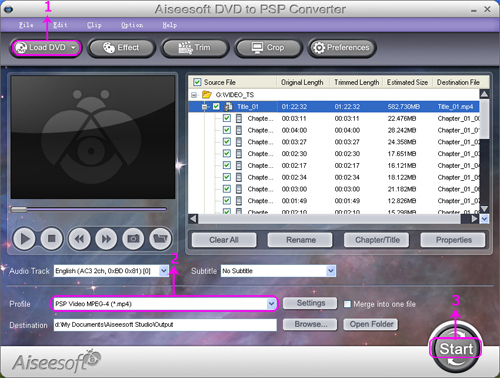
Step 1: Click “Load DVD” button to load your DVD.


Note: This professional DVD to PSP Converter can load three DVD source, you can load your DVD from DVD drive, DVD folder in your PC and also IFO file.

Step 2: Select the output video format you want from the “Profile” drop-down list.
Step 3: Click “Start” button to start your conversion and in a short while it will be finished.

Some powerful functions such as "Effect", "Trim", "Crop" are all available.

Part 2: How to convert Videos to PSP/PS3.

Step 0: Download Aiseesoft PSP Movie Converter and run it.

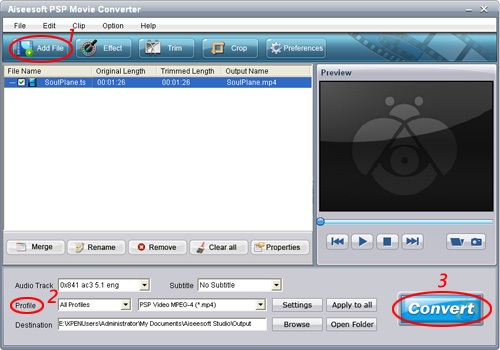
Step 1: Click “Add File” button to add your movie.


Step 2: Select the output video format you want from the “Profile” drop-down list.
Step 3: Click “Start” button to start your conversion and in a short while it will be finished.

Some powerful functions such as "Trim", "Crop", "Snapshot”,"Merge" are all available.

Tips:
In the “Setting” list, you can choose different “audio bitrate”, “video bitrate”. The higher bitrate you set, the more high-fidelity video and music you enjoy on your PSP or PS3.

Key Functions-----Apply to Aiseesoft DVD to PSP Converter and Aiseesoft PSP Movie Converter

"Trim" function ------Split the DVD / video to your favorite edition
There are three methods to set trim time:
Method 1: Enter the start time in the Start Time box and click OK, then enter the end time in the Set End Time box and click OK.
Method 2: Drag the scissors bars under the preview window when you want to trim, then the time will be shown in the Start Time box and End Time box for your reference.
Method 3: Click "Trim From" button when you want to begin your trimming. Click "Trim To" button where you want to stop your trimming.

After you set trim time, the length of the captured clip will be shown in the Select Length box for your reference.

“Merge” function----Join the videos into one file.
Select the videos that you want to join, and then pick “Merge into one file”. After conversion, these chapters will be saved into one file.

2011年7月12日星期二

Video Format Total Solution: How to Convert and Edit Video on Windows/Mac

More and More video formats are coming out with different video encoders and it makes our spare time more and more colorful. However, it is not to say that there is no problems. Actually, different video formats make it difficult to share video with others, even your own camcorder and iPod. Is there an easy way to convert videos effectively. Yes, there is.
In this article, I will show you guys how to convert videos on windows and mac.
Part 1. How to Convert and Edit Videos on Windows
For Windows users, you need a Video Converter to do that for you.
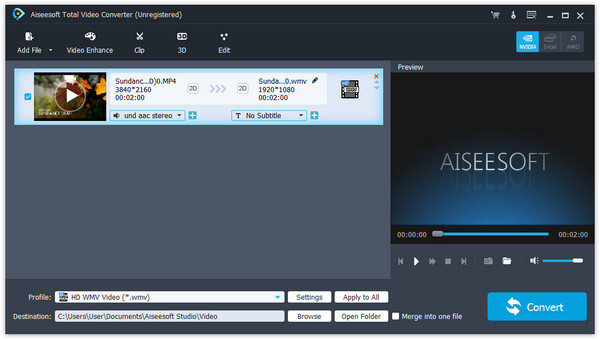
Here I use Aiseesoft Total Video Converter

Step 1: Download and install Aiseesoft Total Video Converter

After you download it to your computer, double click it and it is really easy to install.

You just need to click “next” and it will complete it in seconds. It will automatically run after installation.


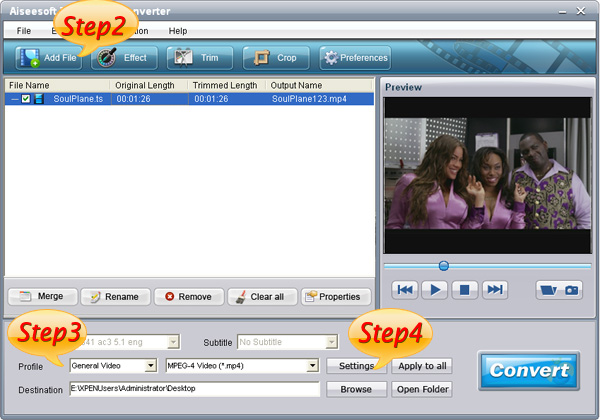
Step 2: Load Video
Click “Add File” to find the video that you want to convert and click “open”. It will be loaded automatically.

Step 3: Select the target to decode
In the “Profile” drop download list you can find your target according the usage of your output video, such as if you want to put the video on your iPod touch, you can select the “iPod” in the first list and “iPod touch 2 MPEG-4 640*480(*.mp4)” in the second list.

Step 4: Set Advanced Parameters
After you select the right output profile, you can click “setting” button to set your advanced parameters. You can adjust video and audio settings separately. In video section, you can change “video encoder”, “resolution”, “frame rate”, “video bitrate”In audio section, you can change “audio encoder”, “sample rate”, “channel”, “audio bitrate”If you want to save this profile and settings and use it next time you can click “save as” button to give a name to it. And the next time you want to use it you can find it in the profile list named “user defined”.

Step 5: Choose a Destination
To browse and find a output folder for your output files or just the default one.

Finally, Click “Convert” button to begin your conversion, here in the converting

interface you can choose “shut down the computer when conversion complete” or “open output folder when conversion complete” or you just do not choose neither one.

Tips: How to Edit the Output Video
This video converter is also a video editor, you can use it to edit your output video as follows:

1. Effect:
You are allowed to adjust the “Brightness”, “Contrast”, “Saturation” and you can choose the “deinterlacing” to make the video more enjoyable.

2. Trim:
In “Trim” section you can pick up any part of the video to convert.
There are two ways to select the part of the video you want. One is set the start and end time in the box. The other one is to drag the start and end button in the processing bar.

3. Crop:
This function allows you to choose a certain play area to convert. That means you can choose a part of the screen you like to convert. For example, you just like the tv in the middle of the screen, then you can drag the frame around the preview window to select the tv and the output preview will show you the output video.In this section you can also choose the “zoom mode”, such as “keep original”, “full screen”, “16:9”, “4:3”.

4. Watermark
In the section, you can add a watermark on the output video to show people something, such as your name, website, studio name or other things. The watermark could be words and picture. You can adjust the transparent of the watermark easily to make it more beautiful.

Part 2. How to Convert Video on Mac

This time you need a Video Converter for Mac


Step 1: Add File
Click “Add File” button to load the video you want to converter


Step 2: Choose profile and adjust settings
You can find your output video format from a drop-list called “Profile”You can also adjust the specific settings of the output video, such as “Resolution”, “Bitrate”, “Encoder” and so on.

2011年7月11日星期一

How to Find a Business in 2011

The use of search engines such as Google, Bing and Yahoo are common place in the era of the Internet. To find information people need, Google and other Search Engines have become the quick fix for research, due diligence, finding answers to questions that have alluded them and much more. This behavioral fact makes internet marketing more relevant than ever before.

Local Ingenuity is in the business of getting businesses found using Social Media and by getting listings to the top of LOCAL search results and staying there.

Many small to medium-sized local businesses cannot afford to have a dedicated department on staff to handle Online Marketing responsibilities. However, these same companies discover that they cannot afford to ignore the internet marketing activities due to business trends and customer appetite.

According to Local Ingenuity’s Michael A. Fitzgerald, “If you are not on the 1st page of search results on Google, Yahoo & Bing, you are basically invisible to a lion’s share of potential customers…and that means lost business! Local Ingenuity provides a cost-effective way for local businesses to achieve superior SEO results at a minimum cost,” continues Fitzgerald.

Local Ingenuity prides itself on giving value to its customers, while utilizing business practices that provide tangible results and portray their clients with integrity. The Company hosts a Facebook page at www.facebook.com/localingenuity, that is loaded with positive comments from clients regarding client’s service and results, as well as helpful tips on social media marketing.

About Local Ingenuity
Local Ingenuity utilizes social media and search engine optimization techniques to provide guaranteed results for their clients. Located in Fredericksburg, Virginia, Local Ingenuity also offers website design and hosting.

2011年7月10日星期日

How to Rip Blu-Ray DVD and Common DVD More Easily

As we know, DRM aims to protect the rights of digital video and audio, and ensure the rights of a legal version. So many companies take this measure to guarantee their profits. However, the complex technology always goes wrong and brings trouble to the customers who buy the legal copy, which results in some companies' giving up DRM protection.
Now, the newly-launched MKB V23 seems more complex than MKB V19. In order to reduce undesired trouble and bring convenience to users, Aiseesoft Studio has updated Blu-ray products and removed the MKB V23 protection of BD.

I suggest that the Blu Ray fans have a free try first by yourselves.
Now please download Aiseesoft Blu Ray Ripper and then install it to have a free try first.


The Main features of Aiseesoft Blu Ray Ripper:
1. Rip Blu Ray Disc or Blu Ray video to any other video formats
Easily convert Blu Ray Disc and Blu Ray M2TS video to HD and common video files: HD H.264, HD AVI, HD MPG, HD TS, HD WMV, HD MPEG 4, HD MOV, HD ASF, MPEG-4, H.264/MPEG-4 AVC, MOV, M4V, AVI, 3GP, FLV, SWF, MKV, etc.
2. Extract audio from Blu Ray disc or files
Rip blu ray discs into popular audio files: AAC, AC3, AIFF, AMR, AU, FLAC, MP3, M4V, MP2, OGG, WAV, WMA.
3. Blu Ray movie capture
While previewing Blu Ray movie, you can capture your favorite picture can save it as JPG, GIF, and BMP.
4. Powerful editing function
Apart from as the professional Blu Ray Ripper, it can be also possessed of powerful editing functions of effect, trim, crop and edit watermark.
Here is a very useful software that can help you as well, just have try:
Blu-Ray to iPad 2 Ripper

2011年7月8日星期五

How to Convert VOB to MOV?

If you want to transfer freely among different video formats like convert VOB to MOV, you should never miss Aiseesoft Total Video Converter which offers the professional way of converting among videos/HD videos like VOB, MOV, MP4, M4V, WMV, ASF, MKV, AVI, 3GP, 3G2, FLV, SWF, HD MPEG, HD MP4, HD WMV etc.

This VOB to MOV Converter can not only convert VOB to MOV with high quality, but also provides powerful video editing functions to edit output video, including modifying video effect, video length, video aspect ratio etc.

Now download total video converter, then follow the tips below to learn how to convert VOB to MOV with Aiseesoft Total Video Converter.

1. Install and launch Aiseesoft Total Video Converter

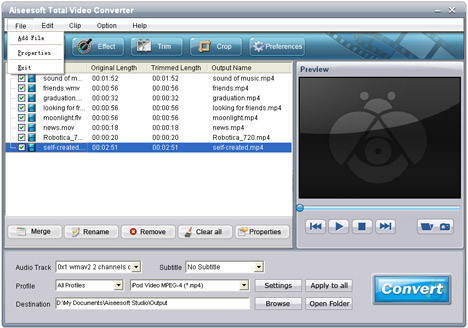
Install and launch Aiseesoft Total Video Converter, add your VOB file by clicking Add File in the File menu.

Convert VOB to MOV

2. Select output format and destination folder

In "Profile" drop down list, you may select output format. Press Browse… to select the destination folder for output files.

3. Set professional parameters

After selecting certain output format, click Settings to set output video and audio parameters. Save as… button can assist you to reserve well-customized profile.

4. Start the VOB to MOV conversion

Finally, click Start to begin VOB to MOV conversion. After a successful conversion, you can enjoy your wanted MOV file on your player.

More information at: Convert VOB to MOV.

2011年7月6日星期三

How to convert HD video to MP4/YouTube/MPEG video

Maybe some people will ask: what is HD video and why it can be widely used?
Answer:
High-definition video or HD video refers to any video system of higher resolution than standard-definition (SD) video, and most commonly involves display resolutions of 1280×720 pixels (720p) or 1920×1080 pixels (1080i/1080p).
Nowdays, HD is becoming more and more popular as the following reasons:
1.HD DVDS, together with equipment to play and record them, are available now, stimulating the public appetite for HD.
2.PC displays with HD quality potential are becoming widely used, which will acclimatise the public to HD.
3.Large flat LCD screen with HD resolution are becoming readily available at prices which the public seems prepares to pay, providing the means to view HD.

While, HD video also has some inconvenience to use, such as, we can’t edit them
in Windows Movie Maker or some other edit software; can’t put them into portable devices directly , like iPod, iPhone, Zune, Creative Zen and so on; can’t share videos with friends on youtube, myspace and other online video website. etc.

Here, I’ll introduce a wonferful tool to solve this problem.
Aiseesoft HD Converter has three uses:
Convert HD video to general video;
Convert general video to HD video;
Convert among HD videos.

So with it, you can enjoy HD video at will.

The following is a simple guide for you:
Step 0: Download, install and run Aiseesoft HD Video Converter.


Step 1: Load Video
Click “Add File” to load the video that you want
Step 2: Choose Your Output Profile and Settings
From “Profile” drop-down list you can choose your output profile according to your need.
You can also click “setteing”adjust the settings of your output video, such as “video/audio encoder”, “Video/audio Bitrate”, “Channels”, “Resolution” and so on..
Step 3: Video Editing
This powerful MTS Converter allows you to do many video editings.
1. Click "Effect" to make special effect for your movie.
You can adjust the “Brightness”, “Contrast”, “Saturation” and also you can use “deinterlacing” to improve you output effect.

2. Trim:
“Trim” function allows you to pick up any part of your video to convert. You can just convert a part of your video that you want.

3: Crop:
Cut off the black edges of the original movie video and watch in full screen on your iPod using the "Crop" function.

Step 4: Conversion
After you have done all the steps above you can click “Start” button to start your conversion.

Tip 3:
Here i also recommend you guys a really nice TS Video Converter, which can convert TS file to all the popular standard video and to other HD video easily. It can also do many video editing works, such as trim, crop, merge and so on. It has super fast conversion speed and high output quality.
MTS Converter is also a really nice tool to convert MTS video file to enable you to edit in windows movie maker and other video editing software. And also allows you to upload your HD video to youtube.com to share with your friends. It can convert MTS file to iPod, iPhone, Zune, PSP, Creative Zen, Xbox video.

2011年7月5日星期二

How to Backup iPod Files to PC or Mac

This guide aims to show you that how to backup your iPod songs and videos on your computer for Windows and Mac users.
It includes 2 parts:
Part 1: How to transfer iPod songs and videos to computer for Windows users
Part 2: How to transfer iPod songs and videos to Mac.

Part 1: How to transfer iPod songs and videos to computer for Windows users
Software Requirement: Aiseesoft iPod to Coumputer Transfer
It is a powerful iPod to computer transfer that can transfer all the iPod things to your computer; most importantly it supports all the iPods, from the oldest one to iPod nano-chromatic.

Step 1: Connect your iPod to your computer
When you plug your iPod into your computer, Aiseesoft iPod to Computer Transfer can automatically load your iPod into it.

Step 2: Choose songs
Choose the songs, videos, and other things that you want to backup at the top of the window. (1)


Step 3: The most important and the last thing you need to do are to click the “export to pc” button. (2).

After you click “export to pc” button a pop-up window will appear and with it you can choose where you place your iPod songs and videos.
Few seconds later you will have your iPod songs, videos and other things on your computer.

Part 2: How to transfer iPod songs and videos to Mac

Step 1: Download Aiseesoft iPod to Mac Transfer.
For Intel: http://www.aiseesoft.com/downloads/mac/ipod-to-mac-transfer-intel.dmg
For PPC: http://www.aiseesoft.com/downloads/mac/ipod-to-mac-transfer-power-pc.dmg
And install it.

Step 2: Plug your iPod to your Mac and run Aiseesoft iPod to Mac Transfer. It will find your iPod automatically.

Step 3: Just click Music and all of your music on your iPod will be listed, so you can pick up which songs you want to transfer. (Click “Video”/“Picture”, if you want to backup your videos and image.

Step 4: Click “iPod to Mac” and few seconds later you will get your iPod songs on your Mac.

2011年7月3日星期日

How to Convert Video Files on Mac/Windows

Nowadays, people can enjoy videos in different ways, such as youtube.com and other online video websites, iPod/Zune and other portable players, and also play video on computer, and you can also make you own videos with windows movie make or iMovie for Mac users. So how to convert videos between different video formats is a big problem for both windows and Mac users. Today I will share you guys two powerful video converter for Mac and Windows users.

For Mac users, this powerful video converter for mac is really nice.
Let's use it to convert a video for Example


Step 1: Add File
Click “Add File” button to load the video you want to converter

Step 2: Choose profile and adjust settings
You can find your output video format from a drop-list called “Profile”
You can also adjust the specific settings of the output video, such as “Resolution”, “Bitrate”, “Encoder” and so on.

Step 3: Edit Video
1. Effect:
You can adjust the “Brightness”, “Contrast”, “Saturation” and “Volume”

2. Trim:
You are allowed to pick up any part of the video to convert.

3. Crop:
To remove the black edges and choose a play area to convert.

Step 4: Start Conversion
Click “Start” button to begin your conversion and you will get your video soon.

For Windows users, you need Total Video Converter.


Step 1: Load Video
You can load your videos into the converter by clicking “Add File”

Step 2: Choose output info
This converter provides you many output profiles for you to choose, you can choose your output profiles according to your need. And also you can just choose a certain video format.

You can also adjust the settings of your output profiles. You can even save a certain settings as your own output settings.

Step 3: Conversion
Click “Start” button to begin your conversion and few mins later you can get your video.

Tips: How to effect, trim and crop the video to improve your output video quality.
After your Load your video you can click “Effect” button to access the effect panel

1: Effect
Adjust the video effect as you want: Brightness, Contrast, Saturation and Deinterlacing.

2: Trim
Clip your video, pick up any part of your video to convert.
You have 3 ways to do trim:

1.Dragging the slider

2.Controlling the “Trim From” and “Trim To” button

3.Setting the Start and End time

3: Crop
Adjust video size, Cut off the black edge of your video to let you enjoy your movie in full screen by click the 'Crop' button
You have 2 ways to do crop:

1.Move your mouse cursor onto one of the eight small adjustment boxes on the cropping frame and drag the crop frame to crop the video such as cutting off top and bottom black bar. The cropped result will be shown on the Output Preview at the same time

2.Type the value directly or set the value in "Left", "Right" and "Cropped area size" area to set the position of the cropping frame.

You can also select the aspect ratio from the Zoom Mode drop-down list. There are 4 choices for you: Full Screen, 16:9, 4:3 and Keep Original.

2011年7月1日星期五

How to rip DVD for WD TV on Mac?

Do you sometimes want to enjoy the DVD movie on the HD TV without any DVD player? If you are the WD TV user, Aiseesoft DVD Ripper for Mac can help you solve this problem. This software owns the ability to help users rip any DVD to WD TV supported video formats.

Step 1: Load DVD

Launch the DVD Ripper for Mac that you have installed on your Mac, and click the "Load" DVD to load the DVD disc.

Tip: this software also supports loading DVD folder and ISO files.

Step 2: Edit output video effect

Aiseesoft DVD Ripper for Mac provides you with powerful video editing functions. If you are not satisfied with the DVD movie effect, you could customize the video effect. You can trim video length, crop video frame, watermark video and adjust video effect.

Step 3: Choose audio track and subtitle

According to your needs, you can select your preferred audio track and subtitle for the output file.

Step 4: Choose output profile and start converting

Select the AVI (XviD, AVC, MPEG 1/2/4), MPG/MPEG, MKV, MP4, MOV, etc. output format for the output video. Then you can start converting the DVD for WD TV on Mac.