2011年2月25日星期五

How to Rip DVD, Convert Video to iPhone, backup iPhone info, make iPhone Ringone For Windows/Mac

Recently, iPhone has became a really important part of our life. People use it to make a phone call, enjoy music and movies/videos, and play games. Today I will share you a really nice software pack, which can convert DVD and video to iPhone video/audio formats, backup iPhone info on your computer, and make iPhone ringtone easily.

What you need is just this nice Convert DVD Video to iPhone software
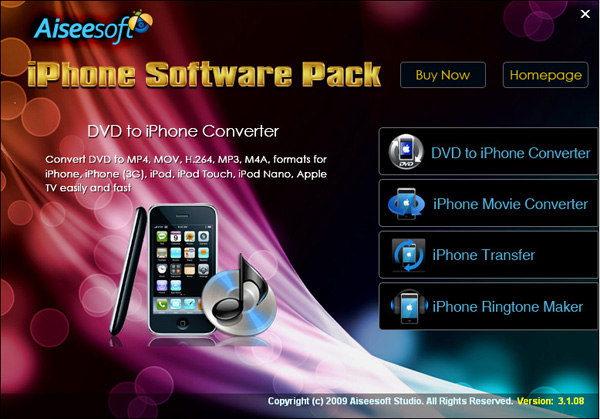


Part 1: How to convert DVD movies to iPhone
Use Aiseesoft DVD to iPhone Converter.
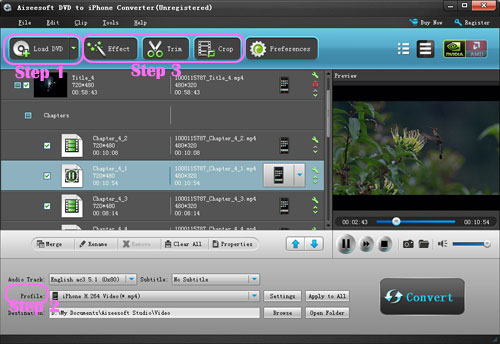


Step 1: Load DVD
Put your DVD in your DVD Drive and click “Load DVD” button

Step 2: Choose output profile and Settings
You can choose your output profile in the drop-list when you click profile list.
You can also adjust your settings, such as Resolution, Bitrate, so on.

Step 3: Edit Video
You can do “Trim”, “Crop”, “Merge into one file”and other video editing functions to make your video more enjoyable.

Click “Start” to begin you conversion. After few mins you can enjoy your DVD movies on your iPhone.

Part 2: How to convert videos to iPhone with iPhone Movie Converter
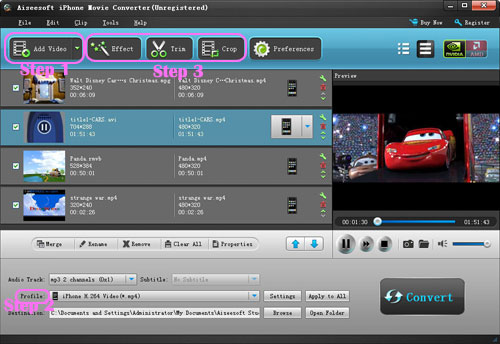


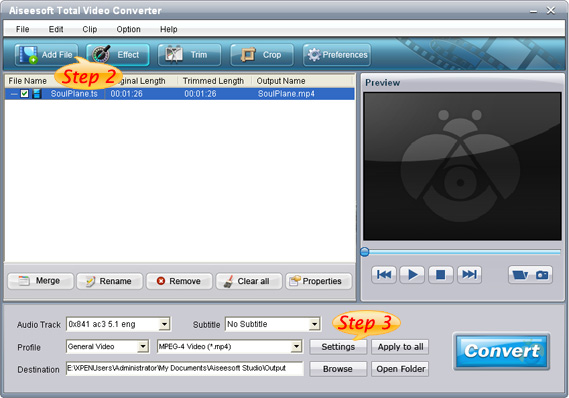
Step 1: Add file
Click “Add File” button to add your video you want to put on your iPhone.

Step 2: Choose output profile and settings
You can choose your output profile in the drop-list when you click profile list.
You can also adjust your settings, such as Resolution, Bitrate and Encoder and so on.

Step 3: Edit Video
You can do “Trim”, “Crop”, “Merge into one file”and other video editing functions to make your video more enjoyable.

Click “Start” to begin you conversion. After few mins you can enjoy your videos on your iPhone.

Part 3: How to transfer songs and vdieos from iPhone to computer, from computer to iPhone and from iPhone to iPhone.
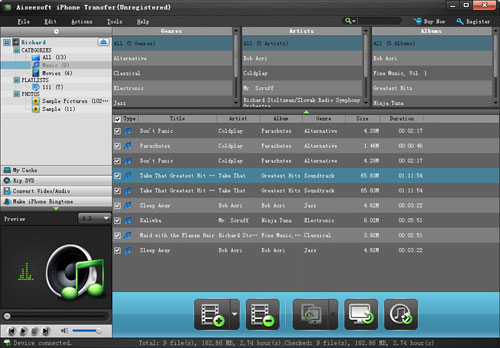


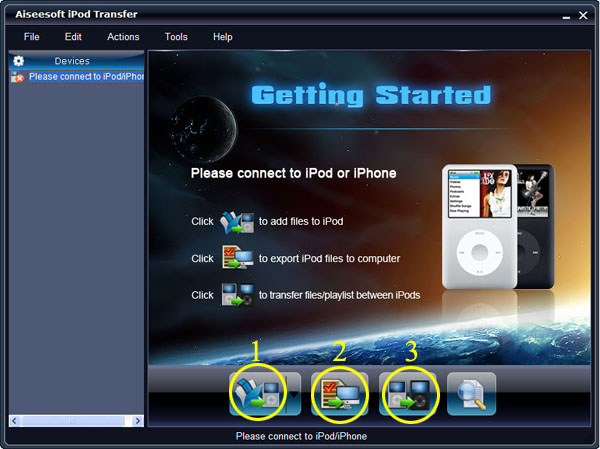
Step 1: Click iPhone Transfer
Click “Computer to iPhone”(1) button, it will allow you to transfer songs and videos from your computer to iPhone easily.
Click “iPhone to Computer”(2) button, it will allow you to backup your songs and videos from iPhone to your computer.
Click “iPhone to iPhone”(3) button, it will allow you to transfer songs and videos from one iPhone to another iPhone dirrectly.

Part 4: How to make your own iPhone ringtone



Step 1: Click iPhone Rigntone Maker and click “Browse” on the right side of "Input File" to import the file that you want to make ringtone from it.

Step 2: Play it and listen the music to find the segment that you want to use it as ringtone. Then drag and click the start & end slider to set your wanted segment, or type the start & end time in the corresponding text box directly to get the exact segment. You also can pre-listen the converted audio before generate.

Step 3: Click “Browse” on the right side of "Local Output Folder" to choose the output destination.

Step 4: Check "Export to iPhone" option, the converted ringtone will be load to your iPhone directly.

Step 5: After all the settings are finished, click “Generate” to begin making your own iPhone ringtone.

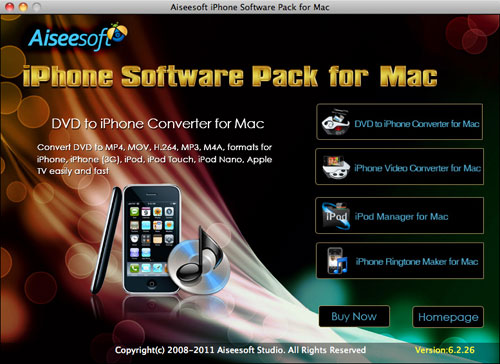
For Mac users I recommend you Aiseesoft iPhone Software Pack for Mac

Using Aiseesoft iPhone Software Pack for Mac, you can convert any video/DVD to iPhone Mac, backup the audio, video files on iPod to Mac and import audio, video files or folders from Mac to your iPod without iTunes with the help of iPod Manager Mac, even make iPhone ringtone from AVI, MPEG, WMV, MP4, FLV, MKV, H.264/MPEG-4, DivX, XviD, MOV, RM, RMVB, MP3, WMA, AAC video and audio sources on Mac.
2011年2月24日星期四

How to import music from iPod to iPod without iTunes

Ever since iPod was released, millions of people have been crazy about it. There appeared some assistant tools to manage iPod without iTunes:

1.Aiseesoft iPod Manager for Mac is one of the best Mac tools that can transfer Mac to iPod Shuffle, iPod backup for Mac. It is the best for iPod iTunes Mac software.

2.Aiseesoft iPod Transfer is another Windows all-in-one tool including iPod to iPod Transfer, computer to iPod Transfer and iPod to computer transfer.

Part One: How to manage iPod without iTunes on Mac. (Transfer Mac to iPod Shuffle, iPod Backup for Mac)

1.Download and install Aiseesoft iPod Manager for Mac.
For Intel: http://www.aiseesoft.com/downloads/mac/ipod-manager-for-mac.dmg
For Power PC: http://www.aiseesoft.com/downloads/mac/ipod-manager-for-mac.dmg
2.Connect iPod to Mac via USB.

Transfer Mac to iPod Shuffle:


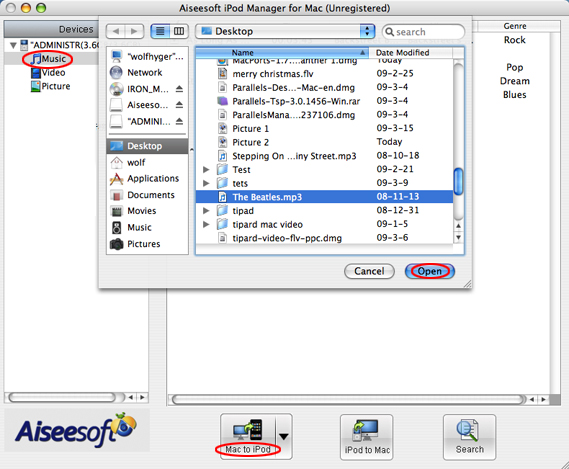
Select “Music”, “Video” or “Picture”. Then click “Mac to iPod” to choose the files you want to transfer to iPod. Click “Open” to finish the transfer.

iPod Backup for Mac:


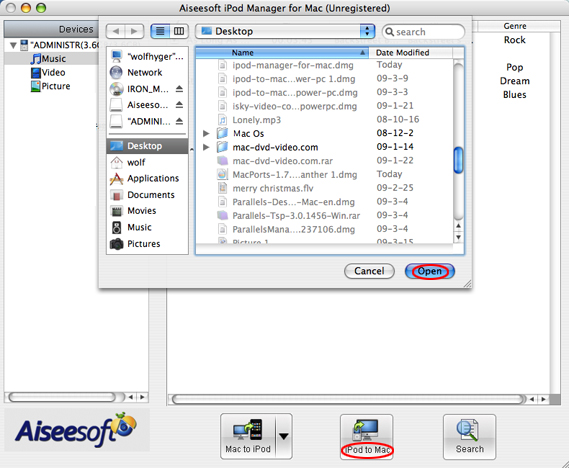
Select files you want to backup. Click “iPod to Mac” and find the place where you want to transfer your iPod files to your Mac and click “Open”.

Part Two: Computer to iPod Transfer, iPod to iPod Transfer, iPod to Computer Transfer for Windows users

1.Download and install Aiseesoft iPod Transfer.
2.Connect iPod/iPhone to computer.


Computer to iPod Transfer
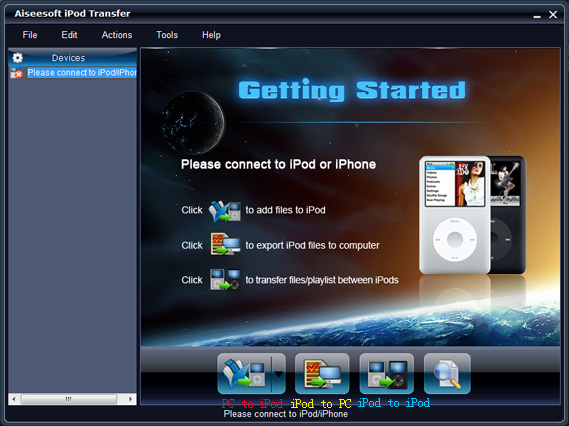
Click “computer to iPod” button to seek the files or folders that you want to import to iPod and click OK.

iPod to iPod Transfer
Pick the files that you need to transfer. Just click “iPod to iPod” button and it will show you the folder of another iPod that you want to transfer to. Click OK. The transfer can be finished automatically.

iPod to Computer Transfer
Check the file(s) you want to export in the file list. Click “iPod to computer” button to
select the destination of the exporting files and start exporting files.

Hope it helps you!

2011年2月16日星期三

How to Convert MPEG2 to AVI?

As the best customer-oriented MPEG2 to AVI converting tool, Aiseesoft AVI Video Converter provides you the easiest and quickest way to convert MPEG2 to AVI to satisfy your need. So you need not worry about how to convert MPEG2 to AVI any more. It supports free downloading. Use the trial version for upgraded experience!

Step by step guide:

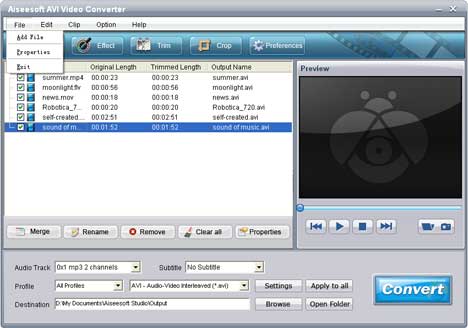
1 After downloading MPEG2 to AVI converter, install and run it until you see the easy-to-navigate interface as below:

how to convert MPEG2 to AVI

2 Add the MPEG2 video files you prepare to convert

3 Click "Profile", select AVI as output format, then click "Browse" to select a destination folder in the window that opens and click "Open folder" to find your target folder and check the converted files.

4 Click "start" to rip MPEG2 to AVI. As you see, just 1-2-3-4 step to convert MPEG2 to AVI. It's so easy to use.

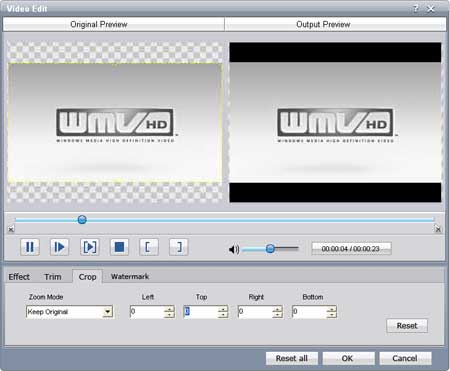
Note: Rich editing functions such as merging several videos into one file, trimming any clip of video, cropping playing area, changing video effect and so forth are allowable. Try them one by one if needed. This is a Crop editing window below:

convert MPEG2 to AVI

Want to learn more details? Go to How to convert MPEG2 to AVI right now.

2011年2月15日星期二

How to Transfer Files from PC to Your iPhone?

Aiseesoft iPhone Transfer is one advanced iPhone tool for iPhone 3G, iPhone 3GS, iPhone 4 users. Working as powerful and professional iPhone transfer software, it can transfer from PC to iPhone directly without iTunes. Backup files from iPhone to local disk without loss. Transfer files between two different iPhone.

All of these needs can be met with this only one iPhone Transfer. Because iPod and iPhone have the same function in the field of multimedia, this iPhone Transfer is also applied to iPod.

Next let us learn how to transfer files from PC to your iPhone with Aiseesoft iPhone Transfer.

Step 1: Download and install Aiseesoft iPhone Transfer.

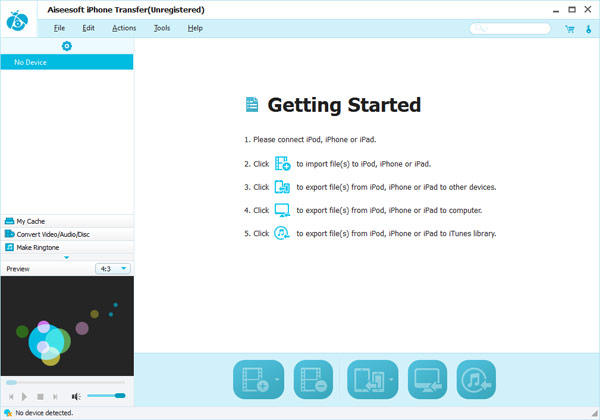
The interface is like:

Step 2: Run the software, and connect your iPhone/iPod to your computer via USB cable.

Step 3: Transfer files

Click PC to iPhone to seek the files or folders that you want to import to iPhone and click OK. The process of transferring will be finished instantly.

Besides, Aiseesoft iPhone Transfer can transfer all video and audio files or folders accepted by iPhone. These formats include MP4, M4V, MP3, WMV. Strong search function can find files you need easily. Possessed of friendly user-interface, it is easy to operate, even for the new users. Just connect it with your iPhone, all the process can be finished in few clicks.

Want to transfer from PC to iPhone fast and conveniently, please try easy-to-use Aiseesoft iPhone Transfer. More information at: Transfer from PC to iPhone.

How to rip DVD, convert video, transfer iPod music and make iPhone ringtone for Windows/Mac

It includes 4 parts:
Part 1. How to rip DVD to iPod/iPhone/Sansa/PSP/Zune and other MP4 and MP3 Players
Part 2. How to convert all video to MP4, AVI, FLV, 3GP, WMV, MOV, MPG, RM, RMVB, MKV, VOB…
Part 3. How to transfer music from iPod to computer, computer to iPod, iPod to iPod.
Part 4. How to make your own iPhone ringtone for free


Believe or not, to do the things above what you need is download Aiseesoft DVD Software Toolkit and few clicks.


Part 1. How to rip DVD to iPod/iPhone/Sansa/PSP/Zune and other MP4 and MP3 Players.

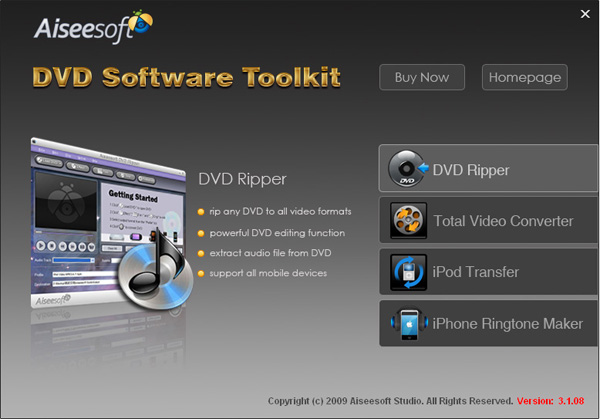
Step 1. Click “DVD Ripper” on the main interface to run Aiseesoft DVD Ripper.


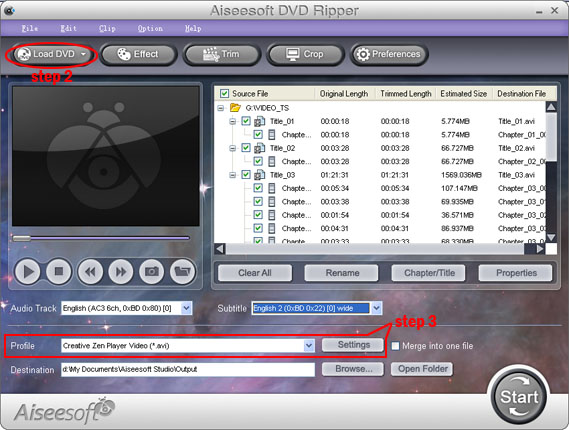
Step 2. Open your DVD Drive and put your DVD in it, then click “Load DVD” and choose “Load DVD” to load your DVD into this best DVD ripper.

Step 3. Choose your output format from the “profile” drop-down list. This best DVD ripper provides you so many formats that out of your expectation, such as “iPod video MPEG 4 (*.mp4)”, “iPhone 3G MOV 640*480 (*.mov)” and so on.

After you choose your output format, you can adjust your output video’s settings, such as “Resolution”, “Frame Rate”, “Bitrate”, “Sample Rate” and so on.
Click “Start” now to begin your conversion and you will get your video soon.

To make your output movie more enjoyable you can do some editings to it through this best DVD ripper. You can choose a part of your movie to convert (trim), remove the black edges of your DVD movie (crop) and also adjust the effect (effect) and select subtitle and audio track.

Part 2. How to convert all video to MP4, AVI, FLV, 3GP, WMV, MOV, MPG, RM, RMVB, MKV, VOB…

Step 1. Click “Total Video Converter” on the main interface to run Aiseesoft Total Video Converter


Step 2. Click “Add File” to load the video you want to convert.

Step 3. Choose output format by clicking “profile” and customize your own output video by
clicking “settings” to adjust the Resolution, Frame Rate, Bitrate and so on.

Before you click “Start” to begin your conversion, you can do some editing works, such as pick up a part of your video to convert(trim), choose your own play region(crop) and put two or more files into one.(merge into one file).
OK, now you can begin your conversion

Part 3. How to transfer your songs and videos bewteen iPod and computer/iPod

First, Click “iPod Transfer” to run Aiseesoft iPod Transfer


Click “Computer to iPod” button, it will allow you to transfer songs and videos from your computer to iPod easily.

Click “iPod to Computer” button, it will allow you to backup your songs and videos from iPod to your computer.

Click “iPod to iPod” button, it will allow you to transfer songs and videos from one iPod to another iPod dirrectly.

Part 4. How to make your own iPhone ringtone for free

Download Aiseesoft iPhone Ringtone Maker


Step 1: Click “Browse” on the right side of "Input File" to import the file that you want to make ringtone from it.

Step 2: Play it and listen the music to find the segment that you want to use it as ringtone. Then drag and click the start & end slider to set your wanted segment, or type the start & end time in the corresponding text box directly to get the exact segment. You also can pre-listen the converted audio before generate.

Step 3: Click “Browse” on the right side of "Local Output Folder" to choose the output destination.

Step 4: Check "Export to iPhone" option, the converted ringtone will be load to your iPhone directly.

Step 5: After all the settings are finished, click “Generate” to begin making your own iPhone ringtone.

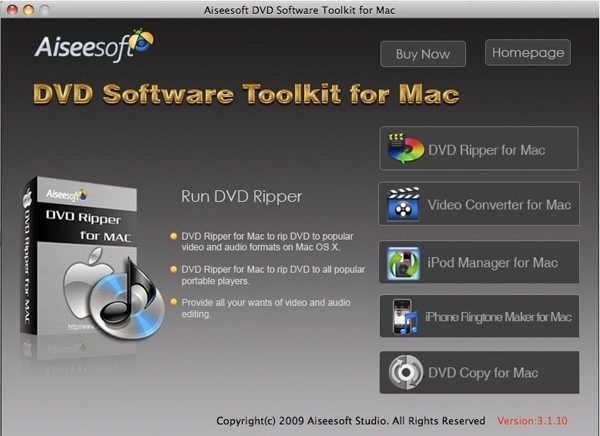
If you are a Mac user, I recommend you Aiseesoft DVD Software Toolkit for Mac
it has the same functions as the windows one. You can use it easy rip your DVD, convert your videos, transfer your iPod songs and videos bewteen iPod and your Mac and also make your own ringtone.