2010年4月30日星期五

HP “Doubling Down” on Palm’s webOS

So Palm (PALM) finally found a buyer. Earlier this afternoon, Hewlett-Packard (HPQ) said it would acquire the beleaguered company for $1.2 billion in cash.

Why? Why spend $1.2 billion on a company whose downward spiral has been the talk of Silicon Valley for the past year?

For a number of very good reasons (which I outlined in an oddly prefigurative post last week), but one above all: H-P wants its own operating system. And by acquiring Palm that’s exactly what it’s getting. The steady refrain during my conversation with HP execs this afternoon, “We’re very excited about webOS … We see great potential in webOS … We’re going to double down on webOS.”

In Palm’s webOS, H-P has an elegant OS that it controls, something the company — a longtime Windows shop — has never had before. And with it, it can begin untethering itself from Microsoft and differentiate its brand in a market in which most devices not sold by Apple are all running some variant of Windows. Remember, webOS is scalable. And while Palm lacked the means to scale it, H-P does not. It’s one of the biggest tech companies in the world, and once it brings its engineering acumen and marketing heft to bear on the OS, my guess is we’ll see it evolve into a much larger platform that extends beyond smartphones to tablets, ultraportables and other connected devices. And H-P, for the first time in its history, will be firmly in control of both its hardware and software.

Will it succeed? Who knows. But it’s worth noting that Apple’s done quite well for itself pursuing a similar model…

As Daring Fireball’s John Gruber wrote last year, “Operating systems aren’t mere components like RAM or CPUs; they’re the single most important part of the computing experience. Other than Apple, there’s not a single PC maker that controls the most important aspect of its computers. Imagine how much better the industry would be if there were more than one computer maker trying to move the state of the art forward.”

Well, now there is. As H-P’s Jim Burns said during a conference call today, the company plans to boost R&D spending on webOS. “We’re going to increase it,” he said. “And we’re going to increase sales and marketing as well. We’re going to take this platform, which today exists for smartphones only, and make it much broader than that. … We are going to be investing heavily in this business in the next year.”

Clearly, H-P is intent on taking webOS to the next level. Mark my words, today is the beginning of a new HP ecosystem — smartphones, connected devices, apps and the OS that ties them all together.

2010年4月28日星期三

BlackBerry 6: So 2008, So 2000 and Late

At its Wireless Enterprise Symposium event today, Research in Motion (RIMM) introduced its latest BlackBerry operating system, one it describes as “a big step forward for the platform.” And BlackBerry 6 is certainly that — in the sense that it brings the OS into relative parity with rivals that surpassed it years ago.

“It’s an all-new user experience guided by a few fundamental design principles,” RIM CEO Mike Lazaridis said today. “It had to be easy to use, yet incredibly powerful. It had to be fun and approachable. Anyone that looks at it should say ‘I want a BlackBerry.’”

That’s the hope, anyway.

With multi-touch support, a new Web browser based on the same WebKit core used in the iPhone, social networking integration and a redesigned media player, BlackBerry 6 is a hell of an improvement over its predecessor, which lagged far behind Apple’s (AAPL) iPhone OS, Google’s (GOOG) Android and Palm’s (PALM) WebOS. The video reel below clearly demonstrates that. But as a mobile operating system, it’s nothing we haven’t seen before. (Speaking of things we’ve seen before, isn’t this video a bit reminiscent of Palm’s “Life moves fast. Don’t miss a thing.” promo?) As I said yesterday, BlackBerry 6 is the OS RIM should have rolled out years ago. The fact that the company announced it today and doesn’t plan to release it until Q3 paints RIM as a laggard. As mobile innovators, Apple, Google and Palm have all lapped RIM once already. If RIM can’t raise the stakes any more than it’s done here, they’re almost certain to do it again.

2010年4月27日星期二

New Dell Smartphones Surprisingly Slick

Dell’s new foray into the smartphone market looks to be a hell of a lot more impressive than you’d expect from a company with a historically lousy industrial design sensibility and lack of software development experience. Information leaked to Engadget reveals that Dell is working on a handful of Android phones, as well as a Windows Phone 7 handset. To a one, they are impressive in design and specs, though two stand out.

A Windows Phone 7 portrait slider, Dell’s “Lightning” (pictured above), features a 4.1-inch OLED display, 1GHz Snapdragon CPU, five-megapixel autofocusing camera, 1GB of flash with 512MB of RAM, GPS, an accelerometer and support for Flash and FM radio.

“Thunder” looks to be Dell’s Android flagship–a touchscreen version of its Lightning sibling. The specs are similar, though it boasts a more powerful eight-megapixel camera, integrated Hulu app and support for onboard photo- and video-editing.

Slick devices, no? They should do much to overcome the antipathy directed by wireless network operators toward Dell’s first smartphone efforts, which were quite a bit duller than the upcoming models.

Could Dell (DELL) actually become a player in the smartphone market?

2010年4月26日星期一

How to make/backup/copy of DVD for Mac

Sometimes we need DVD Copy for Mac software to make a DVD on Mac, or backup DVD, copy DVD on Mac for sharing with friends or somethings else. This DVD Copy for Mac enables you to make a DVD folder, DVD image ISO, DVD disc. It’s friendly interface and simple to use program would helps you to make/backup/copy of DVD easy and fast.

Free download this DVD Copy for Mac to have a try!


Buy NowFree trial(Intel PPC)


How to make/backup/copy DVD for Mac:

Free download this DVD Copy for Mac and install it.

Click “Full Disc ” button or “Main Movie Mode” button on the main interface to select the copy DVD mode.

Full Disc: Copy the entire DVD-Video discs, DVD-Video images (.iso) or DVD-Video folders, including all the titles;

Main Movie: Copy the longest title contained in DVD-Video discs, DVD-Video images (.iso) or DVD-Video folders to one DVD disc, getting rid of the features and the movie trailers.

Select the source: Click “Open DVD Folder” option from the “Source” pop-up menu, and then choose the DVD-Video that you want to copy in the pop-up folder.

Select the target: Select the target from the “Target” pop-up menu.


backup DVD on Mac

If you want to make a new DVD, choose the DVD disc, just want to backup DVD on Mac, select DVD folder. You are also available to choose image ISO to backup DVD as ISO file.

Start to make/backup/copy DVD


Additional tips to assist you to make/backup/copy DVD for Mac.

Audio: The menu includes all the audio files of the copy source, where you can select the one that you intend to copy. You can also choose "All Audio" and "No Audio".

Subtitle:The menu includes all subtitles of the copy source, where you can select the right one you plan to copy. You can also choose "All Subtitle" and "No Subtitle".

Volume: Enter the DVD volume label that you need, and the copied DVD-Video disc, DVD folder or ISO image file will be all represented by this volume label then.

Include Menus: This option aims to identify whether the copy will contain the menu. If you check the option, the menu of the source will be copied; if not, the menu will be not copied then.

Skip Menus: This option defines whether to skip menu to play the main movie directly.If you check the option, DVD player will playback the main movie directly without showing the menu; if not, the menu will be shown and wait for your selection.

2010年4月25日星期日

How to Convert RM Files to AVI Files

Tutorial for how to convert RM Files to AVI Files:

Step 1 Free download and install this software then add RM file you want to convert by clicking Add file button

Tip: You can add multiple RM files at one time.

Convert RM files to AVI files

Step 2 Profile and destination

Click "Profile" drop-down button to choose the format you need (AVI here), then click "Browse" button to choose destination folder for saving output files. (seeing interface above)

Step 3 Edit for better output file

Click Effect, Trim, Crop, Settings button to further personalize output AVI files.

Step 4 Start conversion

The last step is to press Start button to convert RM to AVI.

For more details, please go to: Convert RM files to AVI files .

2010年4月23日星期五

Specs and Costs

This new iPad has a height of 9.56 inches (242.8 mm), width of 7.47 inches (189.7 mm), depth of 0.5 inch (13.4 mm), and a screen size of 9.7 inches diagonally (1024×768 resolution). It weighs 1.5 pounds (.68 kg) Wi-Fi model; 1.6 pounds (.73 kg) Wi-Fi + 3G model. According to its spec, the Apple iPad’s battery will last around 10 hours on a single charge and 30 days on a standby mode.

How much is this new Apple iPad? One of the most asked question in this new Apple iPad is its price. Here are some of the initial prices for this new Apple iPad:

16 GB – $499 (with 3G – $629)
32 GB – $599 (with 3G – $729)
64 GB – $699 (with 3G – $829)

And it has been said, that the models of the iPad without 3G connectivity will be in stores at the end of March, while 3G-connected models will be available at the end of April.

2010年4月21日星期三

Meet the App Store Millionaires: The Brothers Behind Doodle Jump

Developers are eager to use the iPad as a chance to sell more expensive apps. But you can do just fine selling software at 99 cents a pop. Just ask Igor and Marko Pusenjak.

In the last year, the two brothers have sold 3.5 million copies of Doodle Jump, a simple and addictive game, via Apple’s iTunes store. That accomplishment may make them the world’s most successful iPhone and iPod touch developers.

It has certainly made them a lot of money.

The Pusenjaks’ company, Lima Sky, is a two-man operation they run out of their homes in New York and Croatia. A part-time illustrator helps them out, and they’ve recently started contracting with some freelancers for help with tasks like business development. But that’s about it for expenses.

So after Apple (AAPL) takes its 30 percent, the Pusenjaks have cleared more than $1 million a piece, before taxes.

How’d they do it?

A good game helps a lot. And Doodle Jump is a bunch of fun. But iTunes has more than 140,000 apps competing for users’ time and wallets, so breaking through the clutter is just as important.

I sat down with Igor Pusenjak last week to talk about his success, and you can see the interview at the bottom of this post. It’s a long clip, because I really like hearing Igor talk. But if you’re rushing to crank out new apps for the iPad, you may be time-pressed. So here are some key takeaways:

Developing a great app is the first part of a developer’s job. Marketing it is the second. Igor politely but repeatedly approached any and all blogs that wrote about iPhones, iPods and/or games, and used a story at one site to gin up interest from another. Landing a mention in Gawker Media’s Gizmodo was particularly helpful. The brothers recently started working with a PR firm, but until then, they did all the marketing themselves.

Work the system. In the early days of the iTunes app store, developers who updated their software would move to the top of the store’s “most recent” chart. So the Pusenjaks pushed out lots of free updates. Apple put that kibosh on that gambit last year, but the Pusenjaks have figured out a new promotional technique: Marketing tie-ins with other small developers, like Bolt Creative, which makes Pocket God. The Pusenjaks feature characters from Bolt’s game in theirs, and vice versa, and the two companies send customers back and forth.

Ask for help. The Pusenjaks knew that the best way to get attention would be from Apple employees who decide what apps to feature at iTunes–unlike other retail outlets, big players like Electronic Arts (ERTS) can’t simply buy preferred placement in the store. The brothers didn’t know anyone at Apple, but a friend of a friend did, and gave them an email address. Igor sent a note introducing himself over the transom, and a couple of weeks later, Doodle Jump got a feature slot.

Please your customers. Though Apple doesn’t reward developers for frequent updates, the Pusenjaks’ customers do. It turns out that free updates–new backgrounds, new characters, etc.–correlate to sales spikes, so the brothers continue to do them every few weeks. The brothers aren’t exactly sure why updates equal sales, but they have a hunch: An update gives Doodle Jump users another reason to play the game, which translates into another chance to tell friends how much they like it.

Focus: The brothers would like to work on a new game, and they’d like to port Doodle Jump to other platforms, like Google’s (GOOG) Android mobile operating system and Microsoft’s (MSFT) and Sony’s (SNE) game consoles. But they haven’t done any of that yet because they spend all their time tweaking the existing game and pushing out new updates. As long as Doodle Jump is selling–and it has been downloaded more than two million times so far in 2010, Igor notes–they can’t justify moving on to something new.

Rolling Stone’s New Song: Money

Better late than never!

Rolling Stone magazine, which has more or less slept through the Web era, is finally waking up. A deal with RealNetworks (RNWK), which made the magazine money but left it far behind the competition, has expired, and a revamped site launches today. So does a new strategy: Pay to play.

You can still get access to some of the site’s stuff for free, but much of the magazine will be moved beyond a pay wall. Subscriptions will range from $3.95 for a one-month look to $44.95 for a two-year commitment.

In exchange, you get goodies like a print subscription and access to all the magazine’s back issues dating to 1967. Which is more or less what I wanted to see the company offer. So that’s nice.

I do wish that Rolling Stone rewarded its existing print subscribers as well by offering them discounted or free access to the site. But I’ll let Jann Wenner and company explain why they’re not going that route.

One thing that’s not popping up in the discussion of Rolling Stone’s digital do-over: Any mention of an iPad edition. Perhaps there’s one coming down the road, but I think the Apple (AAPL) omission is intentional. I imagine that Wenner, who is fundamentally a magazine guy, has no interest in sharing with Steve Jobs any digital dollars he does earn.

2010年4月20日星期二

Sony’s E-Reader Opens New Chapter in Kindle Rivalry

Sony, the Japanese electronics giant, was a pioneer in the current wave of electronic book readers, introducing its first Sony Reader model back in 2006. But, it has been overtaken by Amazon.com, whose Kindle e-book reader, introduced in 2007, has become almost synonymous with the category. Now, Sony (SNE) is out with a much-improved model that could make it more competitive.

Unlike the Kindle, Sony’s readers weren’t wireless and their owners couldn’t download books or newspapers directly to the device, instead of via a computer. Now, that problem has finally been solved with Sony’s new Reader Daily Edition, a handsome $400 wireless model that I’ve been testing.

The Daily Edition can be bought at Sony’s stores; at its Web site, sonystyle.com; and at Best Buy’s (BBY) site, bestbuy.com. It was sold out for the holidays, but Sony says it expects new stock soon.

The Daily Edition isn’t a mere clone of the Kindle. It has a different design philosophy and is stronger in some areas, weaker in others. In general, I enjoyed using it, once I mastered its user interface, which took several days. I especially liked the fact that it packs a larger screen into a comfortably small device, and mostly uses touch navigation instead of all physical controls. For instance, while the Sony does have a small page-turning button, you can more easily turn pages by just swiping your finger across the screen. It’s also better at navigating digital newspapers, something I’ve never found very satisfying on the Kindle.

(Full disclosure: Sony has struck a special deal with Dow Jones, which owns The Wall Street Journal and this Web site. Under the deal, a special late-day edition of the Journal, containing updated news, will be available on the Daily Edition for an extra charge starting later in January.)

On the downside, the Daily Edition has three main flaws when compared with the Kindle. First, it’s much more expensive—$400 versus just $259. Second, it has only about half of the commercial, copyrighted digital books that Amazon (AMZN) does—around 200,000 versus the Kindle’s roughly 400,000. Sony also throws in a million out-of-copyright, old books, for a total of 1.2 million.

But many of these added million titles are obscure and of little interest to mainstream consumers. The Reader also has just eight newspapers, versus 92 for the Kindle, though Sony says 10 more are coming soon.

Third, the technology that makes the screen touch sensitive also dims it a bit, so the Daily Edition’s screen is darker than the Kindle’s. (Both are unlit monochrome screens with gray-scale graphics.) I found the Sony screen adequate, but it’s tougher to read in lower light.

The Daily Edition is a slender device with a black metal body that contrasts sharply with the wider, white plastic body of the Kindle. While both products use the same basic screen technology, and the same screen width, the Daily Edition’s screen is longer; it measures 7 inches versus 6 inches for the Kindle. In my tests, I found this a big advantage, because, when both devices were set for roughly comparable text sizes, the Sony could hold more text on a page, cutting down on the need for page turns, which interrupt reading.

In addition, the Daily Edition is narrower than the Kindle, because the borders around the screen are thinner, since they don’t have to accommodate the Kindle’s various large buttons or physical keyboard. (You can enter text for notes or searches on the Daily Edition using a stylus for handwriting or a virtual onscreen keyboard.) This longer, narrower shape gives the new Sony a nice feel in the hand.

2010年4月19日星期一

Top Five DVD to WMV Converters Reviews

WMV is a really popular video format, may video player can play .wmv video, such as GPhone, BlackBerry Storm, BlackBerry Bold, Palm Pre, Zune, Zune 2, PSP, PS3, Xbox 360 and so on. It is so popular, so what is wmv format, and how we can convert DVD and other video format to wmv format?

What is WMV video?
Developed and controlled by Microsoft, WMV stands for Widows Media Video. It is a generic name of Microsoft's video encoding solutions and doesn't necessarily define the technology what it uses.

Why we need to convert DVD to WMV?
Two reasons for this question. First, when we want to watch DVD movies on our portable video players and cell phones, we need to convert DVD to WMV. Second, when we try to put our DVD movies to windows movie maker to edit, we need to convert DVD to WMV.

What are the top DVD to WMV Converters on the market?
Top 1:
Aiseesoft DVD to WMV Converter.


Reviews:
Super fast conversion speed and incomparable output quality with a nice interface. Besides the great performance on conversion, the advantage of video editing function is really obvious. And it's price is reasonable.

Function:
Convert DVD to WMV, WMA, MP3 format.
Works perfectly with Zune, Gphone, Blackberry Strom, Blackberry Bold, Palm Pre, Xbox 360, PSP......
Choose subtitles and audio tracks.
Trim output video
Crop output video
Adjust the effect of the output video
Snapshot

Top 2:
4Videosoft DVD to WMV Converter

Reviews:
Conciseness of the interface with powerful conversion quality and outstanding speed. Also has video editing functions, trim, crop, merge and so on.

Function:
Convert DVD to WMV
Choose subtitles and audio tracks.
Trim, crop, merge output video
Adjust the effect of the output video
Save picture of the video

Top 3:
Cucusoft Ultimate DVD Converter

Reviews:
Powerful conversion function and fast speed. The only editing function is crop and also the interface is unconspicuous and a little wooden. The price is a little expensive.

Function:
Convert DVD to WMV
Choose subtitle and audio track
Crop output video


Top 4:
Aiseesoft DVD to WMV Converter for Mac


Reviews:
It is a really powerful Mac DVD to WMV converter. Outstanding conversion quality and speed, powerful video editing function with a gentle interface makes it the top 4 DVD to WMV Converter.

Function:
Convert DVD to WMV on Mac.
Support all devices
Trim, Crop, Merge output video
Adjust the Effect of the output video
Do snapshot

Top5.
Aiseesoft DVD Converter Suite

Reviews:
It easily convert DVD and video to all the popular formats, extract audio from DVD movie or video file and transfer songs and video from iPod/iPhone to PC.

Function:
Convert DVD and any video/audio to the various video/audio formats
Support almost all popular portable players
Transfer songs and video from iPod/iPhone to PC
Easy and powerful editing function (Merge, Trim, Crop)
Set video effect

2010年4月16日星期五

How to Make iPhone Ringtone, Put DVD/Video to Your iPhone and Backup iPhone Files

Since first released on January 9, 2007, iPhone become more and more popular for its mutiple functions: as a portable media player (equivalent to an iPod), a camera phone (including text messaging and visual voicemail), and an Internet client (with email, web browsing and local Wi-Fi connectivity).
Here, I’ll tell you how to enjoy your iphone fully, such as, how to create your favorite iPhone Ringtone, how to enjoy DVD, videos on your iphone, and how to backup things from your iphone to pc.
The guide includes four parts.
Part One: How to create free iPhone Ringtones by yourself?
Part Two: How to enjoy DVD movies on your iPhone?
Part Three: How to enjoy videos on your iPhone?
Part Four: How to transfer music from one iPhone to another iPhone, iPhone to PC, PC to iPhone?

Part One: How to create free iPhone Ringtones by yourself?
We know that iPhone, iPhone 3G Ringtones use the file extension .M4R. And the users must pay $2 for a piece of song through Apple iTunes store. While now, you can create free iPhone Ringtones by yourself with Aiseesoft iPhone Ringtone Maker.
You can take the following step-by-step instructions to start.

Step 0: Download and install Aiseesoft iPhone Ringtone Maker. After a short while, you can see the following interface:



Step 1: Click “Browse” on the right side of "Input File" to import the file that you want to make ringtone from it.
Step 2: Play it and listen the music to find the segment that you want to use it as ringtone. Then drag and click the start & end slider to set your wanted segment, or type the start & end time in the corresponding text box directly to get the exact segment. You also can pre-listen the converted audio before generate.
Step 3: Click “Browse” on the right side of "Local Output Folder" to choose the output destination.
Step 4: Check "Export to iPhone" option, the converted ringtone will be load to your iPhone directly.
Step 5: After all the settings are finished, click “Generate” to begin making your own iPhone ringtone.

Part Two: How to enjoy DVD movies on your iPhone?
We all know DVD can’t be put on iPhone directly. We need to transfer DVD to iPhone supported format first. Aiseesoft DVD to iPhone Converter can convert DVD to MP4, MOV, H.264, MP3, M4A, formats for iPhone, iPhone (3G), iPod, iPod Touch, iPod Nano, Apple TV easily and fast.

Step 0: Download and install Aiseesoft DVD to iPhone Converter.
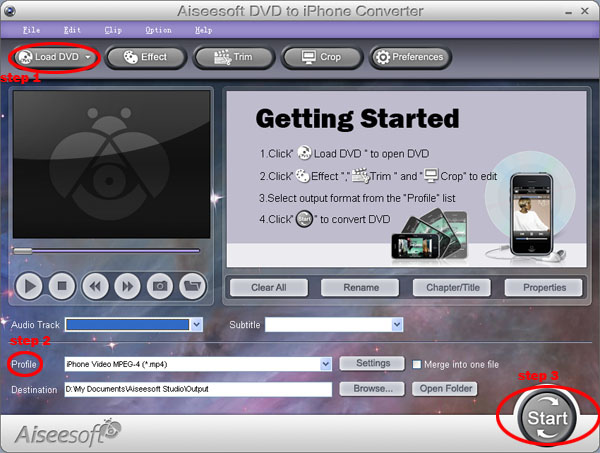


Step 1: Import DVD
Place the DVD into your DVD drive and click the “Load DVD” button to load DVD.
Step 2: Video settings
Select the output video format you need from the “Profile” drop-down list. Click “Settings” button to set your video and audio parameters.
Step 3: Start Conversion
Click “Start” button to start your conversion and it will be finished in a short while.

Tips:
1. "Trim" function is for you to select the clips you want to convert.
2. Click "Effect" to make special effect for your movie.
You can adjust Brightness, Contract, and Saturation of the movie, etc.
3. Cut off the black edges of the original movie video and watch in full screen on your iPod using the "Crop" function.
4. This software allows you to join several DVD chapters into one clips by using "Merge into one file".

Part Three: How to enjoy videos on your iPhone?
Aiseesoft iPhone Movie Converter offers a powerful and easy way to convert almost any video files such as MPG, MPEG, MPEG2, VOB, MP4, M4V, RM, RMVB, WMV, ASF, MKV, TS, MPV, AVI, 3GP, 3G2, FLV, MPV, MOD, TOD to iPhone/iPhone 3G/iPod Touch/iPod Classic/iPod Nano MP4 and H.264 video formats with high speed and excellent image/sound quality.

Step 0: Download and install Aiseesoft iPhone Movie Converter.
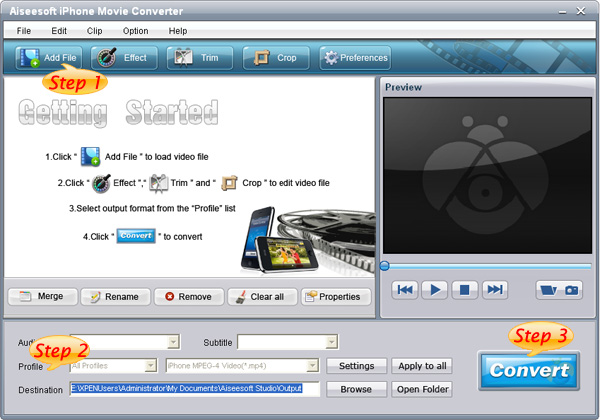


Step 1: Click the "Add Files" button and add the video files you want to convert to the program.
Step 2: Set output video format
Click "Profile" button to select the output format for your video. You can click the "Settings" button to to set parameters of your output video such as Frame Rate, Resolution and Video Bitrate, etc.
Step 3: Click the “Start” button.
If you want to your own conversion path, you could click “Browse” button to specify a location on your computer to save the converted movie. If you want to open the output folder, you can just click “Open”.
Tips
Aiseesoft iPhone Movie Converter also has functions of Trim, Crop, Snapshot and merge into one file.

Part Four: How to transfer music from one iPhone to another iPhone, iPhone to PC, PC to iPhone?
Apple has make it difficult to copy or transfer the songs, music, audio, videos and files that stored on iPhone to iPhone, or transfer the computer files to iPhone, as well as from iPhone to computer for the protected copyrights on iPhone videos, music. But sometimes we reaaly need them.
Now Aiseesoft Studio provides you a full solution for iPhone (3G) - Aiseesoft iPhone Transfer, which can meet all your needs.
Download and install Aiseesoft iPhone Transfer.
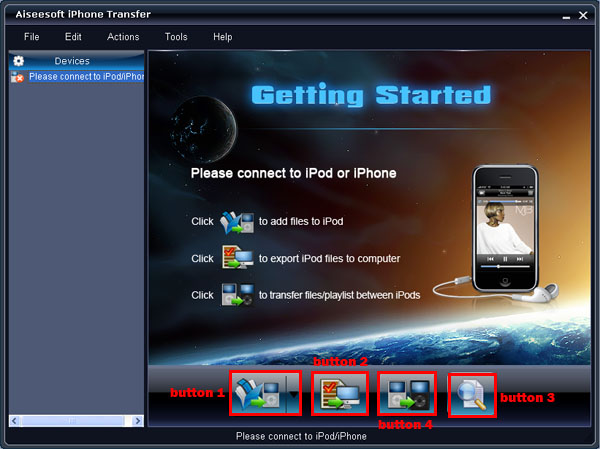


One usage: Copy video and audio files or folders from Computer to iPhone
Step 1: After Running the software, and connect your iPod/iPhone to your computer via USB cable.
Step 2: Click “Button 1” to seek the files or folders that you want to import to iPod and click OK. The process of importing will be finished instantly.

Two usage: Copy your iPod/iPhone files to your computer.
Step 1: After Running the software, and connect your iPod/iPhone to your computer via USB cable.
Step 2: Open the library/playlist that you want to export files, and then check the file(s) you want to export in the file list.
Step 3: Click “Button 2” to select the destination of the exporting files and start exporting files.Otherwise, you could also choose the Export to local option from the Actions menu, and then export the files from your iPod/iPhone to actual device.
Tip: Click “Button 4” to use "Track Filter" function to help you quickly browse your library by genre, artist and album.

Three usage: Transfer files from one iPod/iPhone to another iPod/iPhone
Step 1: After Running the software, and connect your iPod/iPhone to your computer via USB cable.
Step 2: Open the library/playlist that you want to export files. Pick the files that you need to transfer.
Step 3: Click “Button 3”, it will show you the folder of another iPod that you want to transfer to. Click OK. The transfer can be finished automatically.

And if you want to enjoy both DVDs and videos on your iphone, you can have a look Aiseesoft DVD to iPhone Suite.

2010年4月13日星期二

Top 5 Best DVD to iPod Converter Review

You may haven’t figured out how to rip your DVD to your iPod, and played in the right resolution for your iPod. And often, you are confused about which software is the best one. Everybody has its own opinion about that. Here, I give you top 5 best DVD to iPod Converter Review. You can choose what you think the best DVD to iPod Converter among them. I will take 6 points into review.

1)Cost/Performance: Everybody wants to gain more with less money.
2)Video Quality: Someone often uses the video iPod to watch movie, so the output video quality should be considered seriously. Top DVD to iPod output without any loss in the video and image quality of the exports. To enjoying the high definition video is of great pleasure. Or else, not only your eyes may get hurt; the annoying jumpy and mosaics will also bother you.
3)Speed: Convert DVD often takes time, an hour DVD movie takes around thirty minutes to convert to MPEG-4 movie, if you have multiple DVDs to be converted, a high speed converter would be your best bet, or else, you will waste much time on the conversion, and your computer will be tied to the process.
4)Quality of DVD: Sometimes, rip DVD to iPod according to the original DVD quality, or the types of the DVD to determine the ripped file quality.
5)Easy to use: There are still many iPod users knew little about computer, so complicated parameter settings will strain their brain, as a result, a application with simple interface and steps is the acceptable.
6)Personal Demands: For example, someone just wants to convert part of the DVD video, or others want the special output video format like Apple TV compliant forms and etc.
concerning the above factors, I've selected five DVD to iPod converters for reference.

DVD to iPod Converter for Windows Review:
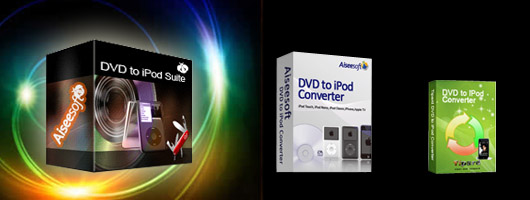
First Aiseesoft DVD to iPod Suite
Second Aiseesoft DVD to iPod Converter.
Third Tipard DVD to iPod Converter


Comment: After you install Aiseesoft DVD to iPod Converter, You will be greatly impressed by its friendly interface. In addition to its top conversion function, it provides the function to optimize your conversion file, set the parameters for you, crop video, trim video, select subtitle etc. If you have many DVDs must be converted and cropped. Aiseesoft DVD to iPod Converter meet your needs.

We tested Tipard DVD to iPod Converter, it is amazing that Regardless of the DVD media we used, the ripped files looked and sounded great. It is also combined with many useful features, trim your video clips; crop the play region of video; set the video effect. If you care about the Cost/Performance, and you care about the video/ audio quality, Tipard DVD to iPod Converter is suit for you.

As for Aiseesoft DVD to iPod Suite, It is the top favorable software, I believe. The reason is that it combines DVD to iPod Converter, iPod to Computer Transfer and iPod Movie Converter into one. With this powerful software, you not only can rip DVD to your iPod, but also convert any video formats to your iPod supporting one. As well as Transfer music and video from iPod to computer. If you want to Rip DVD and convert your favorite video including the FLV format to your iPod with one and inexpensive software, Aiseesoft DVD to iPod Suite is the best one.

DVD to iPod Converter for Windows Review:
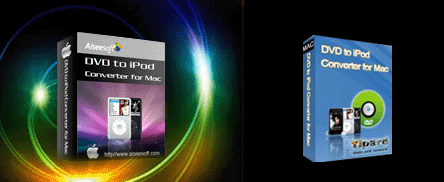
First Aiseesoft DVD to iPod Converter for Mac
Second Tipard DVD to iPod Converter for Mac


Comment: Similarity, the above two Mac software is same on the main function. As for the interface, it’s up to you preference. Frankly, Tipard DVD to iPod Converter for Mac take a little shorter to convert, but considering the video quality, Aiseesoft DVD to iPod Converter for Mac ripped DVD video is more remarkable. Of course, you can test it by yourself. You would found the video conversions are just as clear as the original, sometimes even better.

2010年4月12日星期一

How to Save A Video to .wmv Format

As many popular media players, such as PSP, Zune, Xbox, and Pocket PC, can paly WMV file, it become more and more popular nowadays. However, not all the available videos are WMV file, so we need to convert them. This guide aims to show you how to convert videos to WMV file on Windows.

To convert videos to WMV file you need Aiseesoft
WMV Converter
.

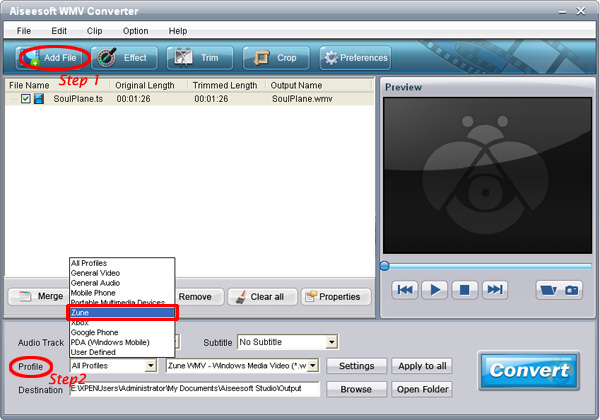
Step 1: Load Video
You can easily load your video by clicking “Add File” and find the video that you want to convert to WMV format.


Step 2: Output Profile and Settings
This powerful WMV converter provides you many profiles according to what devices you have or you just need the general WMV video.
Click “Profile” drop-down list and choose one output profile according to your need.
You can also specify the settings of the output video: you can adjust the video/audio encoder/Bitrate; Channel; Frame Rate; and Resolution.

Step 3: Video Editing and Conversion
Before you start your conversion you can editing your video with this powerful video converter.
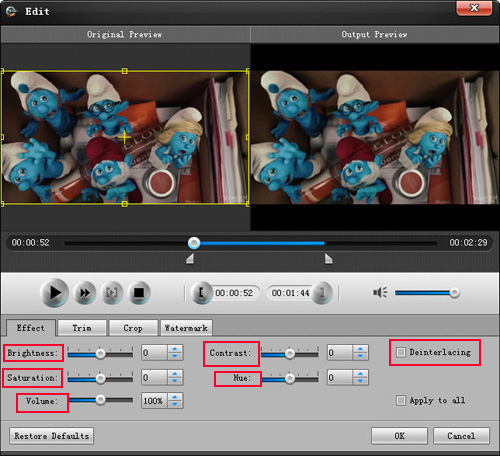
1. Effect:
You can adjust the “Brightness”, “Contrast” and “Saturation” of your output video by dragging the bar on each of the section.
You are also allowed to use “deinterlacing” function to improve your effect of your output video.


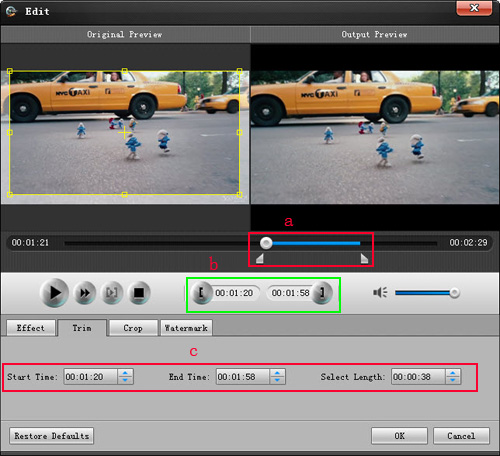
2. Trim:
Using trim function you can remove the part that you don't want to convert and pick up any part of the video to convert.
Three ways to do that:
a. You can drag the buttons to set the start and end time
b. You can preview the video first and when you want to start trim click the left one of the pair buttons when you want to end click the right one.
c. You can set the exact start and end time at the buttom of the pop-up window.


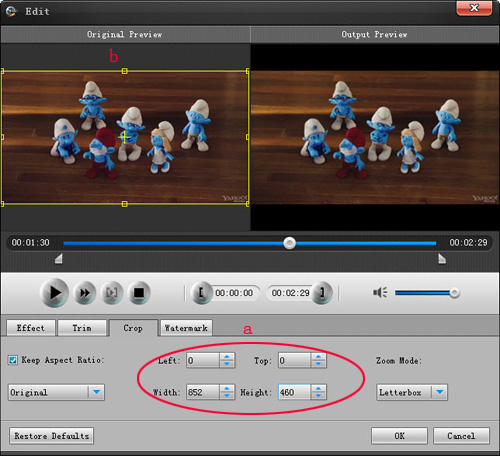
3. Crop:
Crop function allows you to choose any play area to convert.
Two ways to do that:
a. You can set your own mode on the bottom of the pop-up window
b. You can drag frame to set your own crop mode


After editing your output video, you can click “Start” to begin your conversion.
If you don't want to edit your video, you can directly start your conversion.

2010年4月7日星期三

Full Guide: How to Enjoy Your Favorite DVD/ Videos on Your Portable Devices at Will

Questions
One: Do you still not to know how to rip DVD to the formats supported by your portable devices so you can enjoy DVD movies anywhere and at any time?
Two: Do you still not to know how to convert video from one popular video format to another?
Three: Do you still not to know how to backup things on your ipod to pc?

Now, it’s time to get rid of the problem. A professional Aiseesoft
DVD Converter Suite can help you solve all the problems.

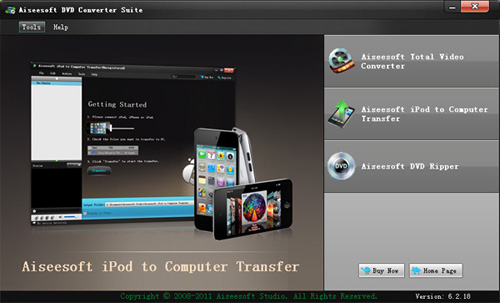
DVD Converter Suite is the perfect combination of Aiseesoft DVD Ripper, Aiseesoft Video Converter and Aiseesoft iPod to Computer Transfer. With it, your can enjoy your DVD/ videos on your portable devices at will!

You can take the following step-by-step instructions to start your conversion.

Step 0: Download and install Aiseesoft DVD Converter Suite
After a short while, you can see the following interface:


On the interface, you can see three buttons: DVD Ripper, Total Video Converter and iPod to Copputer Transfer. I’ll introduce them one by one.

Step Two:
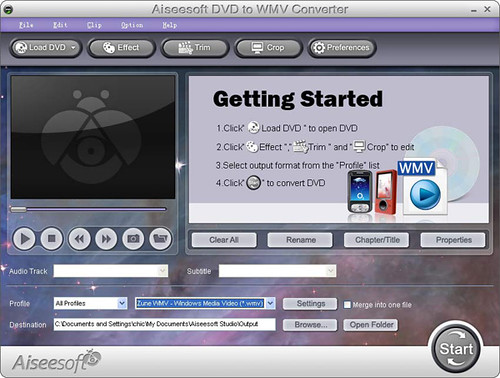
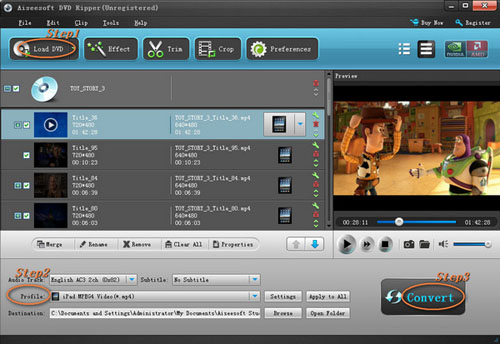
Click “DVD Ripper”, you can see the following interface:


Then you can use it to rip DVD to the formats supported by your portable devices.
1. Import DVD
Place the DVD into your DVD drive and click the “Load DVD” button to load DVD.
2. Set output format
Click "Profile" button to select the output format . You can click the "Settings" button to to set parameters of your output video such as Frame Rate, Resolution and Video Bitrate, etc.
3. Click the “Start” button.
If you want to your own conversion path, you could click “Browse” button to specify a location on your computer to save them. If you want to open the output folder, you can just click “Open”.

Tips
1. Click "Effect" to make special effect for your movie.
You can adjust Brightness, Contract, and Saturation of the movie, etc.
2."Trim" function is for you to select the clips you want to convert.
3. Cut off the black edges of the original movie video and watch in full screen on your iPod using the "Crop" function.
4. This software allows you to join several DVD chapters into one clips by using "Merge into one file".

Step Three:
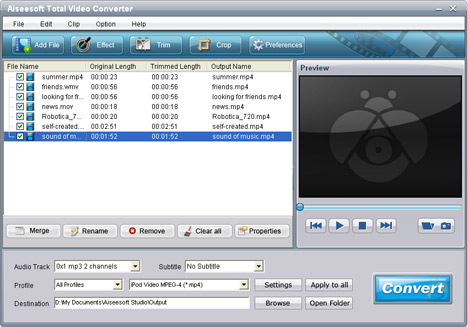
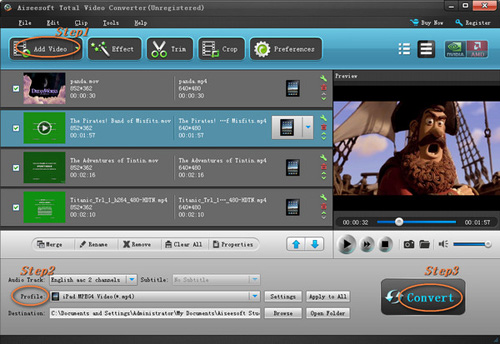
Click “Total Video Converter”, you can see the following interface:


With it, you can convert video from one popular video format to another easily.
1. Click the "Add Files" button and add the video files you want to convert to the program.
2. Set output video format
Click "Profile" button to select the output format for your video. You can click the "Settings" button to to set parameters of your output video such as Frame Rate, Resolution and Video Bitrate, etc.
3. Click the “Start” button.
If you want to your own conversion path, you could click “Browse” button to specify a location on your computer to save the converted movie. If you want to open the output folder, you can just click “Open”.

Tips
Aiseesoft Total Video Converter also has functions of Trim, Crop, Snapshot and merge into one file.

Step Four:

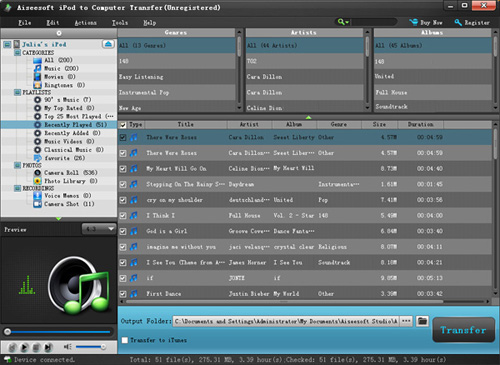
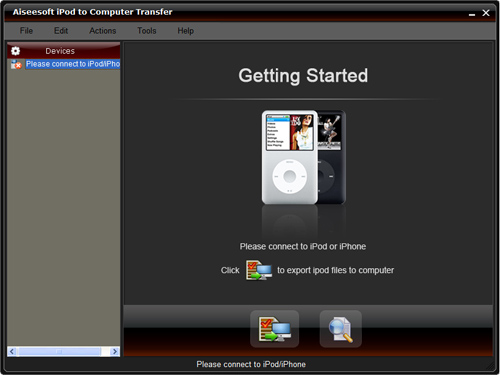
Click “iPod to Computer Transfer”, you can see the following interface:


You can use it to backup iPod video/audio files to computer, you don’t need to worry about losing anything.
1. Connect your iPod to your computer
When you plug your iPod into your computer, Aiseesoft iPod to Computer Transfer can automatically load your iPod into it.
2. Choose files
Choose the songs, videos and other things that you want to backup at the top of the window
3. Start to transfer
The most important and the last thing you need to do are to click the “export to pc” button . After you click “export to pc” button a pop-up window will appear and with it you can choose where you place your iPod songs and videos. Few seconds later you will have your iPod songs, videos and other things on your computer.

Tips
1. To make your backup in a good order, you can click “Track Filter” button
2. For the beginner of iPod you can know the generation and name of your iPod from Aiseesoft iPod to Computer Transfer. And you can also know how many spaces have used and how many left in your iPod.


Mac user
Aiseesoft DVD Converter for Mac

2010年4月4日星期日

How to transfer music from iPod with iPod Rip and iPod Rip for Mac

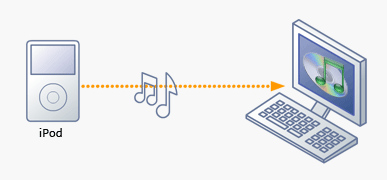
Basically, there is a need for you to transfer music from iPod with iPod Rip and iPod Rip for Mac to avoid your files are lost. Now, I guide you how to rip your iPod to hard drives with Aiseesoft iPod to Computer Transfer. So you don’t need to worry about losing anything.


Step 1: Download Aiseesoft iPod to Computer Transfer and install.


Step 2: Launch the program
Double-click the icon to run the software; or launch it from the “Start” Menu.
Step 3: Rip iPod files.
1)Run the software, and connect your iPod/iPhone to your computer via USB cable. After done, the iPod/iPhone icon and its library and playlists will appear in the Device list.
2)Open the library/playlist that you want to export files, and then check the music/movie you want to export in the file list to your computer.
3)Click the "Export to PC" button to select the destination of the exporting files and start ripping files
Otherwise, you could also choose the Export to local option from the Actions menu, and then export the files from your iPod/iPhone to actual device.

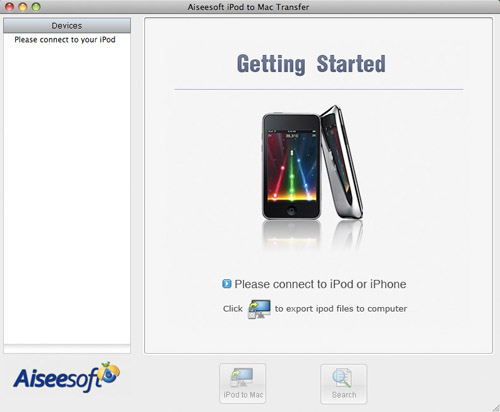
Tip: Use “Track filter” function to help you quickly browse your library by genre, artist and album. If you are using Mac, please use the iPod Rip for Mac software. Click here to download Aiseesoft iPod to Mac Transfer