2011年3月29日星期二

How to Put DVD Movies on iPod, iPod touch, iPod nano, iPhone(Windows/Mac)

At this moment, there is thousands of people are using their iPod enjoy their time in the whole world. With the time pssing by, other thousands of people are going to have their own iPod and joining into the iPod group. However, a problem that most of the iPod users don’t know how to put their own DVD movies to their iPod both Windows and Mac users and this problem annoys most of iPod users.
As one of iPod fans I will intorduce iPod users a really nice way to put their DVD on their iPod.(Windows/Mac)

Part 1. For Windows user:

Step 1. Load your DVD
Install and run Aiseesoft DVD to iPod Converter
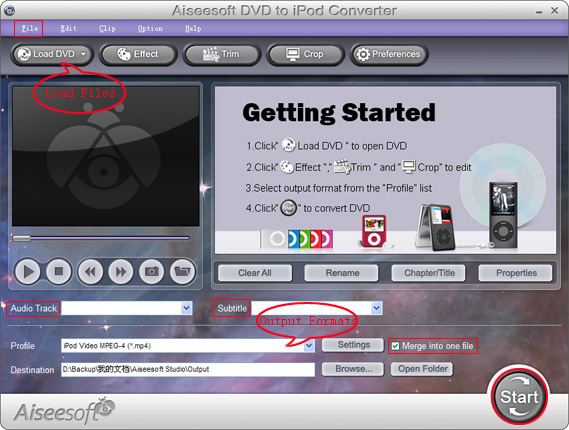
Open your DVD drive and put your DVD in it. Click “Load DVD” button and choose “Load DVD”. (There is 2 more ways you can load your file, “Load DVD Folder” and “Load IFO”)(1)
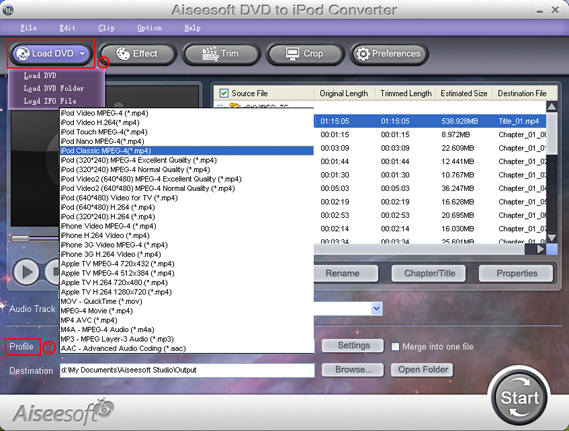

Step 2. Choose your output profile and adjust your output settings
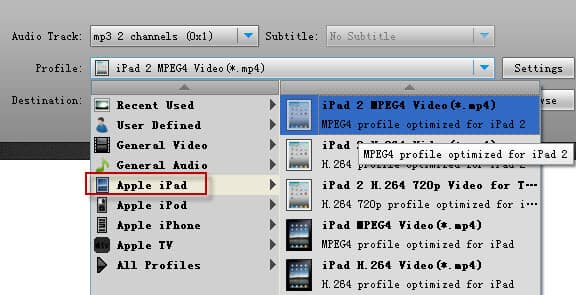
After you load your DVD into it, please choose your output profile according to your iPod. It provides many different profile for you.(2)
Then you can adjust your output video’s settings by clicking “Settings” button.
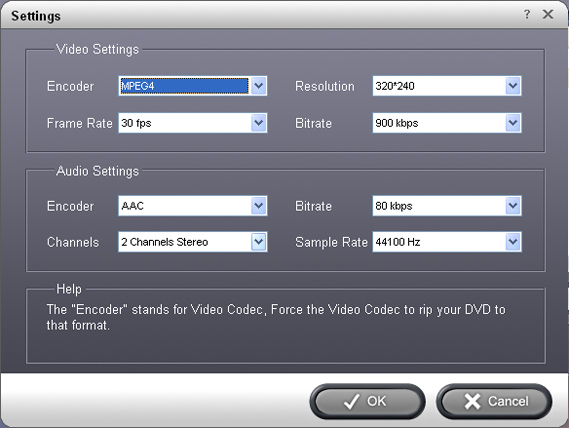

After doing the 2 steps you can click “Start” button to begin the conversion.

Tips:
1. Trim:
Three ways to do trim:
a. Drag the “start scissors bar” button to where you want to start and “end scissors bar” button where you want to end (1)
b. You can click the “Trim From” button when you want to start the trim during your preview and click “Trim To” button when you want to end.
c. Set the exact “start time” and “end time” at right part of the trim window and click “ok”
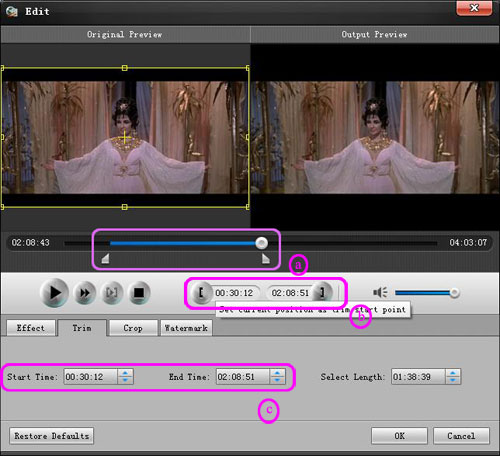

2. Crop:
Three ways to do crop
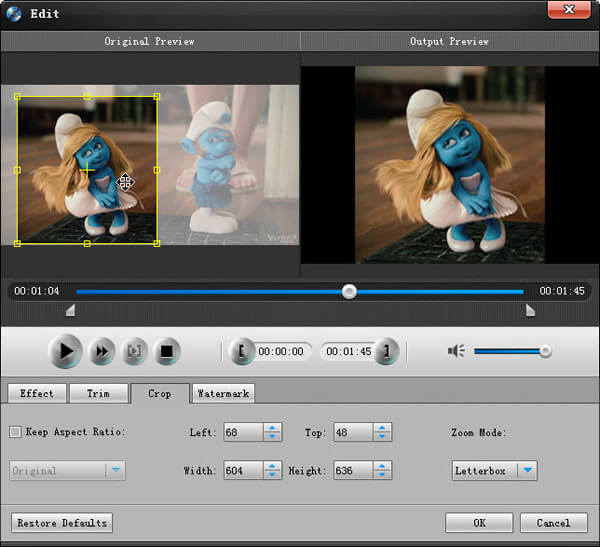
a. Select one crop mode from the “Crop Mode” drop-list.
b. Dragging crop frame to choose your own crop.
c. Set your own crop value.
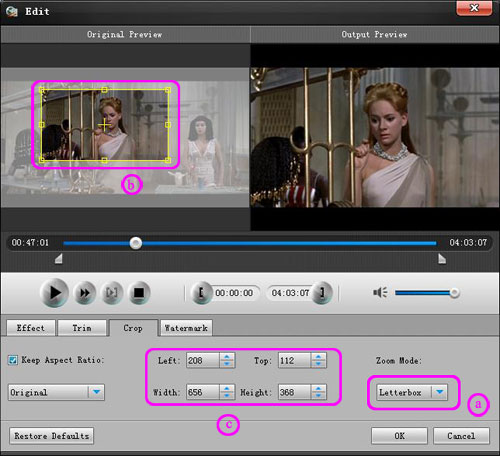

3. Effect
Drag the adjustment bar to find your favorite effect of Brightness, Contrast, Saturation and Volume.
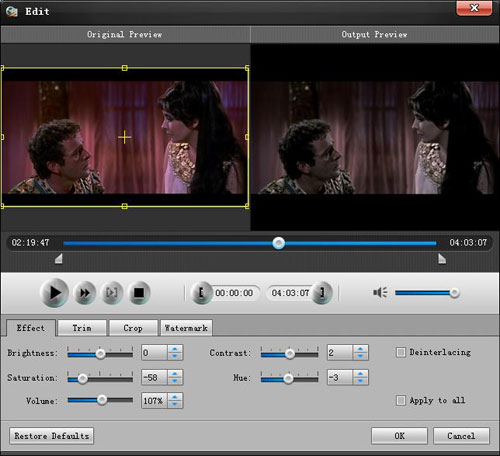

4. Select audio track and subtitle
Select the audio track and subtitle from the drop-list window under the preview window.(1)
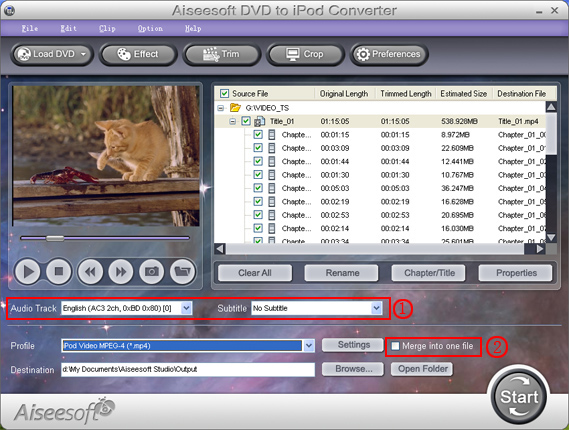

5. Merge into one file.
Pick the “Merge into one file” to merge the files you choose into one output file.(2)

Part 2. For Mac user:

For Mac users there are not many nice DVD to iPod converter to use but Aiseesoft
DVD to iPod Converter for Mac is really nice. Its conversion quality and speed are much better than other Mac DVD to iPod converter on the market and its video editing functions is its another charm. With it you can smoothly customize your own video effect by doing trim, crop, and adjust the effect of your output video. And you can also preview the effect of your output video and choose subtitle and audio track and you can also merge titles and chapters into one output file.
Download Aiseesoft DVD to iPod Converter for Mac
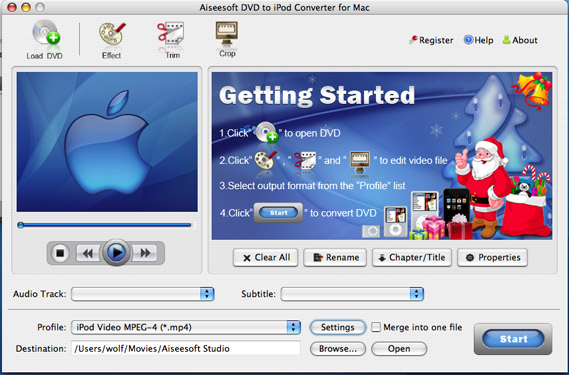
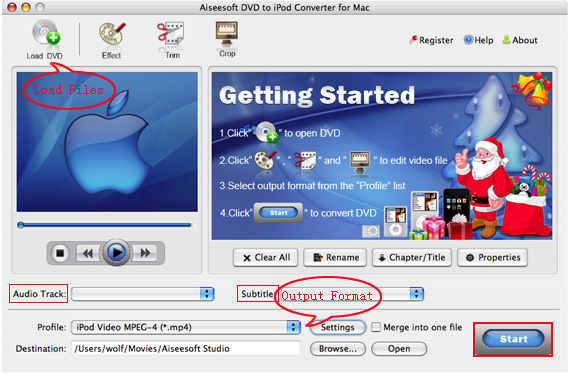
And for Aiseesoft DVD to iPod Converter for Mac, the process of doing Trim, Crop and adjusting Effec and other functions is the same as in windows.


If you own iphone, you can try Aiseesoft DVD to iPhone Converterand DVD to iPhone Converter for Mac 

2011年3月27日星期日

How to Put Your Blu Ray DVD to Your iPod/iPhone?

Blu-ray movies are replacing the standard DVD movies for its sharper, brighter, and more detailed. You will feel you are watching movies in theater except the size of your and you are in your home. Blu-ray is so nice that many people will think of putting them on their iPod or iPhone. It is possible that if you have a nice Blu Ray Ripper and maybe an
iPod Transfer and
iPhone Transfer


Part 1: How to Rip Blu Ray DVD movies to iPod iPhone video format?

Before you run this blu-ray ripper you need to install any dvd
Here is a free download link:
http://static.slysoft.com/SetupAnyDVD.exe

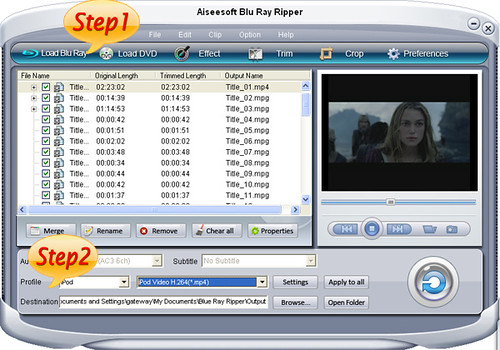
Step 1: Load your BD

Load your BD disc in to your blu-ray driver.


Step 2: Output Profile

Choose your output profile from the drop-down list according to your need. You choose output

format as the generatoin of your iPod and iPhone.
You can also set the specific settings of your output video, such as ''resolution'“video

bitrate” “encoder” and so on.

After you have done all the tings above, you need to click the start button to convert your blu-ray disc.

Tips:

You can also do many video editing works about your output video.


1. Effect:
You can adjust the “Brightness”, “Contrast”, “Saturation” of your output video and also you can select to use
the “deinterlacing” function which make your video more enjoyable.
2. Trim
To pick up any part of your BD movie to converter, you can use “Trim” function.
3. Crop
You can choose any play area to convert by using the Crop function.
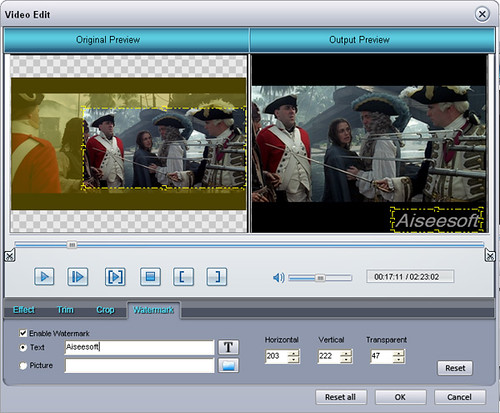
4. Watermark
You can add your own watermark on the output video, the watermark can be words and also picture. You can choose the font of your words and other really enjoyable function

Part 2: How to Put Your Movies on Your iPod iPhone?

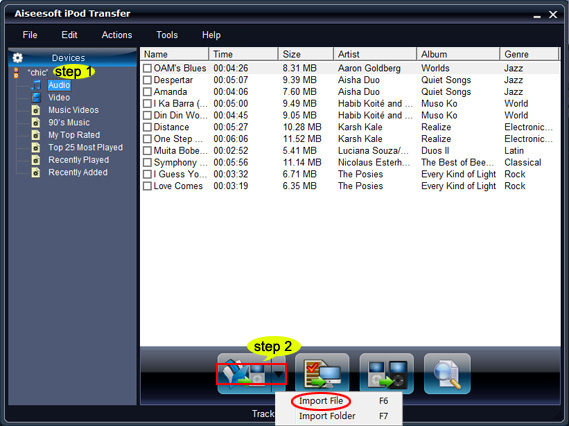
Step 1: RuniPod Transfer and Plug your iPod or iPhone to your computer

This powerful iPod Transfer can recognize your iPod or iPhone automatically and show the info of your iPod or iPhone on the interface.


Step 2: Choose the movie

Click the "Computer to iPod/iPhone" button and you are allowed to choose file and folder.

You just need to find your converted movie on your computer and click ok. Your movie will be delivered to your iPod or iPhone directly.

Aiseesoft iPhone to Computer Transfer


2011年3月17日星期四

How to Convert AVI to iPad 2 With AVI to iPad 2 Converter?

How to Convert AVI to iPad 2 With AVI to iPad 2 Converter?

AVI(Audio Video Interleave) is one of the most popular video format nowadays. It is a container format used by Microsoft's Video for Windows multimedia framework. You can not play your .avi video on iPad 2 directly. However, this guide will show you how to convert avi to iPad 2 supported video formats with Aiseesoft AVI to iPad 2 Converter.

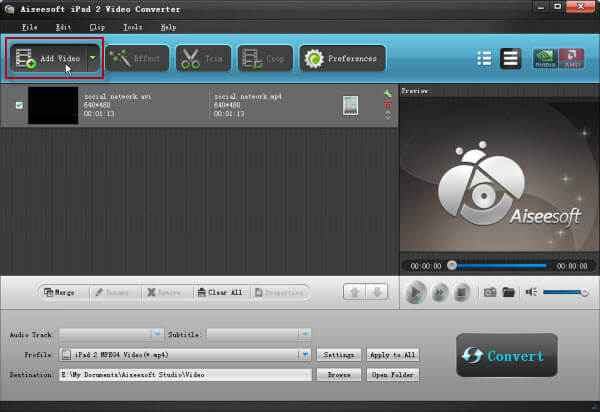
Step 1. Load Video

Click "Add File" button to browse source AVI file(s) to the program. Or simply drag and drop files into the app.


Step 2. Choose Output Profile

Choose output format for iPad 2 video to convert AVI files into iPad 2 video files.

This AVI to iPad 2 Converter provides you:

* 1. iPad 2 MPEG4 Video(*.mp4)
* 2. iPad 2 H.264 Video(*.mp4)
* 3. iPad 2 H.264 720p Video for TV(*.mp4)


Step 3. Convert

Click the "Convert" button, you will get iPad 2 supported video soon.

certainly if you are Mac users, you need download the Aiseesoft Mac AVI to iPad 2 Converter

2011年3月15日星期二

How to Rip Blu-ray Movie to iPad 2

The new-released iPad 2 has no Blu-ray drive. So if users want to enjoy the latest Blu-ray movie with iPad 2, Aiseesoft Blu-ray to iPad 2 Ripper is definitely the best tool. This Blu-ray to iPad 2 Converter is able to rip any Blu-ray movie to iPad 2 compatible video and audio formats, such as MP4, H.264, MP3, etc. Now I will show you how to convert Blu-ray movie adopting this Blu-ray to iPad 2 Ripper.

First of all, you need to download Blu-ray to iPad 2 Converter and install it.

Step 1: Run the software and load Blu-ray disc
After installing this Blu-ray to iPad 2 Ripper, you could load the Blu-ray disc. Then you can see the interface as below.


Step 2: Choose audio track and subtitle
If the Blu-ray movie has more than one audio track and subtitle, this Blu-ray to iPad 2 Ripper will list all of them for you to choose. You can select your preferred one for the output video.


Step 3: Choose profile and set output parameters
Aiseesoft Blu-ray to iPad 2 Converter provides users with numerous output profiles to choose. You can choose any one from the drop-down list. Also you can click the "Settings" button to enter the settings interface to do further settings.
You are allowed to adjust Video Encoder, Frame Rate, Video Bitrate, Resolution, Audio Encoder, Sample Rate, Channels, and Audio Bitrate.
Step 4: Edit video effect
In order to output a perfect iPad 2 video, you can also edit video effect. Click the "Edit" button to enter the "Edit" interface. Here, you can trim video length, crop video frame, watermark video, modify video playing effect, etc.


Step 5: Start converting
After all these settings and editing, you can start the Blu-ray to iPad 2 ripping process by click the round button in the lower right corner.

2011年3月11日星期五

How to Rip DVD to iPod Touch, iPod Nano Converter on Windows, Vista and Mac

The software you will need: DVD to iPod Converter Windows (DVD to iPod Vista) and DVD to iPod for Mac.

This guide will show you how to rip DVD to iPod Touch with these iPod Nano Converter.
The following video and audio formats are supported by iPod Touch/iPod Nano: H.264, MPEG-4,

MP3, AAC, WAV. So for you enjoy DVD on iPod, you need to convert DVD to these formats.

Part One: How to rip DVD to iPod Windows, DVD to iPod Vista
Part Two: How to rip DVD to iPod Mac

Part One:
1. Download Aiseesoft DVD to iPod Converter Windows (DVD to iPod Vista), then follow the instructions to install and run it.


2. Click “Load DVD” to load DVD, DVD Folder or IFO files.

3. Click “Profile” to set the exact output format. Click “Settings” to set the exact

parameters for your iPod. Select “Audio Track” and “Subtitle” for the output file.

4. After finishing all the pre-settings, click “Start”.

Part Two:
1. Download Aiseesoft DVD to iPod Mac (Intel, Power PC). Install and run it.


2. All the process are the same as DVD to iPod Windows.

Tips:
1. Click “Effect” to make special effect for your video.
You can adjust Brightness, Contract, Saturation of the video and the adjust the volume of

music.
2. “Trim” function is for you to select the clips you want to convert.
3. Cut off the black edges of the original video and watch in full screen on your iPod

using the “Crop” function.
4. This software allows you to join several DVD chapters into one clips by using “Merge

into one file”.

2011年3月9日星期三

How to Put Your Blu Ray DVD to Your iPod/iPhone?

Blu-ray movies are replacing the standard DVD movies for its sharper, brighter, and more detailed. You will feel you are watching movies in theater except the size of your and you are in your home. Blu-ray is so nice that many people will think of putting them on their iPod or iPhone. It is possible that if you have a nice Blu Ray Ripper and maybe an
iPod Transfer and
iPhone Transfer


Part 1: How to Rip Blu Ray DVD movies to iPod iPhone video format?

Before you run this blu-ray ripper you need to install any dvd
Here is a free download link:
http://static.slysoft.com/SetupAnyDVD.exe

Step 1: Load your BD

Load your BD disc in to your blu-ray driver.


Step 2: Output Profile

Choose your output profile from the drop-down list according to your need. You choose output

format as the generatoin of your iPod and iPhone.
You can also set the specific settings of your output video, such as ''resolution'“video

bitrate” “encoder” and so on.

After you have done all the tings above, you need to click the start button to convert your blu-ray disc.

Tips:

You can also do many video editing works about your output video.


1. Effect:
You can adjust the “Brightness”, “Contrast”, “Saturation” of your output video and also you can select to use
the “deinterlacing” function which make your video more enjoyable.
2. Trim
To pick up any part of your BD movie to converter, you can use “Trim” function.
3. Crop
You can choose any play area to convert by using the Crop function.
4. Watermark
You can add your own watermark on the output video, the watermark can be words and also picture. You can choose the font of your words and other really enjoyable function

Part 2: How to Put Your Movies on Your iPod iPhone?

Step 1: RuniPod Transfer and Plug your iPod or iPhone to your computer

This powerful iPod Transfer can recognize your iPod or iPhone automatically and show the info of your iPod or iPhone on the interface.


Step 2: Choose the movie

Click the "Computer to iPod/iPhone" button and you are allowed to choose file and folder.

You just need to find your converted movie on your computer and click ok. Your movie will be delivered to your iPod or iPhone directly.

Aiseesoft iPhone to Computer Transfer


2011年3月4日星期五

How to convert MTS, TS, M2TS Video to HD video, MP4, WMV, AVI......

Record everything around you and share with the world/friends/family is becoming more and more popular among young people. Get a HD Camcorder is necessary and also how to share is really important. I think you can use youtube.com, make a DVD and so on. As the video you record on your camcorder is MTS, TS, M2TS or other HD video format, so you have to convert them into normal video format to edit.

Today I will share with you how to convert MTS, TS, M2TS video to normal video formats.
You need 3 nice tool to do it: MTS Converter, TS Video Converter ,
M2TS Converter.

Part 1: How to convert MTS video
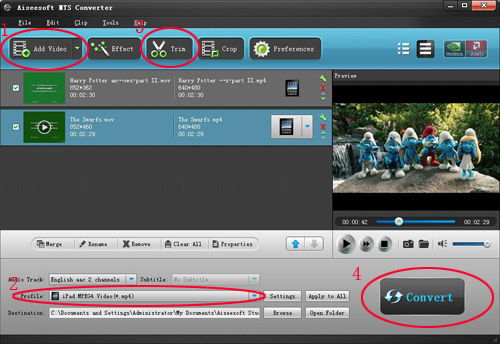
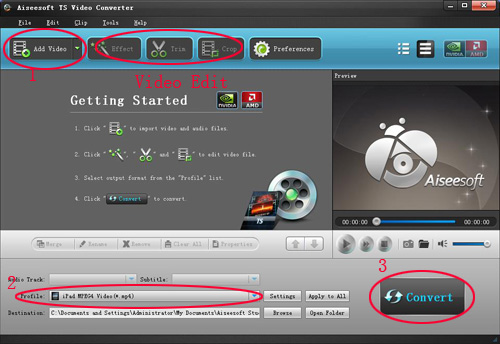
Step 1: Load Video
Click “Add File” to load the video that you want.


Step 2: Choose Your Output Profile and Settings
From “Profile” drop-down list you can choose your output profile according to your need.
For example, if you have a iPod and you want to convert video for it, you need to choose “iPod” from the profile list and then it also provides the second chance to specify your iPod generation.
You can also click “setting”adjust the settings of your output video, such as “video/audio encoder”, “Video/audio Bitrate”, “Channels”, “Resolution” and so on..

Step 3: Video Editing
This powerful MTS Converter allows you to do many video editings.
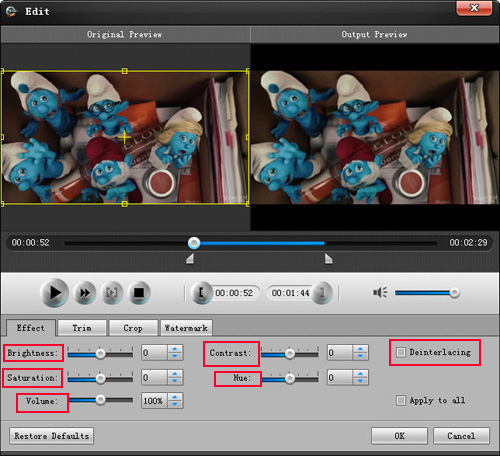
1. Click "Effect" to make special effect for your movie.
You can adjust the “Brightness”, “Contrast”, “Saturation” and also you can use “deinterlacing” to improve you output effect.


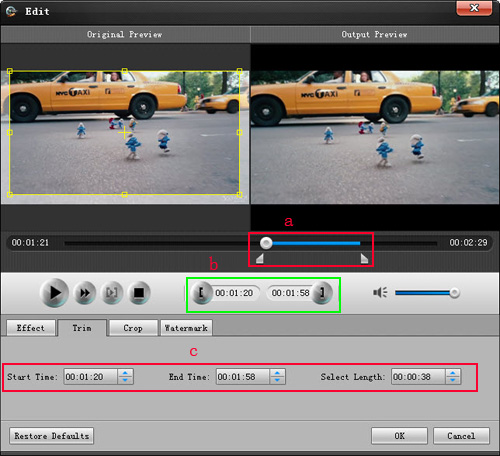
2. Trim:
“Trim” function allows you to pick up any part of your video to convert. You can just convert a part of your video that you want.


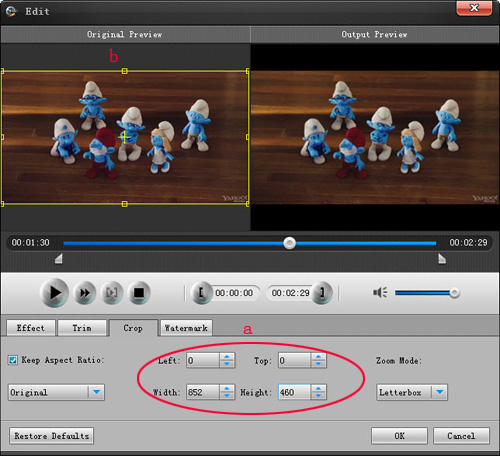
3: Crop:
Cut off the black edges of the original movie video and watch in full screen on your iPod using the "Crop" function.


Step 4: Conversion
After you have done all the steps above you can click “Start” button to start your conversion.

Part 2: How to convert TS video


Step 1: Load Video
Click “Add File” to load the video that you want to convert.

Step 2: Choose Your Output Profile and Settings
From “Profile” drop-down list you can choose your output profile according to your need.
You can also click “setteing”adjust the settings of your output video, such as “video/audio encoder”, “Video/audio Bitrate”, “Channels”, “Resolution” and so on..

Step 3: Conversion
After you have done all the steps above you can click “Start” button to start your conversion.


Tips: Video Editing
This powerful TS Converter allows you to do many video editings.
1. Click "Effect" to make special effect for your movie.
You can adjust the “Brightness”, “Contrast”, “Saturation” and also you can use “deinterlacing” to improve you output effect.
2. Trim:
“Trim” function allows you to pick up any part of your video to convert. You can just convert a part of your video that you want.
3: Crop:
Cut off the black edges of the original movie video and watch in full screen on your iPod using the "Crop" function.

Part 3: How to convert M2TS video


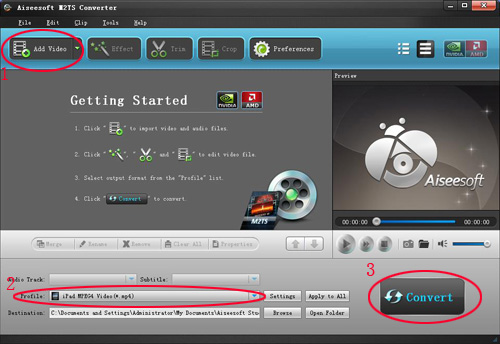
Step 1: Add File
Load your M2TS video.

Step 2: Choose Profile and Settings
Select your output profile according your need and adjust the settings of your output video if you like.
(the default setting works well)

Step 3: Start Conversion
Click “Start” to begin your conversion.