2010年9月27日星期一

New iPod touch 2G Guide

A big surprise turn up at 9th Sep for all iPod fans – the new iPod touch 2G and Nano 4G released. It’s really lucky and exciting to get a new iPod Touch 2G. And in order to help iPod users to learn more about it, I collected some information for this new iPod touch 2G guide. And it also includes how to enjoy the multimedia on you new iPod touch 2G such as download free video to iPod, convert DVD to iPod and transfer music video from iPod to iPod and iPod to computer.

Price:
As expected, the biggest news with Apple's second-generation iPod Touch is its drastically reduced price. The 8GB version of the iPod Touch 2G is now $229 (down from $299), the 16GB is $299 (down from $399), and the 32GB is $399 (down from $499).

Size:
The new iPod touch 2G is smaller and lighter than the original, 3.5 inch touch-screen, measuring 4.1 by 2.4 by 0.33 inches and weighing 4.05 ounces. With its rounded edges, flush display and curved, more compact design, the iPod touch 2G is promised to be more comfortable to hold and more portable than ever.
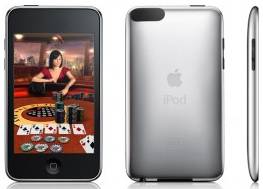
New iPod Touch - size

Game:
iPod touch 2G users can choose from hundreds of gaming titles such as "Spore Origins" and "Scrabble" from Electronic Arts, and "Real Football 2009" from Gameloft available on iTunes or directly through the App Store application on the iPod touch. The App Store works over Wi-Fi, enabling users to browse, purchase and wirelessly download applications.

New iPod Touch - game

Battery and “Genius”
The new iPod touch 2G promises up to 36 hours of music playback or six hours of video playback on a single charge. It also works with the new iTunes 8 Genius feature, allowing users to automatically create playlists while on the go. These playlists can also be synchronized with iTunes 8 servers.

Others features in new iPod touch 2G
Build-in accelerometer for casual listening; more convenient volume control button on the edge; the newest improvements “Nike+iPod” which can help you track your workouts by slipping a Nike+iPod sensor into you Nike+ shoes.

Then, Let’s talk about how to enjoy multimedia on your New iPod touch 2G
Part 1: How to free download video to your new iPod Touch 2G.
I always download free video and music from Youtube and limewire.
Youtube streaming videos are all FLV formats, so you need to play the video with a flash player programe on your computer, and if you want to put them on your new iPod touch 2G, use a iPod video Converter to convert FLV to MP4 format.
I got this totally free Youtube downloader, just enjoy.
http://www.aiseesoft.com/free-youtube-downloader.html

Limewire is a fast and popular freeware working on Windows, Linux and Mac OS. Through the P2P (peer-to-peer) network, you can free download various video and audio files by keywords searching. Most of its video formats is MPEG, so convert them and transfer to your iTunes then iPod touch 2G.
http://www.limewire.com/

Part 2: How to convert DVD to iPod Touch 2G
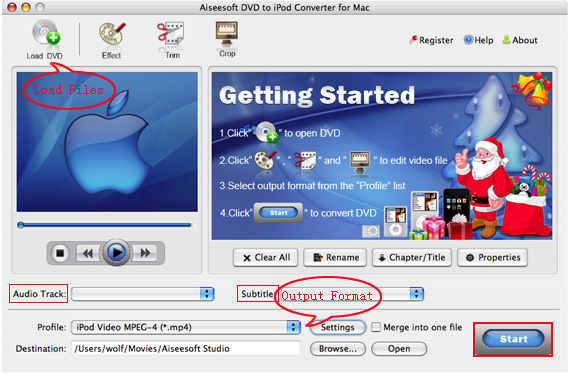
The new iPod touch 2G can only play MP4 and H.264 video, but DVD movie is MEPG, MPEG-2 video and CSS protected, so you need an application to convert DVD to MP4 video, then sync it to iPod touch 2G via iTunes.
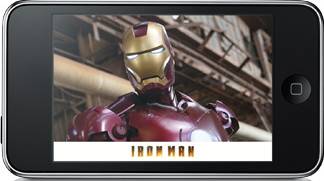
convert DVD to New iPod Touch

To complete Part 1 and Part 2 I recommend you an iPod studio pack which includes a DVD to iPod converter and video to iPod converter.
You can get familiar with the apps by using this detailed step by step guide:
http://www.aiseesoft.com/article/download-dvd-pdf-youtube-videoto-ipod.html

Part 3: How to convert files back to your computer and transfer between iPod
Because iTunes prevents you from copying music or video from the iPod touch 2G back to computer, so you need a special tool to do that.
Yamipod, Aiseesoft iPod to Computer Transfer, Sharepod, iDump
And then re-add it to your iTunes library and sync it to other iPod touch 2G.

Free Trial: Free download Aiseesoft DVD to iPod Suite

view the datail of ipod nano chromatic/touch 2 converter

2010年9月26日星期日

Collusion

Mike Arrington posted about a secret meeting of angels and super angels in San Francisco the other night. In the post he suggests that they are colluding to keep valuations down, terms intact, and traditional venture capital firms, such as ours, out of their deals.

Read the rest of this post on the original site

New York Times: We’re Not a Newspaper Company. Except That We Are Totally a Newspaper Company.

New York Times CEO Janet Robinson wants investors to know that her company is not all about newsprint. “I wouldn’t define us as a newspaper company,” she told the crowd at Goldman’s media conference this morning.

Instead, she says, she prefers to think of the publisher as as “multiplatform” brand. That’s the Web, the iPhone, the iPad, the iPad competitors we haven’t seen yet, etc.

Okay. Except that Robinson spent much of her remaining time this morning underscoring just how important the newspaper–as in, ink and paper–business is to the New York Times (NYT).

On multiple occasions, Robinson pointed out that the print business, which accounts for about 75 percent of the paper’s ad revenues (that number would be higher for overall revenue), isn’t going away. That seems obvious but for some reason needs repeating: “It’s very clear that our print business is a very profitable business, and we will be printing the New York Times for many many years to come.”

And Robinson repeatedly stressed that the Times’ upcoming digital paywall plans will focus intently on hanging on to print subscribers, and that valuable, direct relationship they have with the publisher. “We’re continuing to look at how we marry print and digital,” etc. etc.

What about those plans? Stay tuned, Robinson said–the paper will announce pricing and bundling options later this year. But as we’ve previously surmised, the pay plans won’t be specific to the Web, but will also include options for the paid iPad app the Times is working on, and perhaps for other devices.

Meanwhile, asked to comment about the Times’ relationship with Apple (AAPL) and its interest in an Apple-run newspaper subscription service, digital head Martin Nisenholtz did a masterful job of not saying anything conclusive. He did, however, note that:

  • The Times’ free iPad app is a big hit with advertisers, and that “we have no reason to be working iAds”–Apple’s in-house ad program–for that app. The Times does use iAds for its iPhone app, though. (I’ve found them to be quite buggy, by the way.)
  • Even though the Times sent developers to Cupertino prior to the iPad launch, and Nisenholtz got stage time with Steve Jobs during the launch event, the paper “[doesn't] align ourselves” with any particular platform. And they’re very excited to see the new tablets running on Google (GOOG) and Microsoft (MSFT) software.

2010年9月25日星期六

DOJ, Tech Companies Settle Hiring Probe

The U.S. Department of Justice has reached an agreement with six major Silicon Valley companies over their employee recruiting practices and alleged no-poaching agreements. Among the companies named in the settlement: Google, Apple, Intel, Adobe, Intuit and Pixar. Said Deputy Assistant Attorney General Molly Boast, “The agreements challenged here restrained competition for affected employees without any procompetitive justification.”
The official release below:

JUSTICE DEPARTMENT REQUIRES SIX HIGH TECH COMPANIES TO STOP ENTERING INTO ANTICOMPETITIVE EMPLOYEE SOLICITATION AGREEMENTS

Settlement Preserves Competition for High Tech Employees

WASHINGTON — The Department of Justice announced today that it has reached a settlement with six high technology companies–Adobe Systems Inc., Apple Inc., Google Inc., Intel Corp., Intuit Inc. and Pixar–that prevents them from entering into no solicitation agreements for employees. The department said that the agreements eliminated a significant form of competition to attract highly skilled employees, and overall diminished competition to the detriment of affected employees who were likely deprived of competitively important information and access to better job opportunities.

The Department of Justice’s Antitrust Division filed a civil antitrust complaint today in U.S. District Court for the District of Columbia, along with a proposed settlement that, if approved by the court, would resolve the lawsuit.

According to the complaint, the six companies entered into agreements that restrained competition between them for highly skilled employees. The agreements between Apple and Google, Apple and Adobe, Apple and Pixar and Google and Intel prevented the companies from directly soliciting each other’s employees. An agreement between Google and Intuit prevented Google from directly soliciting Intuit employees.

“The agreements challenged here restrained competition for affected employees without any procompetitive justification and distorted the competitive process,” said Molly S. Boast, Deputy Assistant Attorney General in the Department of Justice’s Antitrust Division. “The proposed settlement resolves the department’s antitrust concerns with regard to these no solicitation agreements.”

In the high technology sector, there is a strong demand for employees with advanced or specialized skills, the department said. One of the principal means by which high tech companies recruit these types of employees is to solicit them directly from other companies in a process referred to as, “cold calling.” This form of competition, when unrestrained, results in better career opportunities, the department said.

According to the complaint, the companies engaged in a practice of agreeing not to cold call any employee at the other company. The complaint indicates that the agreements were formed and actively managed by senior executives of these companies.

The complaint alleges that the companies’ actions reduced their ability to compete for high tech workers and interfered with the proper functioning of the price-setting mechanism that otherwise would have prevailed in competition for employees. None of the agreements was limited by geography, job function, product group or time period. Thus, they were broader than reasonably necessary for any collaboration between the companies, the department said.

The department said in its complaint:

Beginning no later than 2006, Apple and Google executives agreed not to cold call each other’s employees. Apple placed Google on its internal “Do Not Call List,” which instructed employees not to directly solicit employees from the listed companies. Similarly, Google listed Apple among the companies that had special agreements with Google and were part of the “Do Not Cold Call” list;

Beginning no later than May 2005, senior Apple and Adobe executives agreed not to cold call each other’s employees. Apple placed Adobe on its internal “Do Not Call List” and similarly, Adobe included Apple in its internal list of “Companies that are off limits”;

Beginning no later than April 2007, Apple and Pixar executives agreed not to cold call each other’s employees. Apple placed Pixar on its internal “Do Not Call List” and senior executives at Pixar instructed human resources personnel to adhere to the agreement and maintain a paper trail;

Beginning no later than September 2007, Google and Intel executives agreed not to cold call each other’s employees. In its hiring policies and protocol manual, Google listed Intel among the companies that have special agreements with Google and are part of the “Do Not Cold Call” list. Similarly, Intel instructed its human resources staff about the existence of the agreement; and

In June 2007, Google and Intuit executives agreed that Google would not cold call any Intuit employee. In its hiring policies and protocol manual, Google also listed Intuit among the companies that have special agreements with Google and are part of the “Do Not Cold Call” list.

The proposed settlement, which if accepted by the court will be in effect for five years, prohibits the companies from engaging in anticompetitive no solicitation agreements. Although the complaint alleges only that the companies agreed to ban cold calling, the proposed settlement more broadly prohibits the companies from entering, maintaining or enforcing any agreement that in any way prevents any person from soliciting, cold calling, recruiting, or otherwise competing for employees. The companies will also implement compliance measures tailored to these practices.

Today’s complaint arose out of a larger investigation by the Antitrust Division into employment practices by high tech firms. The division continues to investigate other similar no solicitation agreements.

Adobe Systems Inc. is a Delaware corporation with its principal place of business in San Jose, Calif., and 2009 revenues of nearly $3 billion. Apple Inc. is a California corporation with its principal place of business in Cupertino, Calif., and 2009 revenues of more than $42 billion. Google Inc. is a Delaware corporation with its principal place of business in Mountain View, Calif., and 2009 revenues of more than $23 billion. Intel Inc. is a Delaware corporation with its principal place of business in Santa Clara, Calif., and 2009 revenues of more than $35 billion. Intuit Inc. is a Delaware corporation with its principal place of business in Mountain View, Calif., and 2009 revenues more than $3 billion. Pixar is a California corporation with its principal place of business in Emeryville, Calif.

The proposed settlement, along with the department’s competitive impact statement, will be published in The Federal Register, as required by the Antitrust Procedures and Penalties Act. Any person may submit written comments concerning the proposed settlement within 60 days of its publication to James J. Tierney, Chief, Networks & Technology Enforcement Section, Antitrust Division, U.S. Department of Justice, 450 Fifth Street N.W., Suite 7100, Washington D.C. 20530. At the conclusion of the 60-day comment period, the court may enter the final judgment upon a finding that it serves the public interest.

2010年9月22日星期三

How to download free youtube, yahoo, google, stream video for free

This step-by-step guide will show you how to download video from YouTube, Google Video, Yahoo and other video download website. Videos come from those websites are streaming videos. You need special software to capture steaming videos. Today we take YouTube video for example, write a guide about how to download streaming video to computer for free. This guide provides two methods:
1. with free online flv converter;
2. with firefox
This guide is also fit for other video websites as follow video list:
http://www.aiseesoft.com/article/free-download-video-list.html
3. How to transfer the downloaded youtube video to iPod PSP Zune iPhone Cell Phone and other MP3/MP4 player?

1. With free online flv converter
Step1. Open this website: http://vixy.net/. It's a free online FLV converter.
Step2. Then go to YouTube http://www.youtube.com and find a video that you love. Copy the URL that in the Red box. Like this format: http://www.youtube.com/watch?v=sdUUx5FdySs

free download youtube guide - download youtube to iPod, youtube downloader, convert youtube to zune

Step3. Paste your video file URL to the input box (figure as follow), choose the right format you want. If you want to edit the video, AVI is a good choice. And MP4 is fit for iPod, PSP, Zune, Apple TV and other MP4 players. This online converter also can rip audio to MP3. Then wait for the conversion.

free download youtube guide - download youtube to iPod, youtube downloader, convert youtube to zune

Step4. When the conversion finished, we got the download link of the output video. Click the download link to download the video and save in your computer (remember where you save it in). Done.

free download youtube guide - download youtube to iPod, youtube downloader, convert youtube to zune

2. With Firefox
If you have Firefox browser, you can follow these steps.
Step1. Install the videodownloader extension. This is a free plug-in for Firefox. It enables you capture streaming video from website. Here is the Download link:
https://addons.mozilla.org/firefox/2390
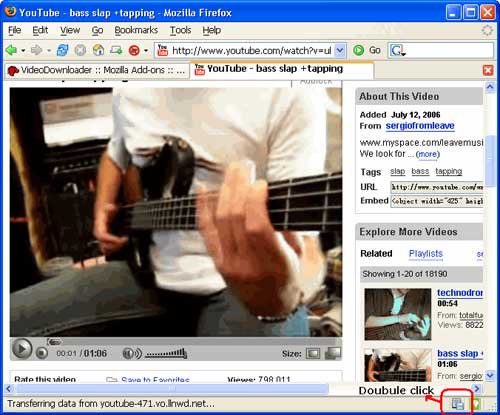
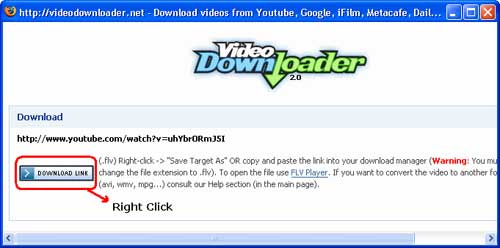
Step2. After installing videodownloader, restart Firefox. In the bottom right, you'll see a little box. Go to the video you want to download, double click that little box, and select download link. Then you could download the streaming video you want. (Note, you have to rename the file extension from “html” to “flv”)

free download youtube guide - download youtube to iPod, youtube downloader, convert youtube to zune

free download youtube guide - download youtube to iPod, youtube downloader, convert youtube to zune

You have to rename the file extension from “html” to “flv” when you save the link. (Make sure your compute is show file extension)

free download youtube guide - download youtube to iPod, youtube downloader, convert youtube to zune

3. How to transfer youtube video to iPod PSP Zune Phone and other MP3/MP4 player?
For iPod: if your download youtube video already is MP4 video, drag it to your iTunes library (or click iTunes "file" -> "add files to library"), plug in your iPod to computer, and then select your iPod device on the left panel of iTunes, click "Movies" tab, check the videos you want to sync and click "Apply", done.
If your downloaded YouTube video is not MP4 video, you have to convert it to iPod format at first, take a look at this free iPod converter, it embeds an iPod manager that can convert and transfer YouTube video to iPod directly without iTunes, here is a step by step guide about it:
http://www.aiseesoft.com/article/ipod-movie-converter.html
For PSP: PSP is the same as iPod, they are both support MP4 video, if you have converted the YouTube video to MP4 with above method, you can copy the MP4 video directly to the "Video" folder in your memory stick (if there is no "Video" folder in your memory stick, you can create by yourself). If your downloaded YouTube video is not MP4 video, you have to convert it to PSP format at first, take a look at this PSP Movie converter, it t can convert and transfer YouTube video to psp directly, fully support all firmware version of PSP, here is a step by step guide about it:
http://www.aiseesoft.com/article/psp-movie-converter.html
For Zune: Zune can play WMV video, if you have converted your download YouTube video to zune format, then open the Zune software, drag the wmv video to your Zune software, plug in your Zune to computer, and then Zune software should detect your Zune automatically, then click "Start to sync", the video will be transfered to Zune player.
If your downloaded YouTube video is not WMV video, you have to convert it to Zune format, take a look at this free Zune converter, it can convert video to Zune format, it can also convert YouTube video to MP3 for other player, here is a step by step guide about it:
http://www.aiseesoft.com/article/zune-movie-converter.html
For cell phone: Cell phone accepts 3GP video and MP4 video, just convert your downloaded YouTube video to the proper format, connect your cell phone to computer, and then copy the videos to your cell phone memory card. If you don't know how to convert video, take a look at this step by step guide:
http://www.aiseesoft.com/article/total-video-converter.html

2010年9月19日星期日

How to Put Youtube videos on iPod, PowerPoint ,etc for free

This guide will show you how to download video content from numerous sites (youtube, Google Video,etc) and convert videos to iPod on Mac using two methods. It is pretty simple for according to the following statements.
iPod, iPhone accepts mp4 video detail as follow: MPEG-4 video, up to 2.5 Mbps, 640 by 480 pixels, 30 frames per sec., Simple Profile with AAC-LC audio up to 160 Kbps, 48 kHz, stereo audio in .m4v, .mp4, and .mov file formats.
PPT accepts: mpeg, asf, avi, wpl. wm, wmx, wmd, wmz, dvr-ms, mpv2, mp2v, mov, etc

1. Using free online YouTube converter
The first method is using a website to convert youtube video to iPod or powerpoint for free, Of course, you can also convert other media videos.
This is good for you when you only have one file to convert or you can't install the programs necessary for conversion. My favorite is zamzar converter.
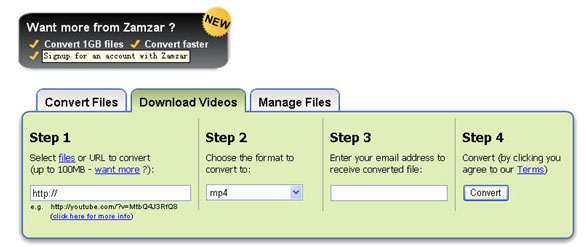
You don't even need to download the video file to your computer. Enter the URL of the video to the box, choose the format you want to convert youtube videos to (iPod accepts mp4 video. So choose the format 'mp4'), and Enter your email address , then click 'convert'. The output file will be sent to your mailbox after the conversion.

zamzar converter

Another free online converter I like is media convert.
But you can't convert big video files using free online converters. It is up to 100MB. And the quality of the output files is so.

Tip: How to put pictures and photos to iPod, iPhone
1. Download iTunes from http://www.apple.com
2. Plug your iPod in to iTunes
3. Make a folder on the computer with all of the photos you want on your iPod (Name it something you with remember!)
4. Click on the iPod icon in iTunes
5. Click on the Tab "Photos" on the top.
6. Check the box "Sync photos from:"
7. Chose the folder all of your photos are in.
8. Click apply, then eject your iPod and enjoy your photos!

2. Using iPod video converter for Mac
The Second Method is using iPod video converter software to convert Youtube videos to iPod on Mac for free.
For this you need the following:
1. A video to download.
2. iPod Video Converter (Mac OS X version / Windows PC version).
Step 1: Download the videos
The downloaded file might be two formats: avi and flv . iPod and iPhone only support mp4 format. So you need to convert the videos to MP4 files.
PowerPoint understands .avi. If it the file is .avi, you do not need to convert it to put it on PPT. But most videos will probably be in .flv format. You can't embed Flash in PowerPoint. These will need to be converted to .mpeg or .avi format.
To do these conversions, you will need video converter which is capable of doing the conversion.

Step 2: Converting The Video to iPod, iPhone, Powerpoint, etc
Great, now you have located the file and downloaded it to the desktop. What's next? Well, you need to open up your freshly installed Aiseesoft Video Converter for Mac.
Click the "Add File" button to add the video files that get from the video sites to the program by automatically selecting an appropriate encoder for the video files you want to convert to.
Select the output format on the output format list. Aiseesoft iPod Video Converter for Mac can convert videos to almost all popular video players like iPod touch, iPod classic, iPod nano, iPhone, Apple TV, PSP, PS3, Youtube (web), Creative Zen, iRiver PMP, Archos, various video mobile phones and many other digital video and audio players. If you want to put videos to PowerPoint, you need to convert the videos to avi or mpeg formats.
This process only lasts a few minutes at the most.
If you want to convert several videos into one file, what you need to is to click'merge into one file' option . As we know, the mp4 format is high conpatible with iPod, iPhone, Apple TV, PSP, so it the best format for converting to iPod, iPhone, etc.

2010年9月16日星期四

Motorola Ingests Aloqa

Motorola’s Motoblur social networking service will soon support location awareness, thanks to the company’s acquisition of Aloqa today.

Motorola (MOT) said this morning that it has purchased the developer of location-based software for an undisclosed sum and plans to use its technology to alert Motoblur users to activities, events, stores and restaurants in their vicinity. Aloqa will be integrated into Motorola’s Mobility division, which the company plans to spin off in the first quarter. Terms of the deal weren’t disclosed.

2010年9月14日星期二

The New Twitter.com Is a “Consumption Environment”. Translation: Twitter is a (Reluctant) Media Company

Twitter’s new Web site has lots of cool features and gizmos. But they’re all supposed to do one thing in particular: They’re meant to encourage you to spend more time on Twitter.com, where the company can show you some ads.

The Twitter folks don’t exactly present it that way, of course. I talked to CEO Ev Williams and COO Dick Costolo earlier today, and they both repeated the mantra that the new Twitter is supposed to reflect the fact that Twitter is a “consumption environment”, where it’s just fine to read (or watch videos or look at pictures) instead of write.

In Williams’ words: “We’re trying to get people to understand that they don’t have to Tweet if they want to get value out of Twitter”.

Which is another way of saying that Twitter is a media company: It gives you cool stuff to look at, you pay attention to what it shows you, and it rents out some of your attention to advertisers.

And that’s the real parallel with Facebook here. Not that both have inline video in the timeline or other design similarities, but that both companies started out trying to avoid the advertising business, and that both of them have ended up embracing them.

Nothing wrong with that, of course!

Speaking of which, how are Twitter’s new ad products coming along? Just great, says Costolo, who told me about engagement rates that pushed into the “double digits” for some of the company’s “Promoted Tweets” – and single digits for most of them. Which is way, way higher than traditional Web ads.

And Costolo says Twitter’s “Promoted Trends” product has been able “boost the conversation” around given Twitter topics by as much as 600 percent.

The informal feedback I’ve heard is that advertisers are quite comfortable with “Promoted Trends,” since they function much like conventional display ads. But less so with the “Promoted Tweets”, which are sort of like Google’s AdWords but not really — unlike Google (GOOG), Twitter has very little idea of what’s on your mind.

But we’ll see: Costolo says Twitter will start pushing out the paid Tweet ads more aggressively in the next few months.

2010年9月13日星期一

Using iMovie to edit videos on Mac for free

This is a tutorial which explains the process of editing videos on a PC using Windows Movie Maker and editing videos on Mac using iMovie. This tutorial will be a concise explanation of how to editing videos for free. Then share your movie via the Web, e-mail, or CD. Using dvd burner you can even take movies you've made and turn movies into DVDs.
You can also save your movie back to the video tape in your camera to play back on a TV or on the camera itself.

This tutorial includes three parts, this is part two:
Part 1. Using Windows Movie Maker to edit videos on PC for free
Part 2. Using iMovie to edit videos on Mac for free
Part 3. A table that compares free video editors.

iMovie '08 makes viewing and working with video as intuitive as enjoying your photos. A built-in library automatically organizes your video, so all the clips you've captured and movies you've created are just a click away. With its revolutionary interface, iMovie makes it quick and easy to browse your library and create new movies. And iMovie is built for sharing. In just a few steps, you can add movies to your website, publish them on YouTube, and create versions for iPod, iPhone, and Apple TV.

iMovie - edit video

Step 1, Create an iMovie Project
Before doing anything in iMovie, you must create and title a new default folder as well as title and save our new project.
Step 2, Connect DV Camera
Make sure the camera is in PLAY (VCR) mode
Step 3, Add video
When your viewer says "Camera Connected," click the "Import" button. iMovie will play and import your digital video. When you wish to stop importing, click the "Import" button once more. Drag your imported clip(s) from the clips pane to the editable timeline along the bottom of the iMovie interface. iMovie treats deleted files differently that most other programs. If you delete a clip you CANNOT get it back.
iMovie will also allow you to import the following file formats:
3gp, AVI, DAT, MOV, MP4,MPG
If your videos are not the format that is compatible with iMove such as FLV and M4A, AIFF, AAC, you can use the video converter for Mac to convert the video first.
Step 4, Edit video
To Split a Clip: Place the cursor beneath the viewing window at the place in the movie where you want to split the clip into two. Go up to the "Edit" menu at the top, and select "Split Video Clip at Playhead."
To Crop a Clip: Drag the little triangles beneath the viewing window timeline to the desired in and out points. Go to the "Edit" menu at the top and select "Crop."
To add effect: Select "Effects" from the menu below the clips pane. Select a clip from the editing region to add an effect to it. Select an effect. Adjust the parameters of the effect beneath the preview window. The effect should automatically preview in the preview window. If you adjust the parameters of the effect, click "Preview" again to load the new effect settings. Click "Apply," and wait for the effect to render. You can monitor the effect rendering by the red progress bar that occurs within the clip the effect is being added to in the editing region. Save your work.
Step 5, Save your project
From the main menu, go to File > Save Project.
If you want to convert the movies made by iMovie to other video format, you can use this video converter for Mac. If you want to burn the movies made by iMovie to DVD, use DVD Creator for Mac.

MKV file, MLV player, Free MKV Converter and MKV Burner on Mac OS

What is MKV file?
.MKV is a container format developed by Matroska. Matroska file types are .MKV for video (with subtitles and audio), .MKA for audio-only files and .MKS for subtitles only. The most common use of .MKV files is to store HD video files.It can hold different types of video and audio. For example, there might be an .avi file contained within the .MKV file. High Definition movies in 720 or 1080 pixel width format are often encoded and packaged as a Matroska format video with a .MKV file extension.

How to play MKV file s on Mac?
I recommend trying either MPlayer OS X or VLC Media Player. They are all free.
These excellent and free multimedia players can tackle many of the video formats unknown to QuickTime. They contain a decoder to decode the .MKV files. They will also play many of the formats you will find inside the .MKV file.
How to convert MKV to DVD, MP4, AVI, etc on Mac for free?
I recommend VisualHub to convert MKV to MP4, AVI, etc on Mac. It can convert MKV to iPod Nano, convert MKV to iPod Classic, convert MKV to iPod touch , convert MKV to iPhone, convert MKV to Apple TV, convert MKV to Xbox 360, convert MKV to PSP, convert MKV to PS3, AVI, convert MKV to MP4, convert MKV to MPEG, convert MKV to Flash, convert MKV to WMV and convert MKV to DVD.
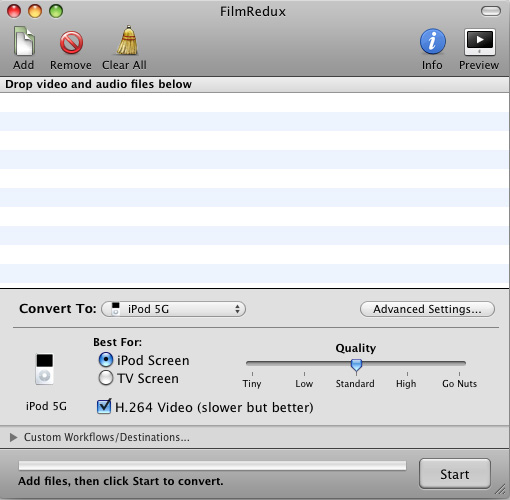
Techspanion (The developer of VisualHub) has closed shop and after an outcry from fans, VisualHub, the popular video converter on Mac OS X have now gone open source. It has got new name Film Redux. You can download its open source and built it by yourself. Here is a tutorial: How to build iSquint and VisualHub?

Convert MKV on Mac

Step 1, Run Film Redux (VisualHub)
Step2, Load MKV videos
Insert your MKV files from your Mac .Click the Add files button to load your MKV videos.
Step3, Convert MKV to MP4, AVI, iPod, etc.
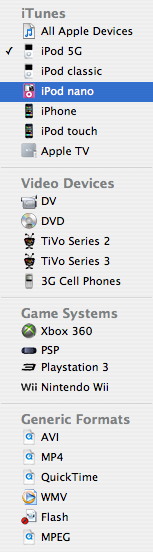
Here is the list of the formats that VisualHub can convert MKV
They are iPod Nano, iPod Classic, iPod touch , iPhone, Apple TV, Xbox 360, PSP, PS3, AVI, MP4, Quicktime, MPEG, Flash, WMV. Choose the format you want to convert MKV to and click Start.

VisualHub - convert MKV list

That’s all. Now, we have converted MKV to iPod Nano, iPod Classic, iPod touch , iPhone, Apple TV, Xbox 360, PSP, PS3, AVI, MP4, Quicktime, MPEG, Flash, WMV.
How to convert DVD to MKV on Mac for free?
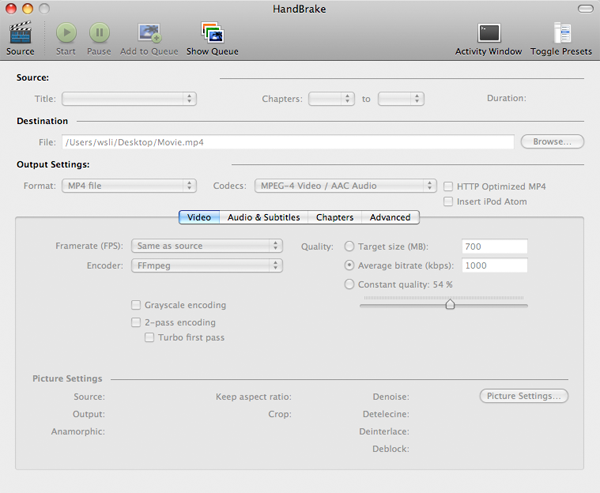
I recommend you use Handbrake to you to convert DVD to MKV on Mac . HandBrake is an open-source, GPL-licensed, multiplatform, multithreaded DVD to MPEG-4 converter. It can convert DVD to MKV on Mac eaisly and for free.
Step 1, Download and Install Handbake
Download the free program Handbrake. Check to see if your Mac has the system requirements; click on the apple icon in the top left corner and About this Mac. Then install HandBrake.

Handbrake - convert DVD to MKV

Step 2, Run it and insert DVD.
Select your favorite DVD disk and put it in the disk drive. Then run HandBrake and click Detected Volume to choose source. Click Open and you will be able to see many titles included in this DVD disk. Choose the longest title if this is a movie DVD, or choose your favorite chapter if this is an episode.
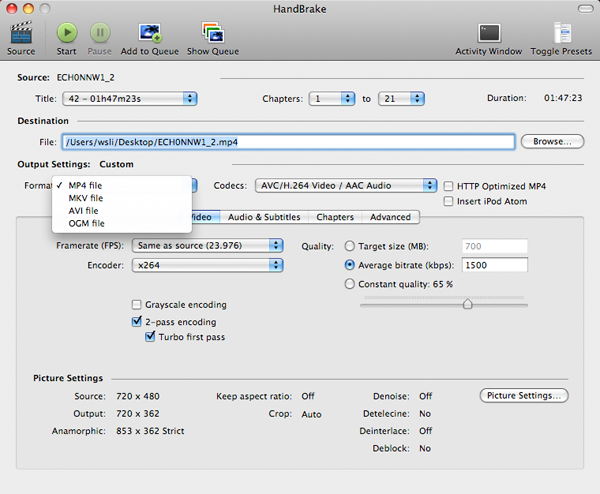
Step 3, Select Output setting
Select MKV files as output format and select other settings such as video quality, audio track, Audio Sample Rate, bitrate, Picture Settings, etc. Handbrake - select output setting

Step 4, Rip DVD to MKV on Mac
Check all settings and click Rip. A progress bar will show its ripping speed; depends on many factors like speed of Mac, filesize, etc.
That’s all. We have converted DVD to MKV for free now.
Note: Handbrake can not rip encrypted DVD movies. If you want to rip encrypted DVD movies, you can use this DVD Ripper for Mac. You can also use Mac the ripper which is free.

2010年9月11日星期六

Where to download free iPod Videos

Free iPod Videos, Legal nano Videos, Places to get iPod, iPod nano Videos
1. The Internet Archive is great for old videos and movies. The Archive’s 256Kb MPEG4 Downloads are unfortunately not iPod-ready as previously thought. The format’s correct, but there are audio pops when played back on the iPod. You’re probably better off downloading the MPEG2 videos anyway. The 265Kb files were pretty low-res and it’s a snap to re-encode the MPEG2 files for your iPod with Aiseesoft Video Converter for Mac.
2. The Chronic..What?..cles of Narnia.
3. The iTunes Music Store’s podcast section is loaded with free videos.
4. Channel 101 and Channel 102 offer up some brilliant downloadable videos.
5. PodGuide.tv
6. Channel Frederator offers up some of the best short animations anywhere.

Illegal Places to Get iPod Videos
You’re probably familiar with most of these options, but if you aren’t then they’re new to you!
1. Search the BitTorrent network for iPod.
2. Check Podtropolis
3. The Pirate Bay!
4. Seriously, you should probably stick to LEGAL sources for iPod videos.

Downloading Free Music Without Fear
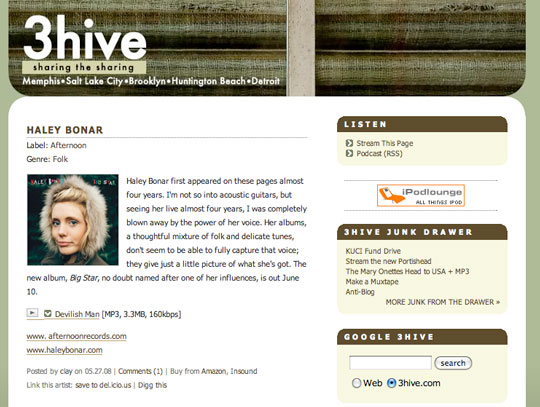
3hive.com: A great blog-style listing of free iPod-compatible songs offered by record artists and labels in an attempt to entice full-album purchases. Songs are in the MP3 format in a variety of bit-rates generally ranging between 128kbps and 192kbps.

Download Free music

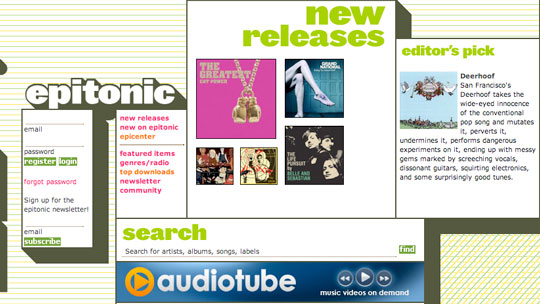
Epitonic.com: Offers highly professional, artist-focused presentation of free digital music downloads in MP3 format, with biographical details and short previews for songs across a narrow collection of genres.

Download Music

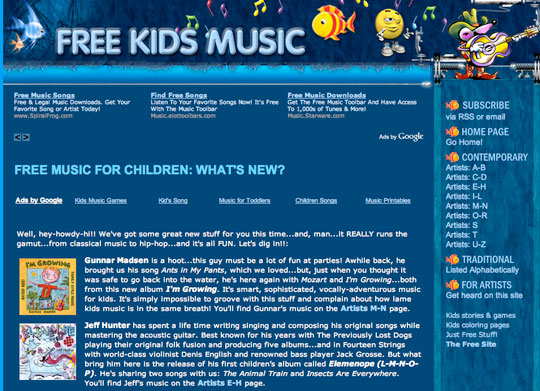
Freekidsmusic.com
: Along with its sister site Freechildrensmusic.com, provides a large variety of free MP3 format songs for young listeners.

Download MP3 Music

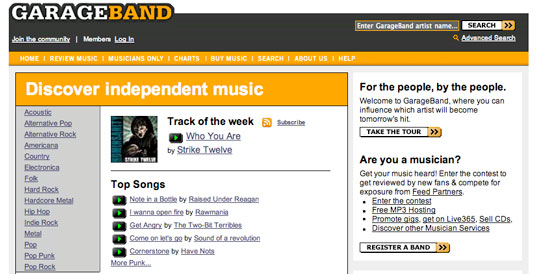
Garageband.com: Not to be confused with Apple’s music creation application of the same name, Garageband.com collects and provides popularity charts of independent music, featuring over 125,000 bands.

Freekidsmusic - Download music

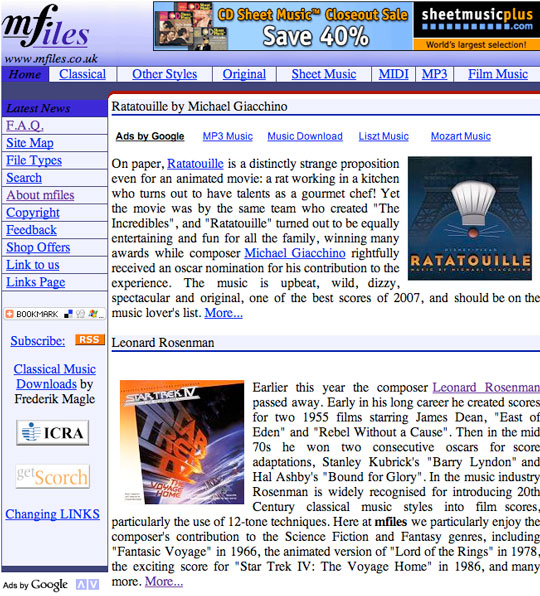
MFiles.co.uk: Provides free downloads of well-known classical music in MP3 format.

MFiles.co.uk - Download classic music

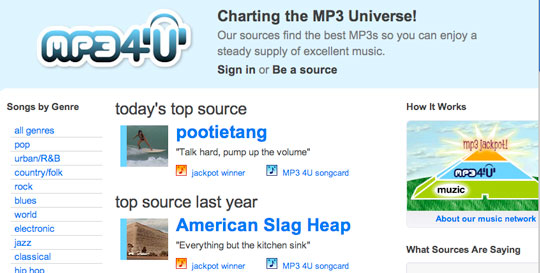
MP34U.com: A clean, professionally designed interface to individual free songs sorted by genre, selected by site “sources” who pick and post only music they like.

MP34U.com - Download music

Music.download.com: The music-dedicated expansion of popular software download site Download.com offers free full-length MP3 songs across all major genres, even including Children’s, Spoken Word, Comedy, Folk and Religious tracks. Most tracks are indie.

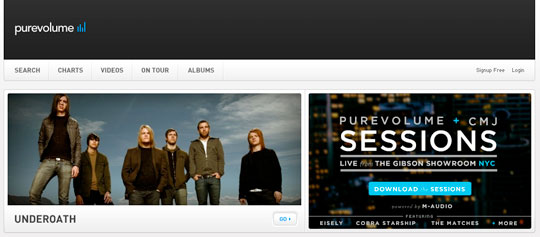
PureVolume: Offers over 100,000 free songs for download, and captured many of the best users of what used to be MP3.com (before it was scrapped, sold, and completely changed).

PureVolume - Download music

RCRDLBL: An exclusively-online record label which provides free MP3 downloads of exclusive music from emerging artists.
Of course, if you can’t find the song you’re looking for on one of these free sites, you can always visit Apple’s iTunes Store or Amazon’s MP3 Store and make a purchase there. Though these aren’t as cheap as some of the questionable international sites listed in the prior section, they are an entirely safe and legal way to get access to over a million songs.

Free Music with a Catch: Ad-supported Sites
Years ago, the most common source of free music for your listening enjoyment was the radio. Radio stations were able to broadcast music from a wide range of artists at no cost to the listener. Instead they made money through advertising services. The “price” a listener paid to listen to free music in those days was having to endure listening to advertising interspersed with the music.
Recently, some web sites have begun to offer a similar business model: You can download free music, but this is either done through a client or web site with very proactive advertising (as opposed to the standard advertising on most web sites), or the music tracks themselves contain brief advertising spots placed at the beginning of each track.
Unfortunately, most of the sites that offer these types of services, such as SpiralFrog and Ruckus Networks (for U.S. college students) only offer their downloads in a Windows Media Audio DRM-protected format that is incompatible with iTunes or the iPod (or ironically, even the Microsoft Zune). Further, these tracks may not be burned to a CD. These sites are therefore generally of no value to iPod owners.
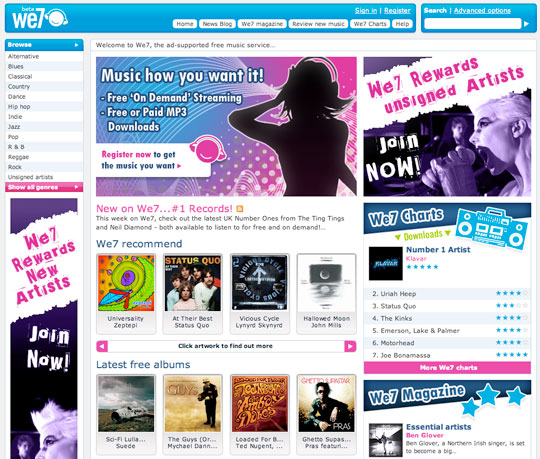
A notable exception is We7, a UK-based ad-supported site whose founders include Peter Gabriel. We7 provides downloads in a DRM-free 192kbps MP3 format, with the catch being that each track has a 6-12 second advertisement grafted onto the front-end. Ad-free tracks may be purchased outright, and We7 also offers a credit system whereby you can convert some of your tracks to ad-free versions once they have been in your library for 28 days or more. Since these tracks are in an open MP3 format, they can be played on just about any digital media player available.

We7 - Download iPod Video

Although primarily a paid subscription music service, eMusic.com provides a free ad-supported music service as well. In this case, the advertising is directed at the user via the ALOT toolbar which is installed in your web browser (compatible with IE6, IE7 and FireFox 2 only).

Downloading Free Podcasts: Radio for your iPod, iPod nano.
In addition to free music for your iPod, you can also download “Podcasts,” short radio-style programs produced by individuals and companies around the world. Many of these podcasts include music selections, and some are even dedicate to showcasing independent artists and providing music commentary and review.
While podcasts were originally organized in several independent podcast directories out on the Internet, the ITunes Store now includes an extensive catalog of podcasts which you can subscribe to directly via iTunes completely for free. Podcasts available through iTunes include both audio and video podcasts, and cover an extensive range of topics. Basically, anybody who has anything to say on a regular basis can create their own podcast and get “on the air” via iTunes quite easily.
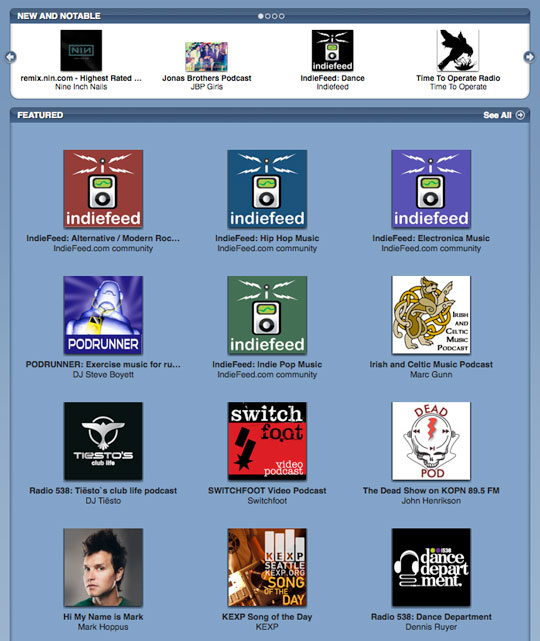
A selection of music-specific podcasts can be found right in iTunes in the Music Podcasts Directory, which includes a comprehensive selection of music-related podcasts from music reviewers, traditional radio stations, and even directly from both small independent and more mainstream artists. So it helps you download your favorite iPod Videos

Music Podcasts Directory -Download iPod Video

2010年9月10日星期五

How to use DVD decypher to rip DVD to iPod, PSP, PowerPoint etc on PC

1. Use DVD decypher to rip DVD to VOB files.
DVD Decrypter is a free DVD ripper that can create backup disc images of the DVD-Video structure of DVDs. It can be used to image any DVD, but controversially it is especially useful for decrypting copy-protected movies. The program can also burn images to disc. CSS decrypting software (such as DVD Decrypter, AnyDVD, Smartripper, and DVD Shrink) allows a region-specific DVD to be copied as an all-region DVD. It also removes Macrovision, Content Scrambling System (CSS), region codes, and user operation prohibition.
Step 1. Install DVD decypher
Download it from: http://www.dvddecrypter.org.uk/. To install DVD decypher, simply mount the .exe archive by double-clicking it, and setp by step to click "next".
Step 2. Rip DVD using DVD decypher
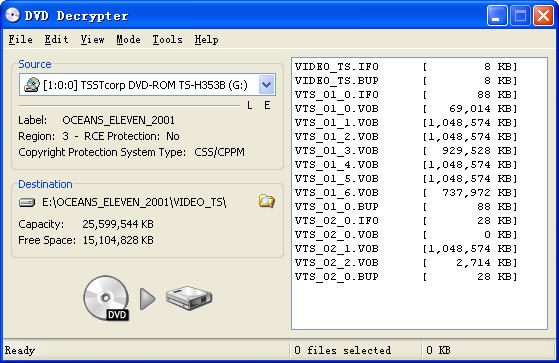
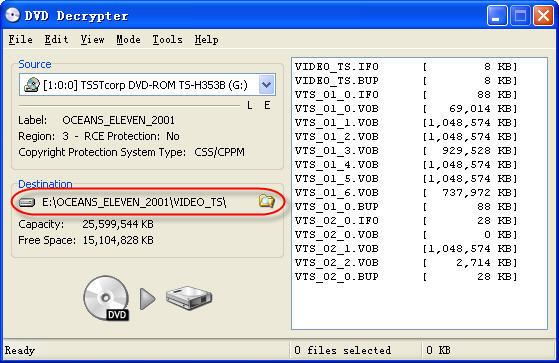
After you insert a movie DVD into your DVD burner or player, launch DVD Decrypter. In the window to the right you will see all the files on that DVD.DVD decypher

NOTE: If the files are not shown in the right window pane, on the Task Bar, click on Mode and click on FILE F to place a checkmark beside it as shown in the picture above.
You can choose the output folder by:
Under "Destination", click on the Folder out to the right of the movie path, locate the folder you want to rip the DVD to, then double left click on folder to open it then click OK.

DVD Decrypter

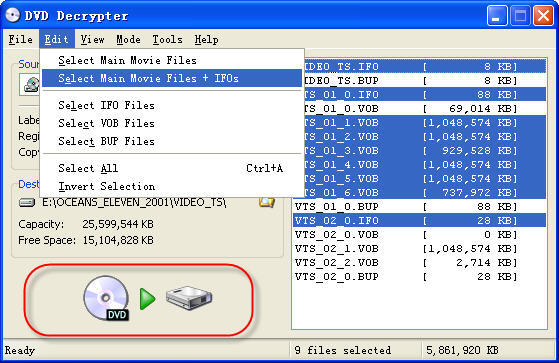
You can select to rip the whole DVD or choose to rip a segment of the DVD.
Explanation:
.IFO = The IFO files includes information such as chapters, subtitle tracks and audio tracks.
.VOB = The VOB files contains the actual video, audio, subtitles and menus.
.BUP = Backup files of the IFO files.

DVD Decrypter - file explanation

Step 3. Finish conversion
Click on the Hard Drive Symbol to the right of the green arrow. After clicking on the Hard Drive Symbol, you will have the screen which shows the decryption in progress.
After conversion by this free DVD ripper, you can find the VOB files in the "Destination".

2. Convert the .VOB files to video formats compatible with iPod, iPhone, PSP, PowerPoint, etc.
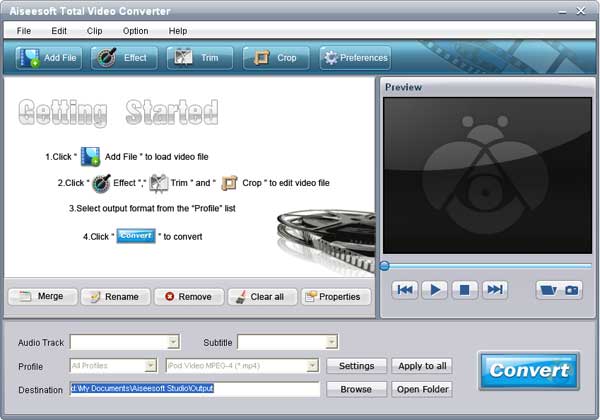
Now you need to use Aiseesoft Total Video Converter to convert .VOB files to formats compatible with popular players such as iPod, iPhone, Apple TV, PSP, etc. You can also upload the converted files form DVD (.VOB) to YouTube, Myspace, and other video sharing site. YouTube accepts a wide range of video file formats such as .WMV, .AVI, .MOV, and .MPG, etc. PowerPoint understands mpeg, asf, avi, wpl. wm, wmx, wmd, wmz, dvr-ms, mpv2, mp2v, mov, etc. If you want to put the VOB files on PowerPoint, you can choose .avi as output format.
Step 1. Download and install Aiseesoft Total Video Converter.
Step 2. Run Aiseesoft Total Video Converter, click "Load DVD" button to import the .VOB files, choose the output format, then click "Start" to start the conversion, the default setting works perfectly.

Total Video Converter

Step 3. After conversion finished, you can use transfer the converted files to the players.
For example :
use iTunes to transfer the mp4 video to your iPod, here are the steps:
1). Open iTunes and click "File" to add your converted videos to iTunes library.
2). plug in your iPod to computer, then iTunes will detect your iPod as a device.
3). Select your iPod device on the left panel of iTunes, click "Movies" tab, check the videos you want to sync and click "Apply", done.
Use Zune software to transfer wmv video to Zune player, here are the steps:
1). Install Zune software, you can download it from here for free: http://www.zune.net
2). Plug in your Zune player to computer
3). Drag the wmv video to Zune library
4). Click "start sync" to sync your Zune. OK.
Tips: Aiseesoft DVD Ripper can rip DVD to all popular video and audio formats directly. It can rip DVD to videos including MP4, AVI, M4V, 3GP, MPG, MPEG, FLV, etc; and it can convert DVD audio to MP3, M4A, AAC, AC3, etc. And it is more easy to use than Mac the ripper. You can have a try.

2010年9月8日星期三

Google’s New Search Won’t Boost Revenues in an Instant

Google’s Instant is very fast, but the digerati are almost as quick: The search giant just rolled out its new real-time search feature (see John Paczkowski’s excellent liveblog), but Twitter’s shoutier members have already assessed it.

Conclusions: It’s really cool! And also, it’s totally, definitely, going to kill someone!

Exactly who that will be is unclear: Maybe it will be Microsoft’s (MSFT) Bing! Maybe it will be Twitter, which is supposed to be “real time,” too! Or maybe it will be the dark arts of search-engine optimization!

Maybe! Or maybe it will be more like Apple’s (AAPL) Ping, which was declared a MySpace Music killer before Steve Jobs finished presenting it last week. Now that people have actually used Ping, though, it seems less homicidal and more benign/inept.

In any case, one thing Google Instant won’t do is make any significant impact on Google’s P&L. So says J.P. Morgan’s (JPM) Imran Khan, in a note he just published (almost instantly!). His big takeaways:

It won’t make Google (GOOG) any more money, in the near-term:

We think this new product will have little to no impact on monetization rates. We see this product as an improvement to user functionality and think that its impact on advertisers will be limited. All of the ads typically associated with the suggested search appear as normal as the query is being entered. No changes have been made to serving or ranking. Although the constant updates to the results page may result in more ads served as a person types a query, this should only impact CTRs not the number of clicks as a user will not likely click on an ad until the appropriate results appear.

But it won’t cost Google anything, either:

Management expects the impact on costs to be in line with their existing search cost growth curve. Engineers adjusted the product to have as minimal an impact on servers and data centers as possible. Management expects the impact to be in line with the existing search cost growth curve.

But! If people like it (it really is cool), and that prompts them to search more, then that’s a good thing for Google, long-term.

OK! Back to the killing fields!

2010年9月7日星期二

Nokia to Kick-Start the iPhone “Fightback” With E7

Next week is an important one for Nokia. At Nokia World 2010, the company is expected to officially unveil the smartphone that will, in the words of embattled CEO Olli-Pekka Kallasvuo, “kick-start Nokia’s fightback” against Android and the iPhone. That device–the E7–is rumored to be a touchscreen QWERTY handset running Nokia’s Symbian^3 OS, and there’s a lot riding on it, including Kallasvuo’s tenure as Nokia’s CEO. Its debut follows reports that the company has been looking to replace him following two consecutive quarters of lowered profit outlook and declining relevance in the smartphone market.

These days Nokia’s (NOK) struggles in the top end of the market are almost clichéd, and its failure to develop a compelling offering weigh on it more heavily with iPhone 4 and various Android handsets winning more and more consumer mindshare. That said, Kallasvuo insists Nokia will soon recapture its lost glory. “We are approaching the end of this painful product transition at the high end of our product portfolio,” he said during the company’s last earnings call. “[Our new smartphones] will mark the beginning of our renewal. As we go forward I believe we will regain high-end leadership in our industry.”

2010年9月5日星期日

Texas AG Probing Google’s Searches

The Texas attorney general’s office is conducting an antitrust review of Google Inc.’s core search-engine business, a sign of widening government scrutiny of the Web giant.

Texas’s top prosecutor has inquired about allegations by several small companies that Google unfairly demoted their rankings in search results or the placement of their advertisements on the search engine, Google said Friday.

The Internet giant disputed the allegations, which have been reported previously, tracing them to three companies with ties to rival Microsoft Corp.

Read the rest of this post on the original site »

How to Rip DVD to iPod Touch, iPod Nano Converter on Windows, Vista and Mac

The software you will need: DVD to iPod Converter Windows(DVD to iPod Vista) and DVD to iPod for Mac.
This guide will show you how to rip DVD to iPod Touch with these iPod Nano Converter.
The following video and audio formats are supported by iPod Touch/iPod Nano: H.264, MPEG-4, MP3, AAC, WAV. So for you enjoy DVD on iPod, you need to convert DVD to these formats.

Part One: How to rip DVD to iPod Windows, DVD to iPod Vista
Part Two: How to rip DVD to iPod Mac

Part One:
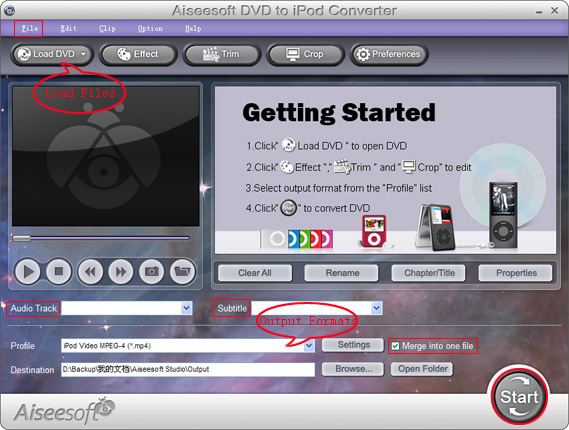
1. Download Aiseesoft DVD to iPod Converter Windows(DVD to iPod Vista), then follow the instructions to install and run it.

iPod Nano Converter

2. Click "Load DVD" to load DVD, DVD Folder or IFO files.
3. Click "Profile" to set the exact output format. Click "Settings" to set the exact parameters for your iPod. Select "Audio Track" and "Subtitle" for the output file.
4. After finishing all the pre-settings, click "Start".

Part Two:
1. Download Aiseesoft DVD to iPod Mac (Intel, Power PC). Install and run it.

DVD to iPod Mac

2. All the process are the same as DVD to iPod Windows.

Tips:
1. Click "Effect" to make special effect for your video.
You can adjust Brightness, Contract, Saturation of the video and the adjust the volume of music.
2. "Trim" function is for you to select the clips you want to convert.
3. Cut off the black edges of the original video and watch in full screen on your iPod using the "Crop" function.
4. This software allows you to join several DVD chapters into one clips by using "Merge into one file".

2010年9月3日星期五

How to clone DVD to DVD folder for Mac

The DVD protection technology makes it dead difficult to clone DVD to DVD folder for Mac, since the protection of DVD must be removed, can you finish the task to clone DVD to DVD folder.

Aiseesoft DVD Copy for Mac is very useful, and simple to use to clone DVD Mac, But this software only suit for the Mac type computer. Go ahead and download this DVD Copy for Mac.

Buy NowFree trial(Intel PPC)

To see how the process of clone DVD to DVD folder for Mac, follows the following steps:

Select clone DVD Mode: Choose “Full Disc ” button or “Main Movie Mode” button according to your needs.

Select souce: Select DVD-video disc here to clone your DVD.

Choose target: Choose DVD folder to continue.

Start clone:Click”Start” to begin your DVD Clone Mac.

learn more on: how to edit DVD file with DVD Copy for Mac.